Following the schedule
The schedule shows what is dancing now, what is next, and which results are out. It is on the event’s Schedule tab on the website, and on the competition’s Schedule tab in the Vote4Dance app. Both update by themselves while the competition runs.
What the schedule shows
The schedule is split into blocks, each with a start time and a name, such as “11:05 - Juv 1 E2 1/4”. Tap a block to see its rounds. Tap a round to see who dances in each heat and, once they are out, the results.
The dot after a block tells you where it stands:
- Red: a round in the block is dancing now.
- Orange (yellow in the app): some of the block’s results are out, and some are still to come.
- Green: all results in the block are out.
- Grey: the block has not started.
When the event has more than one day, pick the day at the top. The schedule opens on today.
Times on your phone
Each round shows the time it is planned to start, so you know when to be in the hall. On a phone held upright the website shows the time where the block number used to be. You no longer need to turn the phone sideways to see it. The app shows both the time and the block number.
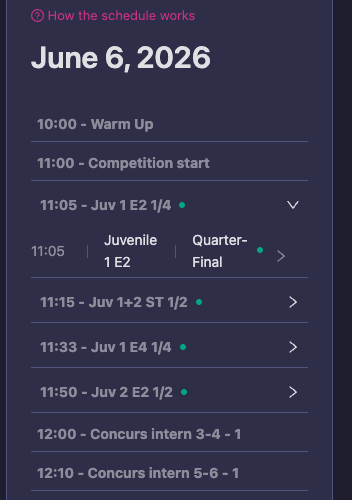
Finished blocks are grey and keep their green dot.
Planned times move when the competition runs ahead or behind. When the organizer has chosen not to show times, you see the block number instead.
Finished blocks turn grey
Blocks whose results are all out turn grey, and so do the notes above the block that is dancing now, such as “Competition start” or a lunch break. The block that is dancing, and everything after it, stays bright, so you find your place in a long schedule at a glance. The green dot stays, so you can still see which results are out.
Earlier blocks fold away
Once a day is under way, finished blocks you have already passed are folded away, so the schedule opens near what is dancing now. The two most recent finished blocks stay, so their results are one tap away.
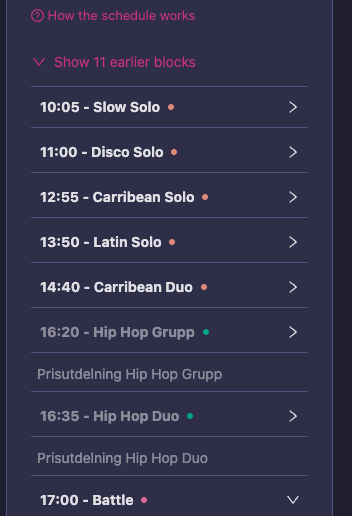
Blocks still waiting for results stay at the top. Then come the two most recent finished blocks, in grey, and the block that is dancing now.
The app works the same way:
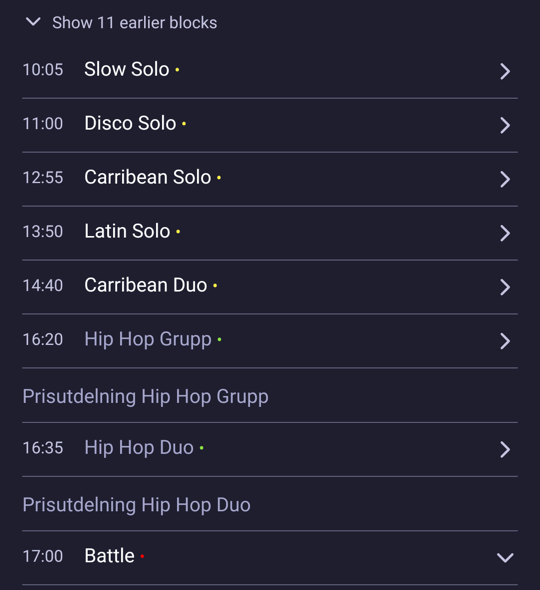
To see the whole day:
- Scroll to the top of the schedule.
- Tap Show earlier blocks. The number in the link tells you how many blocks are folded away.
- Tap Hide earlier blocks to fold them again.
Your choice is remembered for that event on your phone or computer. If you showed the earlier blocks, they stay shown the next time you open the schedule.
Good to know:
- A block that is still waiting for some of its results never folds away, even when later blocks have finished. You can always find it while you wait.
- Nothing folds away on a day that has not started, or on a day where every block is finished.
- Blocks do not disappear while you are reading. A block that finishes turns grey straight away, and folds away the next time you open the schedule or come back to it.