Event setup
Before you can run any competition, you need to create and configure the Event in Manager. This page guides you through setting up the foundational event details.
Important: Prerequisites
Before starting event setup, confirm:
- ✓ You have an Organizer account signed in to Vote4Dance
- ✓ You have Manager access (you can see the Manager link in the menu)
- ✓ Your organization is already created and approved (if required by your federation)
If any of these is missing, see Organizer account creation first.
What this step is for
You’ll create the basic Event record that will hold all your competition data:
- Event name, location, date
- Visibility (public or private)
- Basic event settings
- Upload event branding (logo, images)
This is mostly one-time setup. After this, you’ll configure competitions, rounds, and judging.
Where to go
- Sign in to Vote4Dance
- Look for Manager in the navigation menu (top or sidebar)
- Click Manager
- You should see an Events page or a “Create Event” button
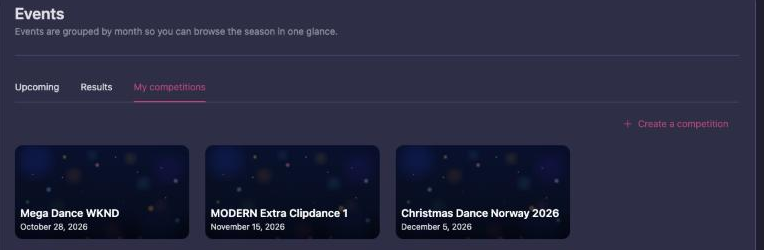
If you have already organized or taken part in a competition, there is a shortcut on the Vote4Dance home page: open the My competitions tab and click Create a competition at the top right. It takes you straight to the new event form.
Step-by-step: Create your event
Step 1: Create a new event
In Manager, create a new event. The form is a short wizard.
First question: How do you want to start?
| Choice | When to pick it |
|---|---|
| Training competition with default settings | “Best for your first event.” Skips the questions you do not need yet and sets the event up with defaults. This is the right choice for a first-time organizer and for anything you are only testing. |
| Competition for a specific federation | “Use this if you already know which federation setup and classes you need.” You then pick the federation, and its rules, classes and license checks apply. There is no approval step: picking the federation is what puts the event on the federation’s Competitions list. |
Then the event details:
| Field | What it is |
|---|---|
| What is the name of your event | The name the audience sees. Note that an event can contain several competitions. |
| Competition organizer | The organizing club or company, as it should be shown. |
| Event duration | Single day or Multiple days, then the date or date range. |
| Country | Used for formats and public presentation. |
| Contact email | Optional, shown publicly. |
| Short description | Maximum 150 characters. |
| Event mode | Practice event or Live competition. Practice mode keeps the lightweight setup; live competition enables reusable competition profiles and billing. |
| Competition level | Optional, and only for a federation event that is not a practice event: a reusable level from that federation. Retired levels are not offered, unless the competition already uses one. |
| Location | The venue. There is a Verify on Google Maps link next to it — use it, because this is what people navigate by. |
| Timezone | Drives every time shown in schedules, on screens and in the app. |
| Billing information | Only for live competitions; not asked for practice events. Who Vote4Dance invoices for the competition; see below. |
Billing information. The step is filled in on the page itself. Your own recent customers are shown as cards, with the competition each was last used for; pick one. For anybody else’s customer, search by name (type at least 4 letters; if more customers match, type more of the name). If the customer does not exist yet, choose New customer: pick Club or company or Private person, and fill in name, email and country. The form starts from the organizer, contact email and country you entered above, and an address can be added. Create saves the new customer and the competition in one press. A live competition cannot be created without a customer, and cannot be published without billing information.
The quick “training competition” path hides the organizer, duration, description, mode and billing questions and fills them in for you. You can change all of them afterwards on the event’s details page.
What gets created with it. A new event does not arrive empty. You get a floor called Main floor (see Floors), one screen, a set of default cafe products, and a starting schedule for the day with Doors open and Competition start blocks. Classes, rounds, judges and teams are yours to add — see Competition setup.
Step 2: Event status
An event has four statuses, and Change status moves it between them:
| Status | What it means | Action that gets you there |
|---|---|---|
| Hidden | The event exists but nobody outside your team can see it. This is where it starts and where you build it. | Revert to hidden |
| Published | The event is public: it can be found, and registration can open. | Publish competition |
| Closed | The competition is over. For a federation event, closing is what triggers promotion-point processing — see Post-event and exports. | End competition |
| Archived | Put away for good. | Archive competition |
Two guards stop you publishing too early, and both are worth knowing before you promise a date:
- “Competition needs an image before it can be published.” — upload the event image, see Event image.
- “Competition needs billing information before it can be published.” — only for live competitions; practice events are never billed.
Registration is not a status. Whether people can register is decided by the registration periods you set up, independently of the event being published — see Registration and check-in.
Timeline example:
Today:              Hidden (you are building)
8 weeks before:     Published, registration period opens
Competition day:    Published (rounds run, results publish per round)
After the event:    Closed (ends the competition, triggers promotion points)
Much later:         Archived
Step 3: Event details page
You’ll see several sections on your Event page:
Overview
- Event name, dates, location
- Status and visibility
- Edit button to change any of these
Competitions
- An event holds one or more competitions. Classes, participants, judges and rounds all belong to a competition, not to the event.
Public info
- The short description (max 150 characters) shown on the public event page
Location
- The venue, with a Verify on Google Maps link — use it, this is what people navigate by
Step 4: Upload the event image
Your event needs one picture. It is used on the public event page, on the event cards, in the mobile app and in the emails sent to judges and sponsors — and an event cannot be made public without it.
- Go to the event Overview section
- Click the image box and choose Upload
- Select the image from your computer
What image to use: a landscape 1600 × 900 JPG or PNG with the important part in the middle. Do not upload HEIC photos straight from an iPhone — they cannot be processed.
See Event image for the full guidance, including what gets cropped on each screen and how to convert an iPhone photo.
Common sections in event setup
Overview
The event’s own details: name, organizer, dates, country, contact email, short description, event mode, location, timezone and — for live competitions — billing information, chosen on the page the same way as when the event was created. This is also where the event image and the status live.
Classes
Classes belong to a competition, not to the event, and each one maps to a Federation Class that carries its age and level rules.
You’ll set up classes in Competition setup.
Rounds and judging panels
Rounds live inside a class, and each round is placed on a schedule item and, if you use them, a floor. That is what gives the public schedule, the speaker and the screens their times. See Schedule and conflicts and Floors.
You’ll set up rounds in Competition setup.
Registration & Payment Settings
Fees are not set on the event. They belong to the registration period, which also decides the payment mode (free, invoice, or online through Stripe), the currency and the price ladder. See Registration and check-in.
What you can print
Manager prints from the round and participant pages:
- Start numbers
- Heat lists
- Judging sheets
- Results
- Diplomas — see Customizing diplomas
- The schedule
- Dressing-room lists — see Statistics
- The registration QR poster (“Scan to register”)
Verifying your event is set up correctly
After creating the event:
- The event is listed in Manager, and opens to its details page
- Dates, location and timezone are correct — the timezone drives every time shown to everyone, so check it even for a local event
- The event image is uploaded — without it the event cannot be published
- Status is Hidden while you build, and Published when it should be public
- Problems shows no failed tests
Next steps
After event setup:
- Competition setup — Define classes, rounds, teams, judges and panels
- Users, apps and stations — Give each functionary the app they need
- Registration and check-in — Open registration for dancers
- Test run and venue rehearsal — Prove the setup before the day
- Live operations — Run the competition
Troubleshooting
“I don’t see a Create Event button”
- Verify you’re in Manager (click Manager link)
- Look for Events page or section
- Button might be labeled + New Event or Create Event
- If still not visible, you might not have organizer permissions (see Organizer setup)
“I created the event but it’s not showing up”
- Refresh the page (Ctrl+R or Cmd+R)
- Go to Manager → Events → find your event in the list
- If it’s not in the list, try creating it again (previous create might have had an error)
“I need to change the event name”
- Go to the event in Manager
- Look for Edit button next to the event name
- Change the name
- Click Save
“I set the wrong date”
- Go to event details
- Find Overview or Event Details section
- Click Edit
- Change the dates
- Click Save
“Can I delete an event?”
It depends on your federation’s rules:
- If no dancers have registered: Usually yes, click Delete (if shown)
- If dancers have registered: Usually no — the event is locked. Contact federation admin if you really need to delete it.
Other event modules
The event page has further sections you may want to configure:
UsersandStations: who works the competition and which app each of them gets, plus the shared devices. See Users, apps and stations.Screens: which views the projectors and TVs show, and in which order. See Screens, projectors and venue technology.Voting: enable/disable audience voting.Live: control public live/result visibility behaviour.Sponsors: sponsor setup and sales if enabled for your environment. See Sponsors guide.
Event setup done checklist
- Event name, dates and location are correct
- Event image is uploaded and the status/visibility is what you intend
- Competitions, floors and users are complete
- Schedule pages are built and the published state is intentional
- Problems shows no failed tests
- Public-facing modules are configured as intended
- No error messages on the event page
When you’re ready
Next: Competition setup — define classes, rounds and judges.