Users, apps and stations
Everyone who works at a competition uses one of the Vote4Dance apps. Access is given per app: a person is added under Manager → Event → Users and ticked for exactly the apps they need. A shared device that runs one app without a personal login is a station (Manager → Event → Stations). Judges are neither: they are set up under Manager → Competition → Judges.
The apps
| App | Also shown as | Who uses it | What it does |
|---|---|---|---|
| Manager | “Scrutineer” in Users and on the tile in English, “Sekretariat” in Swedish | The organizer and the scrutineering desk | Everything: event and competition setup, registration, participants, judges, running rounds, results, publishing. A Manager can also open every other app’s data on the server, but see the note below. |
| Supervisor | “Kontrollant” in Swedish | Chief scrutineer, chairperson of adjudicators, federation observer | Results oversight: judge marks and result analysis per round, including results that are not yet published, choose the floor, control the screens. Cannot publish results or change the setup. |
| Speaker | The MC or floor manager | The floor console: current round, lineup and heats, live status of the judges, result reveal for the prize ceremony, the schedule, and what the screens show. | |
| Screens | Whoever runs the TVs and projectors | The fullscreen displays for the audience and the floor: lineups, heats, results, schedule, sponsors and so on. Display only. | |
| Lineup | “Uppställning” in Swedish | The person at the floor entrance | Calls the next heat, marks who is on the floor, keeps the running order. |
| Check-in | “Avprickning” in Swedish; the tile reads “Registration” and the event name (“Anmälan” in Swedish) | The check-in desk | Finds dancers (by name, or by scanning a Vote4Dance ID or a ticket), assigns and prints start numbers, marks arrivals, uses tickets, takes walk-in registrations and sells for cash. See At the door. |
| Cafe | The cafe counter | Products and the live order queue. | |
| Organizer | “Arrangör” in Swedish | The person who sells to the audience | The event Shop: products, orders, dancer admission and the door checklist. See Shop. |
The event overview page shows one tile per app the signed-in person has access to. The dancer-facing pages and public results need no access at all.
Two naming traps:
- “Scrutineer” is the Manager app. The tick box under Users and the tile on the event page are both labelled Scrutineer in English; this page calls it Manager. The federation-level Scrutineer role in this documentation is a description of a job, not a tick box in the competition.
- Manager does not automatically open the other apps. A person with only Manager can do everything from the Manager app, but the Speaker, Screens, Lineup, Check-in, Cafe and Organizer apps each check for their own tick. Give the head of scrutineering Manager plus the apps they will actually open. The last Scrutineer (Manager) on a competition cannot be removed.
Each user can also be given a free-text role title (for example “Chairperson” or “Floor manager”). It is only a label shown in the list; access follows the ticked apps.
Getting a helper in before the day
A helper at the check-in desk or the cafe counter does not need the Manager app, and does not need to wait for the event to open. Their tile is on the event page as soon as they have been given access:
- Under
Manager → Event → Users, add the helper and tick Check-in (for the check-in desk) or Café & sales (for the cafe counter), then press Save changes. - Ask the helper to sign in to Vote4Dance and open your event page.
- Under Functions they tap Registration for check-in, or Café & sales for the cafe.
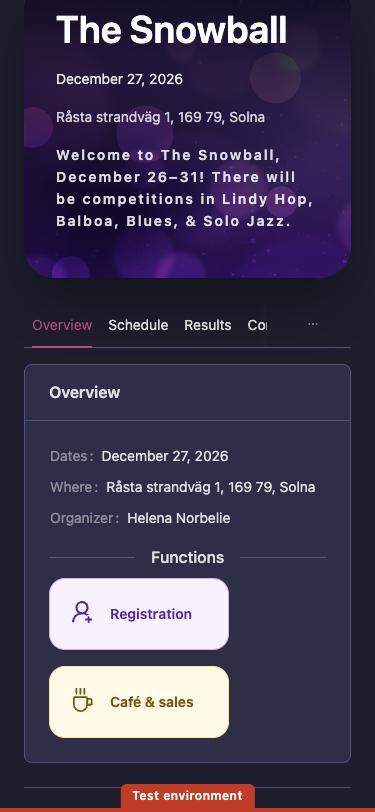
The helper can open the app and look around before the day. Marking people as arrived, and the other desk actions, start working once the event is open.
Judges
A judge is not a user in the Users list. Judges are created on Manager → Competition → Judges, linked to an existing account or invited by email, and assigned to panels per class. The list shows each judge as Not invited, Invited or Active, and you can send, resend or re-notify the invitation in any of the app’s languages (English, Swedish, Spanish, Finnish, Norwegian, Dutch, German or French). See Judges for the full judge setup.
The PIN belongs to the judge, not to the event. There is no event-wide judge code to hand out. The first time a judge opens the Judging app they set their own PIN on their own device (“Keep this PIN private”), and enter it again whenever they come back to the app. A judge has one PIN for the whole event: the same PIN works in every competition of the event they judge. If a judge forgets it, you reset it for them with Reset PIN on their row in Manager → Competition → Judges, and they set a new one. The reset clears the PIN in every competition of the event. Reset PIN is disabled until the judge has set a PIN.
The invitation email also contains a demo link to the Judging app, so a judge can try the marking interface before the competition. The demo needs a signed-in Vote4Dance account; any signed-in account can open it, which is also how a manager sees what the judges see.
Stations: shared devices
A station is a device, not a person. Use it for tablets and screens that stay in one place all weekend and should not be tied to anyone’s personal login: the TV in the hall, the check-in tablet, the lineup phone at the floor entrance, the cafe till.
- A station runs exactly one app: Cafe, Lineup, Check-in, Screens or Speaker. Manager and Supervisor cannot be stations; a person who wears several hats signs in as a user.
- Create the station under
Manager → Event → Stationswith a name and the app. The manager shows a QR code and a join link. Scan it with the device (or open the link, or type the six-character code) and the device becomes that station. No account, no password. - Several devices can join the same station.
- A Screens station is display-only.
- Revoke disconnects the device; it can no longer be used until it joins a station again. Stations can also be given an expiry.
- The Stations page shows which devices are connected, and their battery level.
Turning a signed-in device into a station
Often the screen laptop or check-in tablet is already signed in as a Manager, because that is how you set things up. You don’t need to sign out first:
- Create the station under
Manager → Event → Stationsif you haven’t already. - On that device, open the event page and tap the Stations tile. Only Managers see it.
- Choose Activate next to the station.
The device signs out of your personal account and opens the station’s app, straight into the event. Your Manager login is not left behind on the shared device.
The device stays a station through restarts and new tabs. It stops being one when someone chooses Leave station in the app’s menu, or when you revoke the station. On a revoked station the device goes back to the join screen within about 20 seconds.
Rule of thumb: people get users, devices get stations.
Related pages
- Screens, projectors and venue technology — what the screen devices plug into, and what each display shows
- Test run and venue rehearsal — join every device once, before the day
- Planning your first competition — which positions to staff