Statistics
Manager → Competition → Statistics has four tabs. All of them count the whole event: on a multi-day event with child competitions the numbers cover every day, not the competition you opened it from. Where the competition has imported participants, the counts follow the participant lineup; before the import they follow the registrations.
| Tab | What it answers |
|---|---|
| Overview | How big is the event: dancers, entries, teams, clubs, classes and days. |
| Dressing rooms | How many people from each club are in the building on each day. |
| Schedule | How heavy each day is: rounds, heats and estimated floor time per day. |
| Medals | Placements 1–6 per club, ranked by 1st places, then 2nd, 3rd, 4th, 5th and 6th. Clubs are named as on the event’s entries, so two clubs that share a short name get their own rows. Shown to organizers before the competition closes, marked provisional. |
Dressing rooms
The report answers one question: how many different dancers does each club bring, and on which days? It is a headcount for planning space and dressing rooms, not an occupancy model.
How it counts
- A dancer is counted once. A dancer entered in four classes is one person. Entries are deduplicated on the dancer’s identity (federation id or, for older imports, name).
- A dancer is listed on every day one of their classes is scheduled. A class with a heat on Saturday and the final on Sunday puts its dancers on both days.
- The club is the club the dancer represents in that class. A dancer who represents two clubs in different classes appears in both club rows, but once in the total.
- Cancelled participants are left out.
The numbers on the page
| Number | Meaning |
|---|---|
| Dancers (card) | Unique people across the whole event. |
| Organizations (card) | Number of clubs, not counting the “No club” row. |
| Busiest day (card) | The headcount on the day with the most dancers, with the date. |
| Without club (card) | Dancers whose club could not be resolved. They are listed in the “No club” row. |
| Dancers per day (chart) | Unique dancers on each scheduled day. |
| Dancers per organization (chart) | The largest clubs. The table below is complete. |
| Organization (column) | Club name. “No club” collects everyone without a resolved club. |
| Dancers (column) | Unique people from that club across the event. |
| Entries (column) | Couples and teams from that club. A mixed-club couple counts once for each club. |
| One column per day | Unique dancers from that club on that day. A dash means none. |
| Not scheduled (column) | Dancers whose classes have no round on a dated schedule day yet. |
| Total (row) | Each person once. It is normally lower than the sum of the rows, because a dancer can appear under several clubs. This is intended, not a calculation error. |
Export CSV downloads the table. Print view opens a paper version: one row per club, one column per day, no charts.
What the report needs
The day columns come from the schedule. Each schedule day starts with a break row that carries a date; every round placed after it belongs to that day. If the day columns are missing and everything sits under “Not scheduled”:
- Check that the rounds are placed in the schedule under a dated day (
Event → Schedule). The report reads every schedule item, whether or not the schedule is published. - Run Update/import participants if the registrations have not been imported yet, so the lineup is complete.
A yellow warning above the table tells you how many entries are in classes that are not scheduled yet.
What it does not do
- It does not split by gender or age group.
- It does not know arrival or departure times. A dancer with a 9:00 round and one with a 19:00 round count the same for that day.
- It does not use check-in. The numbers are planned presence, not who actually turned up.
If you need a gender split for allocating rooms, export the CSV and combine it with the participant list.
Dancer lists
The dancer lists show every dancer of each club with the classes they dance, their start numbers and an empty box to tick when they arrive. Print them for the entrance, so check-in can carry on on paper if the network goes down, or hand each club its own page for its dressing room.
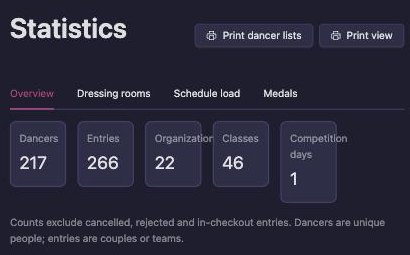
- Open
Manager → Competition → StatisticsorManager → Competition → Check-inand click Print dancer lists. The lists open in a new tab. - If the event has more than one day, pick a day in the list next to Print dancer lists to show only the dancers who dance that day. All days shows everyone. Classes that have no round on a dated schedule day yet are listed under Not scheduled.
- Tick One page per organization if every club should get a page of its own to hand out. Without it, the clubs follow one another to save paper, and a club is never split over two pages.
- Click Print dancer lists to print.
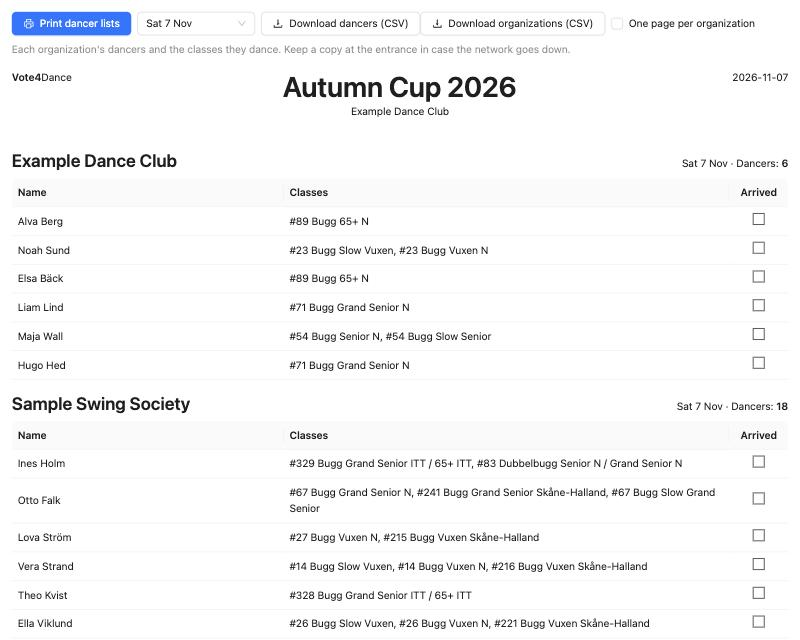
Each club shows its number of dancers next to its name. A dancer entered in several classes is listed once, with all their classes. The lists follow the imported participants once you have imported them, and the registrations before that, just like the dressing rooms report.
Downloading the lists
Organizers with Manager access also see two download buttons. Both follow the day you picked.
- Download dancers (CSV): one row per dancer and class, with Day, Organization, City, Email, Last name, First name, Date of birth, Class, Start number, Paid and Outstanding. Use it to filter by club or class, or to send each club its dancers.
- Download organizations (CSV): one row per club with Day, Organization, City, Email, Entries, Dancers, Paid and Outstanding. A couple or team counts as one entry.
Paid and Outstanding are worked out the same way as the payment at registration: the price for the dancer’s number of classes in each registration period. With prices of 10, 13 and 15, a dancer in three classes has paid 15, not 30. Each dancer’s amount is on their first row for that club and day, so adding up the column for a club gives the club’s total, and a club can see what to ask its dancers to pay back. A class that was paid for and then cancelled is listed as (Cancelled) and still counts towards Paid.
The downloads are made from the registrations, so they include the date of birth and the amounts. A competition whose participants were only imported, without registrations in Vote4Dance, has nothing to download.
The files use the list separator that goes with your computer’s language: a semicolon where numbers are written with a decimal comma, as in Belgium, the Netherlands or Sweden, and a comma elsewhere. If a file opens with everything in one column, open it in Excel with Data → From Text/CSV and choose the separator there.