Tap to Pay on iPhone
With Tap to Pay on iPhone, your desk staff can take card payments right on their iPhone, in the Vote4Dance app. Customers pay with a contactless card, or with Apple Pay or another digital wallet on their phone or watch. There is no card reader to buy, charge or pair: the iPhone in your pocket is enough.
It works for everything you sell at the desk or the café counter — tickets, meals, merch — and the money goes to your own Stripe account, the same as for the Shop.
On Android, the same feature is called Card payments on this phone.
What you need
- Stripe connected for the event. Set this up on the event’s Shop page, see Before you sell.
- Something to sell at the desk: an active product in the Shop with a price.
- A staff member with desk rights on the event — Check-in, Sales or Manager — signed in to the Vote4Dance app. Give them these rights under Users, apps and stations.
- The Vote4Dance app, version 1.13.0 or later. If the event’s Overview has no Tap to Pay on iPhone card, update the app from the App Store or Google Play.
- An iPhone XS or later with a current version of iOS, or an Android phone with Android 13 or later and contactless (NFC). On Android, developer options must be turned off; see On an Android phone.
- Mobile data on the phone. Without a connection, take cash.
Turning it on
Each phone turns Tap to Pay on once, before its first sale. Do it before the doors open, so no customer has to wait.
-
Open the event in the Vote4Dance app. At the bottom of Overview you find the Tap to Pay on iPhone card.
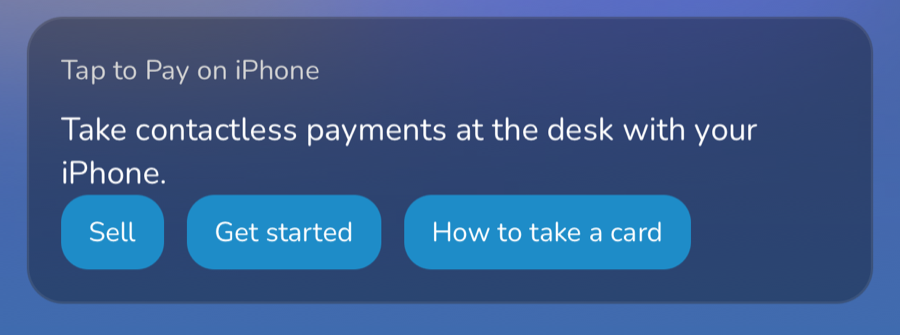
- Tap Get started.
- Apple shows its Terms and Conditions for Tap to Pay on iPhone. Read them and accept. Apple asks this once per Apple Account.
- The phone gets ready. You see how far it has come, and that it cannot take cards yet while it is setting up.
- When it says Tap to Pay on iPhone is on, Apple’s short guide opens by itself: how a customer holds their card, phone or watch, and what happens when a card asks for a PIN.
You can open Apple’s guide again at any time: tap How to take a card on the event’s Tap to Pay card, or go to Settings → Tap to Pay on iPhone.
Apple’s guide needs iOS 18 or later. On an older iPhone, and on Android, How to take a card does not appear; the steps below cover the same ground.
The first time an organizer opens an event that can take cards, the app also shows a short introduction to Tap to Pay on iPhone, with Get started to turn it on.
Selling from the phone
The quickest way at a busy desk: build the sale and take the card on the same iPhone.
- Open the event and tap Sell on the Tap to Pay on iPhone card.
- Add what the customer wants with + and −. The Total updates as you go.
- If the customer wants a receipt, type their e-mail under Receipt e-mail (optional).
-
Under Payment, tap Tap to Pay on iPhone. The card payment always comes first; Cash is below it.
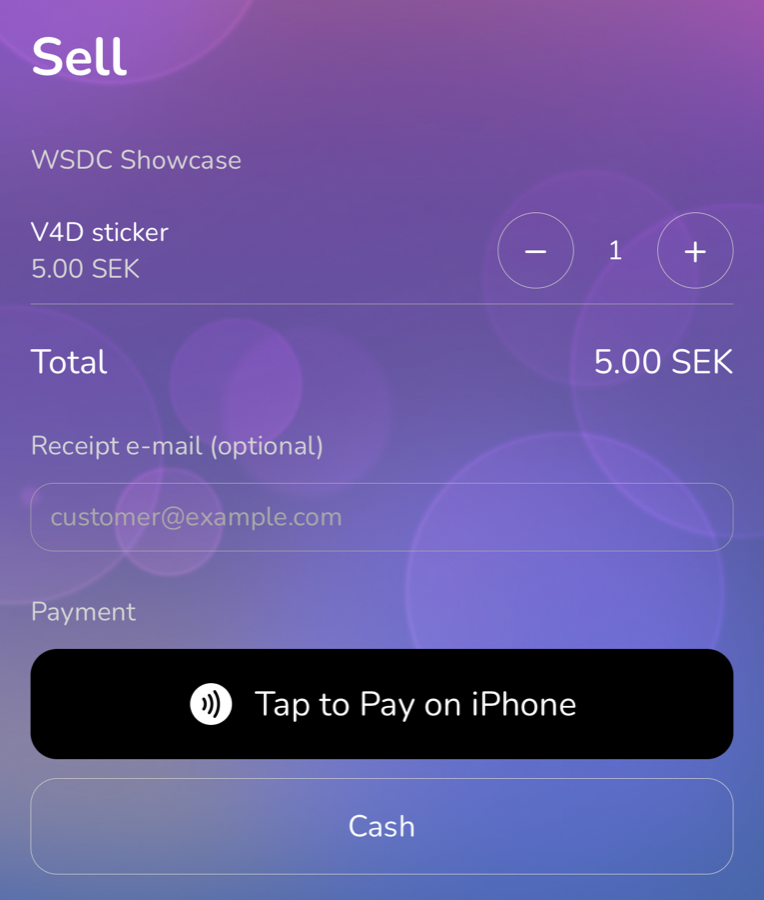
- Hand the iPhone to the customer, or hold it out. They hold their card flat at the top of the iPhone, over the Contactless Symbol, for a few seconds until the Done checkmark appears. A phone or watch is held the same way.
- The screen shows the result: Paid, Declined or Timed out.
If the card is declined or the payment timed out, tap Try another card: the sale stays open, so the customer can use another card, or you can take cash instead. After a paid sale, tap New sale to start the next one.
If this phone has not turned Tap to Pay on yet, tapping Tap to Pay on iPhone shows Apple’s terms first, and then continues with the payment.
Taking a card from the web till
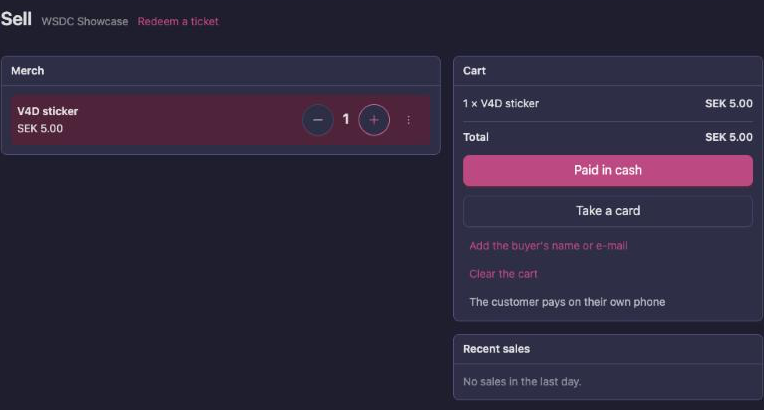
The check-in station’s till — Check-in → Sell on a laptop or tablet — can hand a card payment to a staff member’s phone:
-
Build the sale as usual, and tap Take a card.
-
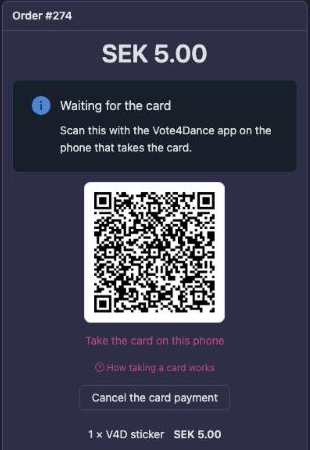
The till shows a QR code. Scan it with the camera on the phone that takes the card; the Vote4Dance app opens on the payment.
-
The customer holds their card to the phone, and the till shows the sale as paid as soon as the payment goes through.
The phone does not have to be signed in for this: the QR is valid for this one sale only, and only for a short while.
If the customer changes their mind, tap Cancel the card payment: the sale is called off and nothing is charged.
When a card asks for a PIN
Above the contactless limit, the card may ask for a PIN, and the keypad appears on the iPhone. Hand the phone to the customer, look away, and take it back when they are done. A customer who cannot use the keypad can tap Accessibility Options on the PIN screen. Apple’s guide, under How to take a card, shows how.
On an Android phone
Android phones work the same way, with plain names: the card on the event’s Overview is called Card payments on this phone, and the card button on Sell is Take a card.
- Developer options must be off. For your security, Stripe refuses card payments on a phone that has developer options or USB debugging turned on. The app then says so: turn developer options off in the phone’s Settings and try again.
- Android 12 or older cannot take cards. On such a phone the event’s card is called Sell and only offers cash sales. If the desk’s card code is scanned with it, the app says the phone needs Android 13 or later. Use another phone for cards.
When a card will not tap
Some cards must be inserted into a card reader, which a phone cannot do — cards from Finland and Canada often do. It is not something you did wrong. Take cash instead, or let the customer pay on their own phone from the desk.
Receipts
- Paid: if you typed the customer’s e-mail, they get a receipt with what they bought, the total and a link to the card receipt.
- Declined: they get a receipt saying the card was declined and nothing was charged.
- No e-mail given: you can still send the receipt afterwards from the desk’s recent sales.
If you missed the result
If the payment is declined after you have closed the app, the staff member who started the sale gets a notification on their phone, so the sale is not mistaken for paid.
Money
Tap to Pay on iPhone works like the rest of the shop:
- Platform fee: Vote4Dance takes 5 % of each card payment. Cash sales have no fee. Stripe’s own fees are separate and charged by Stripe.
- Payouts: the money goes to your Stripe account and is paid out on its own schedule.
- Refunds: made by you in Stripe; the order shows the refund.