Federation admin
Location:
Admin -> Federation -> LicensesAdmin -> Federation -> OrganizationsAdmin -> Federation -> Division -> [division] -> [discipline]
Use this page when you are responsible for setting up, reviewing, approving, and correcting federation licenses.
Required permission level
Different parts of the license workflow require different staff roles:
| Task | Minimum role |
|---|---|
| View licenses, items, organizations | Viewer |
| Issue, approve, decline, edit, suspend or remove a license, one at a time or in bulk | Manager |
| Approve an organization or mark it pending | Manager |
| Grant or remove license issuer access | Manager |
| Move an approved license to another organization (reissue) | Administrator |
| Add or edit license items (catalog) | Administrator |
| Check a member number (federations with a member register) | Manager |
| Map license items to classes | Administrator |
| Connect Stripe | Administrator |
Your goals on this page
This page is the control center for:
- issued licenses
- license items
- payment and approval review
- federation Stripe payout setup
The full federation admin license workflow now spans four places:
Licensesfor issued licenses and license itemsOrganizationsfor issuer role on organizationsDivision -> Discipline -> Class -> License rulesfor accepted class productsFederation → Members(Competitors tab) for class memberships and progress, whileOrganizations -> [organization]holds representation rows
You will normally use the admin license workflow for these jobs:
- Connect Stripe so payments can work
- Define the federation’s license products
- Decide which organizations may act as issuers when needed
- Decide which classes accept which products
- Review representation and progression setup if it affects the workflow
- Review, approve, activate, suspend, or correct individual licenses
Before you do anything
Make sure these are already in place:
- The federation exists
- Divisions and disciplines exist
- Federation classes exist
- You know which workflow pattern the federation follows:
- organization-managed
- self-service
- hybrid
If those are not ready yet, stop here and fix them first. The rest of the workflow depends on them.
1. Connect the federation Stripe account
Before any Stripe payment can work, the federation must connect its own Stripe account.
Steps:
- Open
Admin -> Federation - Edit the federation
- Find the Stripe payment section
- Press
Connect Stripe - Complete Stripe onboarding
- Return to Vote4Dance
- Confirm that the federation now shows
connected
What success looks like:
- the federation shows Stripe as connected
- organization-paid and self-paid license rows can use Stripe checkout
- payments will go to the federation Stripe account
What this means
- license payments go to the federation connected Stripe account
- Vote4Dance keeps a
5%fee - if the federation is not connected, org-paid and self-paid license checkout cannot start
- hybrid payer setups still settle into the federation Stripe account
2. Manage issued licenses
Use the first list for the actual personal license rows.
Most common use on this list
Use the issued license list when:
- a new application has been submitted and you need to review it
- a paid row is still waiting for approval
- a license needs to be activated, suspended, or corrected
- a manual fix is needed for an existing license
The list now shows:
- person
- status
- category
- type
- season
- payment status
- payer type
- application source when present
- item, division, organization, validity, competition, payment references, and approval timestamps when present
Use this list when you need to:
- review a newly created application
- correct a wrong payer or payment state
- manually activate a license
- suspend or cancel an existing license
- inspect whether a paid license still needs approval
- inspect whether the row came from self-service, organization flow, or federation admin
Add a license manually
- Press
Add - Search the person in
User - Optionally select
License item - Set
Category - Set
Type - Set
Season year - Set
Status - Optionally set
Payment status - Optionally set
Payer type - Optionally set
Division - Optionally set
Discipline - Optionally set
Organization - Optionally set
Payer organization - Optionally set
Competition - Optionally set
Valid from - Optionally set
Valid to - Optionally fill
Flags JSON - Optionally fill
Note - Optionally fill
Payment reference - Optionally fill
Invoice reference - Press
Save
When to use manual creation:
- backfilling licenses
- correcting data imported from another system
- creating a license outside the normal self-service or organization flow
When not to use manual creation:
- if the federation wants a normal user-facing application flow
- if you are testing whether self-service or organization application works
Federation ID on the list
When a license was applied for with a federation ID (the member number from the federation’s own system), the ID is shown under the person’s name in All other licenses. It is also a column in the CSV download, and the search box finds a license by it.
The ID is saved on the license when it is applied for and is not updated automatically if the federation changes it later. When the dancer registers for a competition, the ID is checked with the federation again. If the federation no longer recognizes the old ID, that license does not count for the registration. To fix it, the dancer (or their organization) applies again with the new ID; this updates the existing license instead of creating a second one.
What each field means
User: the person who owns the licenseLicense item: the predefined product; if selected, it controls category, type, and scopeCategory: role such asdancer,judge,coach, ororganizerType: federation-specific license type textSeason year: season or calendar yearStatus: current operational statePayment status:unpaid,paid,invoiced,waived, orrefundedPayer type:selfororganizationApplication source: where the row started, such asself,organization, orfederation_adminDivision/Discipline: scope when the license is branch-specificOrganization: the organization attached to the license when organization context is neededPayer organization: the organization carrying payment liability when usedCompetition: required for one-time or single-competition licensesValid from/Valid to: date windowFlags JSON: advanced machine-readable eligibility flagsNote: internal commentPayment reference: payment identifier or external booking referenceInvoice reference: invoice identifier
Payment fields and Stripe behavior
Payment statustracks Vote4Dance’s recorded payment state for the licensePayer typesays whether the checkout should be started by the person or the organizationApplication sourcesays where the workflow started- Stripe checkout is only available when the federation has connected Stripe
- a successful checkout pays into the federation Stripe account and keeps
5%as the Vote4Dance fee
Approval and activation behavior
What happens when you change status manually:
- federation admin can create or update licenses directly
- if a federation admin sets a license to
active, the backend storesapproved_by_federation_at - a paid license can still remain
pendingif federation or organization approval is required by the federation rules
What to check before activating:
- The correct person owns the license
- The selected license item is correct
- The payer and payment status are correct
- Competition id is filled if the item is competition-scoped
- Organization is correct when required
- Any federation-side approval requirement has been satisfied
What to do next after activation:
- confirm the row shows the correct final status
- confirm the payment state still matches the real payment
- if the license is competition-scoped, confirm the correct competition is attached
3. Manage license items
Use License items to define the actual products available in the federation.
Use this section when
- you are setting up the federation for the first time
- you are adding a new annual, one-time, or branch-specific product
- you need to stop using an old license product without deleting history
Add a license item
- Press
AddinLicense items - Fill the form
- Press
Save
Field meaning
Name: visible product nameCode: short internal codeCategory: role of the itemType: federation-specific type labelBand: optional grouping such ashigh,low, or similarDivision: division scopeDiscipline: discipline scope inside the divisionOrganization mode:optionalrequireddisallowed
Competition scope:seasonsingle_competition
Status:activeorinactivePrice: Stripe/payment reference amountCurrency: payment currencyNote: internal comment
Practical recommendation:
- keep names obvious for non-experienced users
- put scope in the name when needed
- examples:
Annual competition licenseOne-time competition licenseDivision A high licenseAdvanced competition license
What good setup looks like:
- users can tell the products apart by name alone
- one-time products are clearly marked
- scope is visible in the name when needed
- inactive products stay out of normal use
4. Map license items to classes
Use Division -> [division] -> [discipline] -> class -> License rules when a class must accept exact license items.
Use this section when
- you want registration to reject the wrong license immediately
- different divisions or classes need different accepted products
- you want progression checks to use the same class-specific product logic
The current class rule editor only offers active license items that match the same division and discipline as the class.
Add a class mapping
- Open
Admin -> Federation -> Division - Open the correct division
- Open the correct discipline
- Find the class
- Press
License rules - Press
Add - Choose
License item - Tick whether it is required for:
registrationprogression
- Press
Save
Important behavior
- the backend rejects mappings where item scope and class scope do not match
- registration and progression checks now prefer explicit class mappings over generic license interpretation
Use explicit class mappings when:
- the federation has different license requirements by division
- different classes inside a division accept different license products
- you want the system to reject the wrong license item immediately at registration
This is the safest model for branch-specific federations.
What success looks like:
- the correct class accepts the intended product
- the wrong class does not accept it
- registration and progression behave as expected in testing
5. Manage organization approval and representation
Use Organizations when you need to manage federation-side organization status.
Current organization detail responsibilities:
- approve the organization itself inside the federation
- approve or remove
license issueraccess - review organization-linked licenses
- review organization users
- manage representation rows for the organization
How representation works
For moving a dancer or a team to another club end to end, including club-owned teams and transfer requests, see Club transfers.
Representation is now license-derived. The system determines which organization a dance team represents by looking at the active dancer licenses held by the team’s members. The organization that holds the most active dancer licenses for those members is used as the effective representation.
The representation history table still records explicit assignments and overrides, but the primary source of truth is the license data.
Assign organization
Use the Assign organization button on the organization detail page when a dance team needs to be linked to an organization and no active license already establishes that link.
Steps:
- Open
Admin -> Federation -> Organizations - Open the organization
- Press
Assign organizationin the representations section - Select the dance team
- Select the organization
- Optionally add a reason
- Press
OK
Use this when:
- a team has no active dancer licenses yet and needs an explicit organization assignment
- a ranking import created a team without a license and you want to fix the representation
- the license-derived organization is incorrect and an explicit assignment is needed
Rename team
Use the Rename team button on any representation row to change the team name without changing its organization or license state.
Changing the organization on an active license
You cannot change the organization field on an active license directly. Pick the new organization in the licence’s Edit dialog and confirm Change organization: the licence is reissued under the new organization from today, and the old one is cancelled and kept for history.
Once the federation has approved a licence, whether it is still active or not, only an Administrator or Owner can move it to another organization or remove its organization. For a Manager the field is locked, with the note “Moving a license the federation has approved to another organization needs a federation Administrator.” A Manager can still correct the organization on an application that was never approved, and add an organization to a licence that names none. See Moving a dancer’s licence to a new club.
This applies to individual license rows. It does not affect explicit representation assignments made through the Assign organization workflow.
6. Manage issuer role on organizations
Use Organizations for federations where only approved organizations may issue or approve licenses.
Use this section when
- the federation only allows approved organizations to handle certain license applications
- organization-managed applications are failing because issuer approval is missing
Add a license issuer
- Open
Admin -> Federation -> Organizations - Find the organization
- Press
AddorEdit - Set
Status - Optionally set
Type - Optionally set
Approved at - Optionally set
Note - Press
Save
Status meaning
pendingapprovedsuspendedrevoked
7. Manage class memberships and progress
Use Federation → Members, on the Competitors tab, for class memberships and progression rows. A division only filters this roster.
Use this page when you need to:
- review current team memberships in federation classes
- add or remove class membership rows
- review or edit progress rows for a team inside that division
Representation stays on the organization detail page instead.
8. What federation admin should check during rollout
For a new federation setup, verify this sequence:
- The correct divisions and disciplines exist
- The federation Stripe account is connected
- License items are scoped correctly
- Single-competition items really use
Competition scope = single_competition - Issuer role is configured on the right organizations before org-managed applications begin
- Each competitive class has the right accepted items
- Payment status and payer type look correct on real applications
9. Check a member number
Some federations check each dancer’s member number against their own member register when a licence is applied for. Dansport Vlaanderen does this. When a dancer or club tells you a number “is not recognised”, the Member check tab shows you why, without contacting Vote4Dance support. It only looks things up: nothing is changed, and nothing is sent to the dancer.
The tab is only there when your federation has a member register connected, and you need the Manager role or higher.
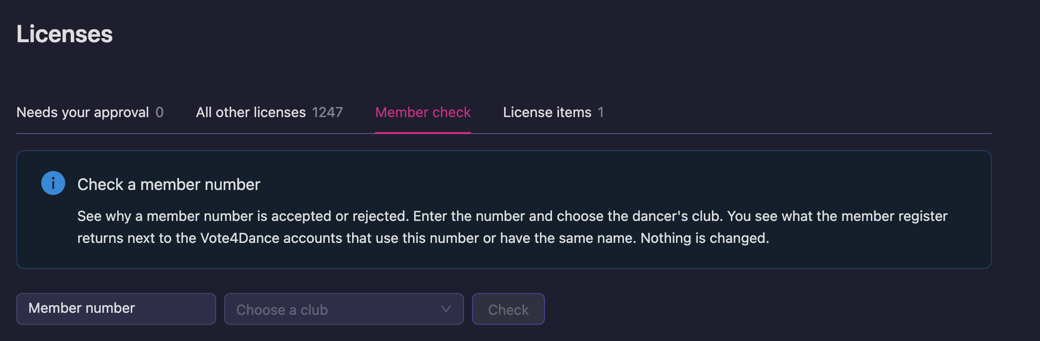
Check a number
- Open
Federation → Licensesand choose the Member check tab - Type the Member number the dancer used
- Choose the dancer’s club. Each club’s register login only sees that club’s members, so check with the club the dancer applied with
- Press Check
You see the register’s answer for that club: the Name in register, the Member number, the Birth date in register and the Membership status. A short text under it says what it means.
Below that, Vote4Dance accounts lists the accounts that have a licence with this number or the same name as in the register, with each account’s Birth date in Vote4Dance and how it Compared with register. Click a name to open the dancer.
What the result tells you
| You see | What it means | What to do |
|---|---|---|
| Active member | The number is valid for this club. | If the application was still rejected, look at the birth dates under Vote4Dance accounts. |
| Not active | The member is in the club’s list, but the membership’s status type is not ACTIVE, for example PROSPECT, even when its name says “Actief lid”. | Change the membership status in the member register. |
| Not found | The number is not in this club’s member list. | Check the number with the member. If they belong to another club, check again with that club; they must apply with that club selected. |
| Check failed | The register could not be reached with this club’s login. | Try another club: if that works, check this club’s register login on the club’s page (Teams & integration). If no club works, the register is unavailable: try again later. |
Birth dates are compared like this:
- Matches: the birth dates are the same.
- One day apart: usually the register holds the date one day too early. Correct it in the member register. Do not ask the dancer to change their date in Vote4Dance; their account would then be wrong.
- Different: the dates differ by more. One of them has a typing mistake; check with the dancer which one.
- Missing: the dancer’s account has no date of birth. They add it under their account settings.
From a club’s page
When you are already looking at a club, open its Teams & integration tab and press Check a member number for this club. The Member check tab opens with that club already selected.

Common mistakes
- Creating license items before the federation class structure exists
- Forgetting to connect Stripe before telling users to pay
- Using generic product names that dancers and clubs cannot distinguish
- Forgetting to map a competition-scoped item to the relevant class
- Looking for class license rules in
Licensesinstead of underDivision -> Discipline - Looking for issuer setup in
Licensesinstead ofOrganizations - Activating a paid license even though federation or organization approval is still required
If the workflow is confusing
The page supports the full setup flow, but it does not choose federation policy for you.
Federation admin still needs the federation’s internal license setup decisions available when:
- defining the first license item set
- deciding which classes accept which items
- deciding when payment should be enough and when extra approval should still be required