Registration and check-in
This page covers the whole path from an online registration to a participant on the floor: the registration tabs, what each status means, how approved registrations become participants, and what to do next.
Emails, the check-in QR code and how to test them are on Emails and the check-in QR code. Scanning at the entrance, arrivals and tickets are on At the door.
The Registration page
Manager → Competition → Registration has six tabs:
| Tab | What it is for |
|---|---|
Registrations | Every registration in the competition, with status, payment and the Imported check. This is where you approve, reject, email and import. Click a column header such as Participant name to sort. Type in Filter by name above the table to find a registration by its team name or any dancer’s name; it combines with the class, status and payment filters. When the registrations carry clubs, an Organization column shows the club each entry represents (see Which club a dancer represents); sort on it, or use its filter to list one club’s entries. |
Participants | The registrations grouped by class, with how many are Approved, Signed (only when the event uses it) and Preliminary. A read-only view of what will be imported. It is not the participant list itself — that lives under Competition → Participants. |
Organizations | Registrations grouped per club, with the club’s payment invitations. A red tag such as 1 cancelled (paid 300 SEK) means entries were cancelled after they had been paid, which you may need to refund; hover it to see which ones. Entries cancelled before anyone paid are not shown, since they change nothing the club owes. |
Finances | Expected, paid and outstanding totals per currency and period, and who still owes what. |
Registration period | The registration windows: dates, payment mode, acceptance mode, prices, rules and form. |
Data transfer | CSV import of participants, result downloads, and the reset and delete tools. Not an export to another system. |
On the Participants tab, each class shows its number of registrations per status. Where dancers chose a role, the brackets show the number of Leaders, Followers and dancers with No role; a couple adds one of each. In classes split into a lead class and a follow class, the class’s own count is the number of leaders or followers. A Total line at the top sums the registrations of all listed classes. Counts are entries per class, so a dancer in several classes counts in each. Use it to see the balance of leaders and followers in each class and how many are approved versus still preliminary (the waiting list). Classes whose registrations are all preliminary are listed too, and opening a class lists its approved, signed and preliminary registrations.
Registration periods
For each period define:
- Name and start/end timestamps
- Payment mode: free, manual/invoice, or online (Stripe)
- Acceptance mode: manual or direct
- Currency and price ladder
- Rule/form configuration
- Allowed classes
You can reorder periods to control display order.
Registration statuses
| Status | Meaning | How a registration gets there |
|---|---|---|
| Preliminary | Registered, not yet accepted. Not counted as a participant. | Automatic when the period uses manual acceptance, invoice payment, or when a functionary enters the registration. |
| Signed | Optional intermediate step for your own bookkeeping. Never set automatically, and no email is sent for it. | Manually, from the status dropdown. |
| Approved | Accepted. This is the only status the import uses. | Automatic when the online payment is completed, or when the period uses direct acceptance. Otherwise manually. |
| Rejected | Declined by the organizer. | Manually. |
| Cancelled | Withdrawn by the dancer or club, or set by the organizer. The row is kept. | The dancer/club cancels from their account, or manually. |
| Deleted | Removed. Unpaid rows disappear; paid rows are kept and marked deleted. | Manually. |
Things that regularly cause confusion:
- The list opens on Preliminary and Approved together. Change the status filter to see cancelled, rejected or all registrations. The filter is a viewing aid only.
- Preliminary registrations are counted above the list, for example “2 registrations are still preliminary”. Set a registration’s status to Approved to accept it; with invoice payment, approve it once it is paid. Click Show only these to list just the preliminary ones.
- Names in orange are not an error. The row shows a team name or custom name instead of the dancers’ names. Hover the name to see the dancers behind it. Every other row shows the dancers’ names in the normal colour.
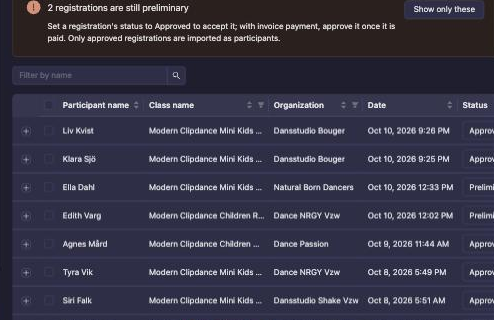
To change a status, use the dropdown on the row. If you have ticked rows with the checkboxes, the change applies to all ticked rows. “Send email on status change” at the bottom controls whether the dancers are emailed about the change (see Emails).
Online payments in progress are hidden until they are paid. A registration whose checkout is abandoned is removed automatically.
Paid twice after cancelling
A dancer who cancels a paid registration and registers for the same class again ends up with one registration, not two: the cancelled one is reused, so the dancer does not appear under Cancelled. If the dancer paid again, both payments belong to that registration.
- Open the Registrations tab and click + to expand the registration.
- Click Payment.
- The dialog lists every payment for the registration. Earlier ones are marked Earlier payment.
- On the payment to give back, check the amount, add a description if you like and click Refund.
Earlier payments made before this was introduced are not listed under the registration. Refund those in Stripe.
From registrations to participants
Registrations and participants are two different lists. A registration is what the dancer or club submitted. A participant is a row in the competition’s lineup that rounds, start numbers, heats and results are built on. Nothing moves between them until you run the import.
Which club a dancer represents
Each registration knows which club every dancer competes for. A dancer who belongs to more than one club can represent one club in one class and another club in a different class, so check this per registration, not on the dancer’s profile.
To check or change it:
- On the
Registrationstab, press the + at the start of a row. Each dancer is listed with the club they represent in this registration. - For more detail, press Edit (the pen) on the row. Under Represents you see every dancer with their club and where that club comes from:
- Chosen at registration: the dancer (or their club) picked it when registering. The federation asks for this when a dancer belongs to more than one club.
- Owning organization: the team belongs to a club and always competes for it.
- Division license organization or License organization (no division match): the club on the dancer’s federation license.
- From the dancer’s profile: the club on the dancer’s own account, used when none of the above applies.
- The two Organizations fields below (short names and full names) show that club in grey. Leave them empty to keep it. Type something only when the participant should be shown with a different club name, for example on the speaker’s screen; what you type replaces the club for this registration.
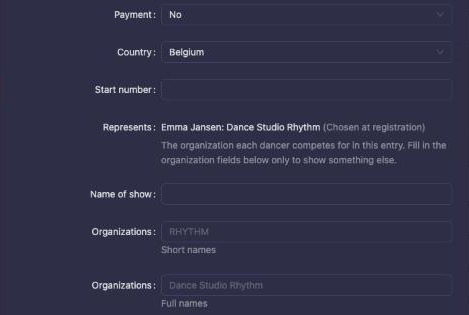
The club shown here is the one Update/import participants gives the participant.
Update/import participants
On the Registrations tab, press Update/import participants.
- The button collects every Approved registration in the competition, regardless of the filter you have set in the table. A message tells you how many matched.
- A preview opens with four groups: Added, Changed, Removed and Warnings. Every row is pre-ticked. Untick anything you do not want applied.
- Press OK to apply.
What the import does:
- Creates one participant per approved registration, with the dancers’ names, clubs, years of birth, federation ids and class. Start numbers are left at 0.
- Updates participants whose registration changed (a new partner, a new club, a renamed team). Only the fields the registration knows about are touched, so start numbers and check-in state survive a re-run.
- Lists as Removed every participant that no longer has an approved registration. That includes registrations that were cancelled or rejected after an earlier import. If you leave the row ticked, the participant is deleted from the lineup.
You can run it as often as you like. The normal rhythm is once when the period closes, and once more after late approvals or cancellations.
The Imported check in the registrations list means “the registration and the lineup agree”: an approved registration has its participant, or a cancelled one has none. An approved registration without the check, or a cancelled one with a participant still in place, is the signal to run the import again. Above the list, a banner counts the approved registrations that are not imported yet (for example “3 approved registrations are not imported yet”), whether they came from the dancer, the club or the check-in desk on the day, with the Update/import participants button beside it. Once a registration is imported, dancers can no longer edit it themselves; a manager edits it instead.
Things to know:
- Run the import on the competition, not on the parent event. A multi-day event with child competitions imports per competition.
- Do not mix CSV-imported participants and registration import in the same competition. Participants that did not come from a registration are shown as Removed by the registration import.
- The import does not send any email.
After the import
The next steps, in the order the system expects them:
Competition → Participants— check the lineup per class. Add or correct participants by hand if needed.- Assign start numbers (button on the Participants page, or per class in the class footer). This has to happen before participants are added to rounds; afterwards the button refuses. The dialog asks:
- Start with number (10 by default). It can be as low as 1; below 10 the dialog warns that single-digit numbers can be mistaken for placements at the prize ceremony.
- Start each class on an even ten (on by default): every class after the first jumps up to the next ten.
- Free numbers between classes (3 by default): numbers left unused before the next class starts.
- Reuse numbers: a dancer keeps the same number across classes.
- Randomize order.
To number the whole competition in one unbroken series, turn Start each class on an even ten off and set Free numbers between classes to 0. With Reuse numbers still on, competitors who already have a number keep it, so the series will not be continuous; the dialog warns about this. Delete the start numbers first, or set Reuse numbers to disabled.
- Print start numbers from the same page.
Classes→ open the class and its rounds → Add participants puts the class’s participants into the first round. The button only appears when the class has participants that are not yet in the round.Event → Scheduleplans the rounds on days, floors and times (see Schedule and conflicts). The schedule structure can be built before the import, but participant counts, heat counts and estimated end times only fill in once the participants exist and are in rounds.- Check-in, then live rounds. See Live operations.
Data transfer
The Data transfer tab (also Competition → Data) contains:
- Import registrations — upload a CSV of participants. The same preview as above; the file can be re-uploaded to update. Use this for events without online registration, not together with registration import.
- Download results — result CSV files.
- Reset results — removes results and empties the rounds, keeps participants, rounds and judges. Only available while the competition is private.
- Delete registrations — deletes all participants. Keeps rounds and judges. Do not use once online check-in has started.
Team image upload
Team images can be uploaded from both manager and functionary workflows.
Where to upload:
Manager -> Competition -> Registration -> Edit registration -> ImageManager -> Competition -> Participants -> Edit participant -> ImageName registration (functionary app) -> Edit registration -> Image
Accepted files and limits:
- Formats:
JPG,JPEG,PNG,HEIC,HEIF - Max size:
25 MB - One image per team (replace or remove as needed)
Functionary photo booth workflow
Recommended event-day flow for a registration desk “photo booth”:
- Prepare a small booth area with stable lighting, fixed camera distance, and a clean background.
- Use a green screen if you want easy background removal after capture.
- Open the registration app from event overview (
Name registration) and edit the team registration. - In the
Imagefield, pressUploadand select a photo (on mobile/tablet, camera capture may be available in the file picker). - Save the registration update.
Recommended image style for screens and match presentations:
- Best result: upload a
PNGwith transparent background. - If you use green screen photos, remove the background before upload and export transparent PNG.
- Keep the subject centered with head and upper body clearly visible.
Check-in
There are three check-in mechanisms, and they are independent:
- Organization check-in (
Manager → Competition → Check-in): each club confirms its whole roster for the day and signs. The manager opens a check-in window, follows the cancellation report, and applies the check-in to the competition. This is what decides who dances. - The Vote4Dance ID: every dancer has a personal QR code, in the app, on their account page and in the approval email. Check-in desk staff scan it in the Check-in app to find the dancer, hand out the start number, see payment status and mark them Arrived. See At the door.
- Tickets: what the audience shows. Sold from the event’s Tickets page or at the desk — see Shop. Dancers do not need one unless the organizer says so.
For a paper list of every club’s dancers at the entrance, in case the network goes down, click Print dancer lists on the Check-in page. See Dancer lists.
The Arrived column
Once anybody has been marked arrived at the desk, the registrations list gains an Arrived column: n/m of the registration’s members arrived today, with a filter for everyone, some or nobody. It is a live view of the entrance, not a check-in — an unconfirmed club is still cancelled when check-ins are applied, however many of its dancers walked through the door.
Organization check-in controls
- Configure the check-in open/close window
- Track organization-level check-in status
- Mark team attendance/cancellation reasons
- Capture signed check-in submissions
- Apply/unapply check-in to competition state
Recommended check-in sequence
- Open the check-in window in settings
- Let organizations mark teams and sign
- Monitor the cancellation report
- Apply check-in once submissions are complete
- Unapply only if corrections are required
What applying does, and why the timing matters: teams the club has not confirmed are cancelled when check-ins are applied. Do not apply while clubs are still working, and chase the clubs that have not signed before you do — otherwise you cancel dancers who are standing in the hall. Dancers marked Arrived at the desk are not protected by it either; arrival and organization check-in are different things.
Dancer admission
Whether a registration also lets a dancer through the door is a separate setting — every day of the event, only on the days they dance, or only with a ticket. It lives on the Shop page and is explained on At the door.
Registration and check-in done checklist
- Registration periods and rules are published correctly
- Every registration that should dance is Approved; the rest are rejected or cancelled
- Update/import participants has been run and every approved registration shows the Imported check
- Start numbers are assigned and printed
- Participants are added to the first rounds and the schedule is planned
- The check-in window is active at the right time
- Signed check-ins are applied before live rounds