Shop — tickets, meals and merch
The shop sells everything at your event that is not an entry fee: spectator tickets, weekend passes, table seats, meals, merch and the café menu. Buyers pay by card, the money goes to your own Stripe account, and the tickets land in the buyer’s Vote4Dance account as QR codes that your desk scans.
Entry fees are not part of the shop — they stay on Registration.
Scanning at the door, arrivals and the Vote4Dance ID are on At the door.
Before you sell
| Requirement | Why |
|---|---|
| A connected Stripe account | Payments, receipts and refunds live in your own Stripe account. Products can be written as drafts without it, but nothing can be set Active until Stripe is connected. |
| One currency for the event | A card payment is one currency, so the first product you put on sale locks the currency for every other product on the event. Internal café products do not lock it. |
| A decision on VAT | Prices are always entered including VAT. Set the VAT rate per product if you are VAT-registered; leave it empty if you are not, and no VAT line appears on the receipt. |
| A dated schedule (only for day tickets) | A ticket that admits on one day needs the schedule to have that day, because the desk checks the ticket against the day. |
Opening the shop
Manager → Audience → Shop, or go straight to /organizer/event/<event id>/shop. The shop is part of the Organizer app, so the person opening it needs the Organizer capability — see Users, apps and stations.
The page has two tabs, Products and Orders. Above the product list sit two cards that belong to the day itself: Dancer admission and The door.
Products
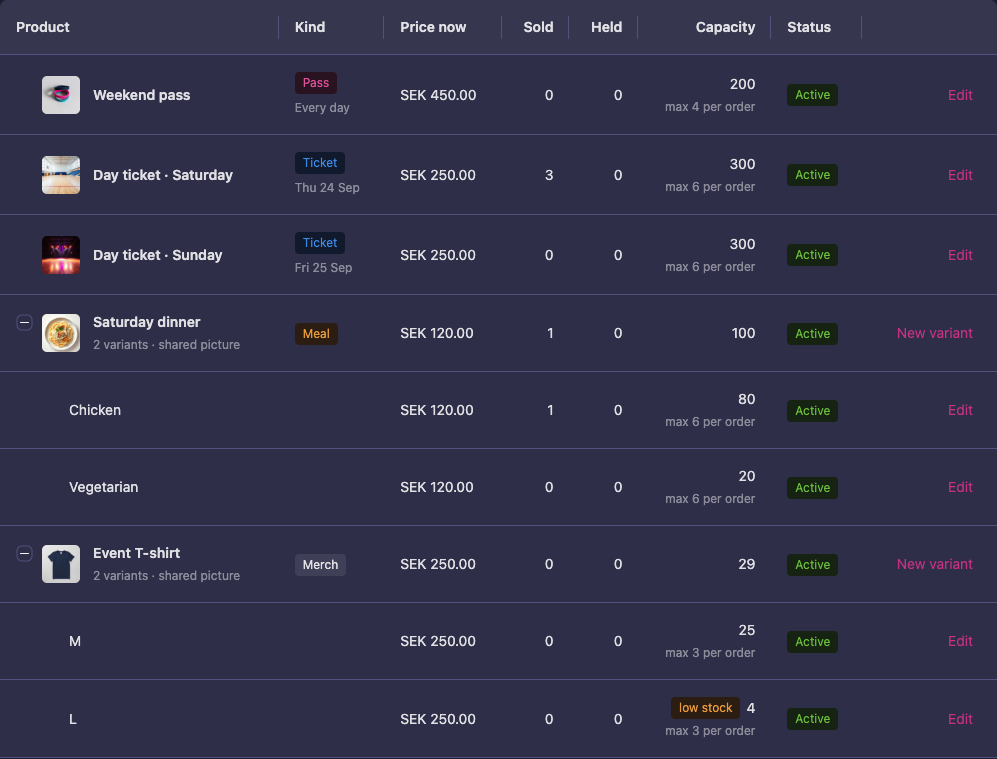
New product opens a short list of templates — spectator ticket, meal, table seat, T-shirt or a blank product — so the usual things are two clicks away. Each row shows the price now, how many are sold and held, the capacity left and the status; variants fold under one row (2 variants · shared picture) that carries the group’s picture and its summed counts.
What a product has
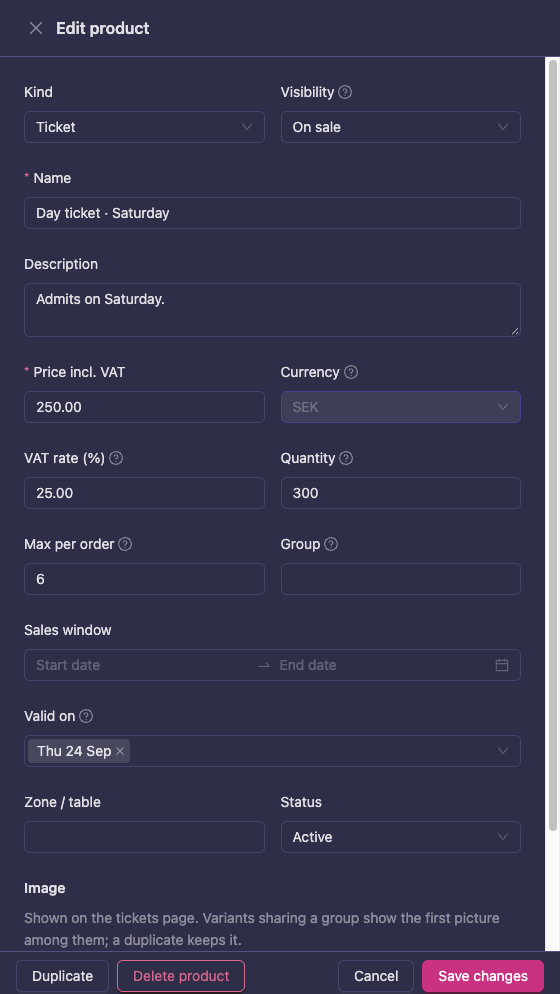
| Field | What it does |
|---|---|
| Kind | Pass, Ticket, Meal, Merch or Café. Passes and tickets are what admits someone at the door; meals and merch are handed over at the desk. |
| Visibility | On sale puts the product on the public tickets page. Internal keeps it off the catalog entirely — staff order it for someone, which is what the café menu is. |
| Price incl. VAT | Always the price the buyer pays. |
| VAT rate | Optional. A rate here puts a VAT line on Stripe’s receipt; leave it empty if you are not VAT-registered. |
| Quantity | The number you have. Empty means unlimited. Sold and held units are counted against it, so it doubles as capacity. |
| Max per order | Stops one buyer taking the whole stock. Empty means no limit. |
| Valid on | Which day(s) the product admits on. Empty means every day of the event. Pick a day from the schedule or type one. |
| Group | Products sharing a group are variants of one thing — T-shirt sizes, a meal with a vegetarian option, leader/follower passes. They fold into one row for the buyer and for you. |
| Zone / table, Size | Labels for table seats and merch sizes. |
| Status | Draft, Active, Paused or Archived. Only Active is on sale; Paused is “off sale for now” without archiving. |
| Image | Shown on the tickets page. Variants in a group share the first picture among them. Save the product first, then add the picture. |
A product that has been sold is never deleted — it is archived, so the tickets already out there keep their name, price and VAT rate as they were sold.
Checking the public page
Open public tickets page in the toolbar opens what buyers see: the event’s page with /tickets at the end, such as vote4dance.com/public/event/snow-ball-2026/tickets once the event is published. Send that link out; it is the same page the event’s Tickets tab shows.
Orders
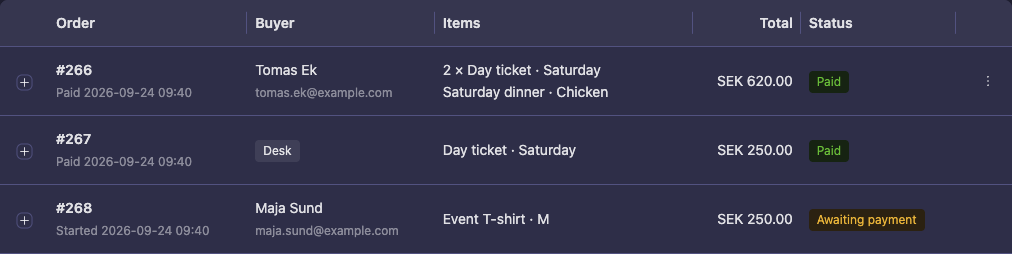
Every order, online and desk, with the buyer, the items, the total and how many of its tickets have been used. Search by buyer name, e-mail or ticket code, and filter by status or channel.
| Status | Meaning |
|---|---|
| Awaiting payment | The buyer is in checkout. The units are held for 30 minutes and then released automatically. |
| Paid | Paid. The tickets are live in the buyer’s account and app. |
| Refunded | Refunded in Stripe, in full or in part. The refunded amount is shown on the order. |
| Cancelled / Expired | The checkout was abandoned or cancelled; the stock is back on sale. |
Two actions per order:
- Resend tickets e-mails the QR codes again, to the address on the order.
- Void units cancels individual tickets so they cannot be used. It does not move money — refund in Stripe first, then void.
Refunds are always made in Stripe, on your own account. Vote4Dance mirrors the refunded amount back onto the order so the shop does not keep reading as fully paid.
When a buyer deletes their Vote4Dance account, their orders stay but lose the buyer’s name, e-mail and note, so the order shows no buyer and there is no address to resend tickets to. The status, amounts, refunds and tickets are kept, and the tickets still work at the door.
The door
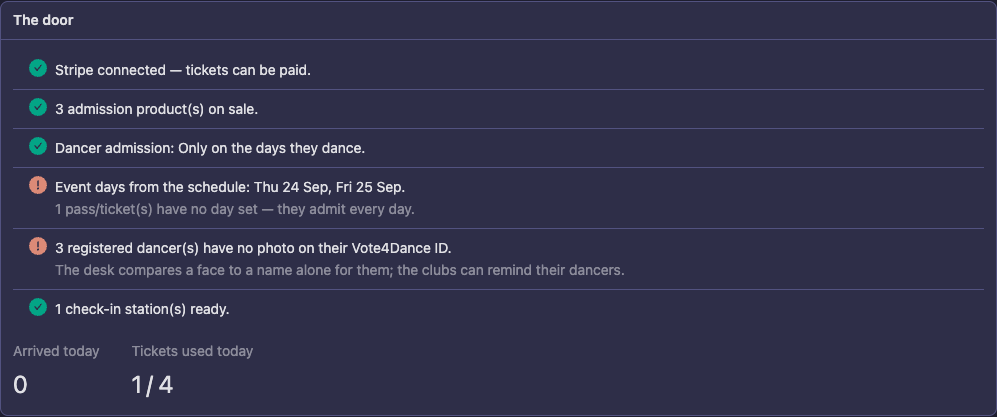
A pre-flight check for the day itself. It tells you, in one card, whether Stripe is connected, how many admission products are actually on sale, which days the schedule has, whether any pass or ticket is missing a day, how many check-in stations exist, and how many registered dancers still have no photo on their Vote4Dance ID. It also counts arrivals and tickets used today once the day is running.
Work down the card the week before the event; a red line here is a queue at the entrance.
Dancer admission
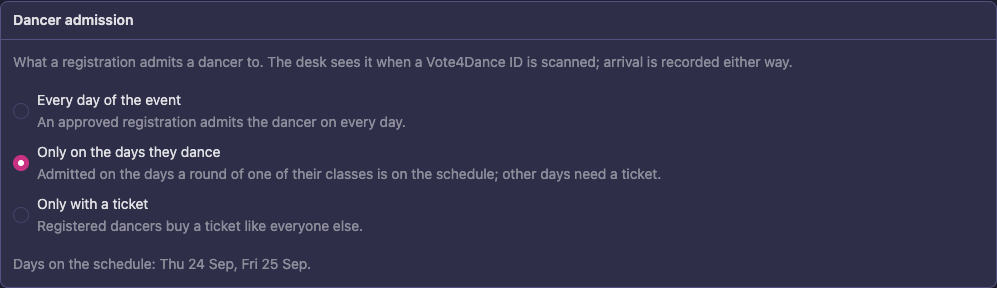
What a registration admits a dancer to, chosen per event:
| Choice | What it means |
|---|---|
| Every day of the event | An approved registration admits the dancer on every day. This is the default and what most events want. |
| Only on the days they dance | The dancer is admitted on the days one of their classes is on the schedule; other days need a ticket. |
| Only with a ticket | Registered dancers buy a ticket like everybody else. |
Dancers never need a ticket to compete under the first two choices — their Vote4Dance ID is what they show. The card warns you about classes the schedule cannot place on a day yet, because those dancers are admitted every day until the schedule says otherwise.
Selling at the desk
The check-in station sells too: Check-in → Sell. It is the same catalog, with a cart, a total and Paid in cash. A customer can also pay by card on a staff member’s iPhone: the staff member sells from the Vote4Dance app with Tap to Pay on iPhone — see Tap to Pay on iPhone. A customer who prefers to pay on their own phone scans the QR on the page and buys there; passes are sold that way only.
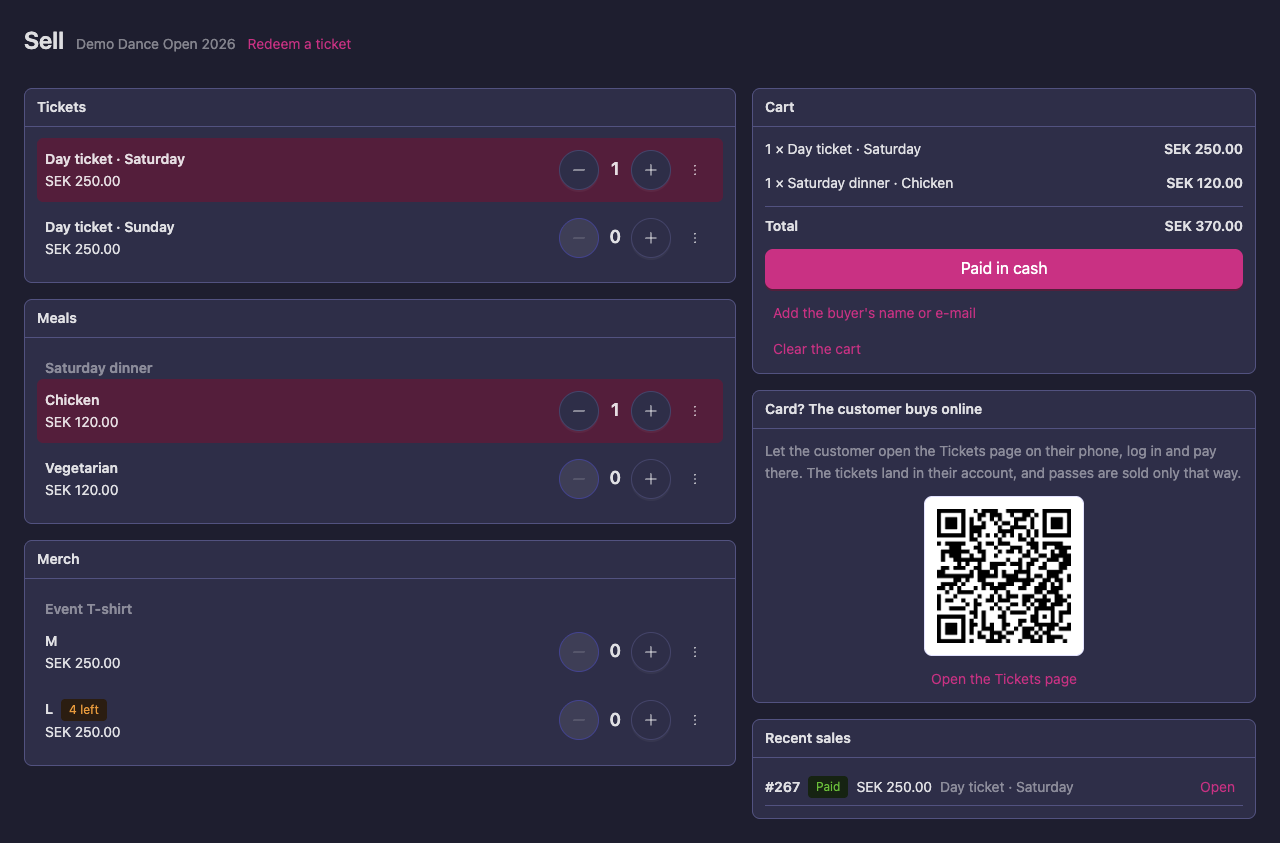
- Tickets sold at the desk are handed over on the spot (Use now) or given as a code the buyer photographs.
- A receipt can be e-mailed from the sale, in the language picked next to the address. It starts on the language of the event’s country, so a visitor from abroad can get theirs in English.
- Selling to a scanned account puts the tickets straight on that person’s screen.
The desk can also adjust the catalog under pressure, without opening the Manager: pause sales, adjust stock with a reason (recount, damaged, delivery), and add a size to an existing merch group. Every desk edit shows up on the product in the Products tab, with what changed, when and by whom.
The café
The café menu is part of the shop as internal café products: never on the public catalog, ordered by staff for a person, and picked up at the counter. Nothing about how the café works day to day changed — only where the menu is edited.
Money
- Platform fee: Vote4Dance takes 5 % of each shop payment. Stripe’s own fees are separate and charged by Stripe.
- Payouts: the money is paid out by Stripe on your account’s own schedule. Vote4Dance never holds it.
- Receipts: Stripe sends the receipt; the order keeps the link.
- Refunds: made by you in Stripe, then void the units in the Orders tab if the tickets should stop working.
Not in this version
Seat maps, ticket transfers between accounts, discount codes, waitlists and role-balanced passes are not built yet. Table seats are sold as tickets with a zone label.