My registration
Every event you are registered for has a page of its own: My registration. It shows what you still have to do, every class you are in with its rounds and results, and whether your start number has been picked up. You also pay, add a class and withdraw from a class there.
In the Dancer app the same page is called My event. See In the Dancer app.
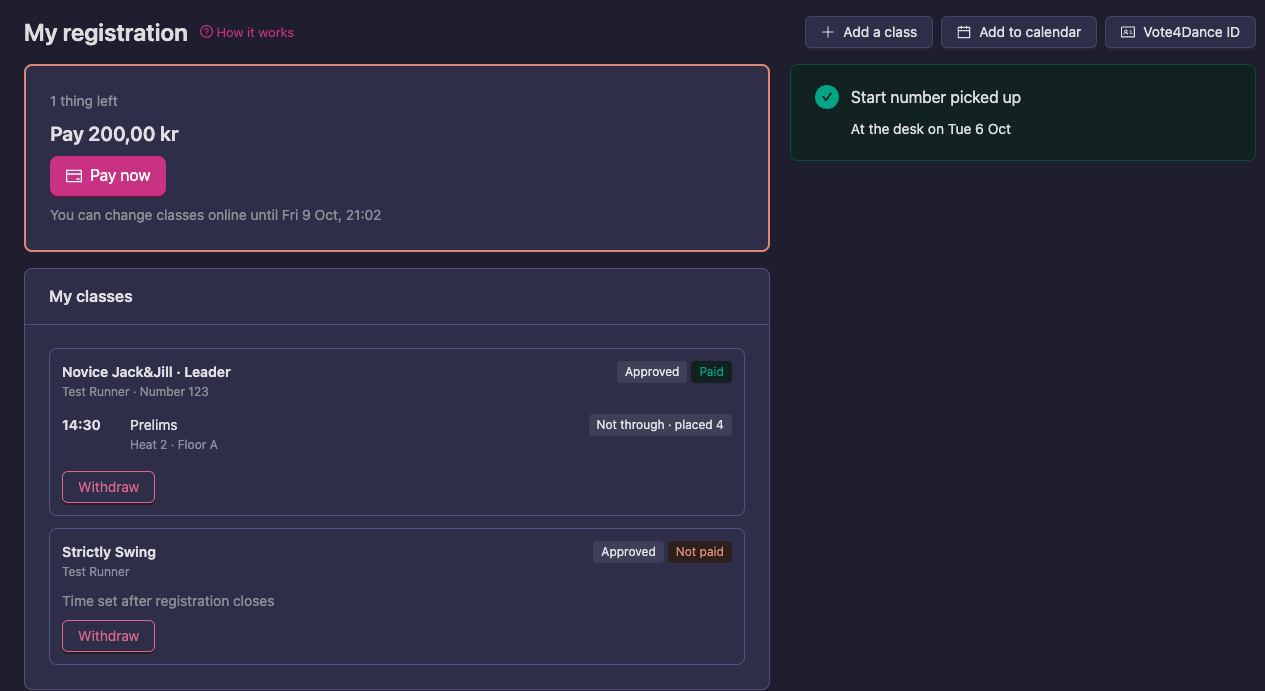
One class still to pay, one class with its first round danced, and the start number picked up.
Opening it
You need to be signed in. Any of these takes you there:
- Right after registering. When you finish registering, or come back from paying, you land on the page.
-
From the event page. When you are registered, the event’s Overview shows how many classes you are in. Press My registration on the right.

- From the email. The email you get after registering has a My registration button.
- From your account. Open your name at the top right → My account. Under Registration, press the event. See All your events.
-
On the day. On a competition day your account opens with the event at the top, and a My registration button.

What you still have to do
The card at the top tells you what is left, and counts it (1 thing left). It says one of these:
| What it says | What it means | What you do |
|---|---|---|
| Pay and an amount | The organizer has approved classes you have not paid for yet. | Press Pay now and pay by card. Everything still unpaid at the event is paid at once. |
| Pay as the organizer describes | The organizer takes payment their own way, for example by bank transfer or at the desk. Their instructions are shown below. | Follow the instructions. |
| Payment in progress | You have paid by card and the payment is being confirmed. | Wait a minute: the class turns Paid on its own. |
| Waiting for the organizer to approve your registration | The organizer approves registrations by hand. | Nothing yet. If the event takes card payment, you can pay once you are approved. |
| All set | Nothing is left to do. | Nothing. |
When your club pays for its dancers with one invoice, the club’s invoice can be listed here as well, with its amount and a Pay club invoice button.
Below the card you see until when you can change your classes online (You can change classes online until…). After that, changes are made at the desk.
Your classes
My classes lists every class you are in at the event, on every day of it. Each class shows:
- Who dances it: you, or your couple or team, and your start number once it has one (Number 123).
- Its status (Approved, Preliminary and so on, see What your status means) and whether it is Paid or Not paid.
- Its rounds, once the organizer has set them up and published the schedule: the time, the round, and your heat and floor. Before that it says Time set after registration closes.
- How it went, round by round, as soon as the results are published: Through, Not through · placed 4, Alternate 1, Placed 2 and so on. A round still being judged says Results coming.
Rounds after one you did not go through from are not listed: they are not yours any more.
If the event you are at started from a start list the organizer imported, instead of registrations in Vote4Dance, your entries are found by the Federation ID on your licence, so they are listed here too.
The buttons at the top
- Add a class opens the event’s registration with your competitor already picked.
- Add to calendar downloads your round times, to open in your phone’s or computer’s calendar.
- Vote4Dance ID shows the QR code the desk scans. See Your Vote4Dance ID.
On the day
On a competition day the page also shows:
- Next up: your next round that day, with the time, heat and floor, and your number.
- Your start number: Start number picked up, with when you were at the desk, or Start number not picked up yet with a Show ID button to show at the desk. The page only says this at events where the desk checks dancers in with Vote4Dance.
Results and times update on their own while the page is open.
Withdrawing from a class
- Open My registration for the event.
- Press Withdraw on the class.
- Press Withdraw again to confirm, or Keep it to stop.
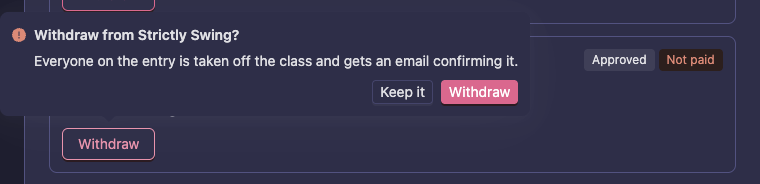
Everyone on the entry is taken off the class, and each of you gets an email confirming it.
- You can withdraw while the class’s registration period is open. After it closes the class says Registration has closed: changes only at the desk: ask the organizer.
- A group or formation owned by your club is withdrawn by the club. The class then says Your club manages this entry. Ask your coach to change or withdraw it.
- Nothing is refunded automatically. If you paid, contact the organizer, who refunds from the Manager app.
Changing who dances
Some federation classes let a registered team change its dancers, for example to replace one who is injured. Only then does the class show Edit lineup, and only while registration is open. Most classes do not allow it: ask the organizer instead.
All your events
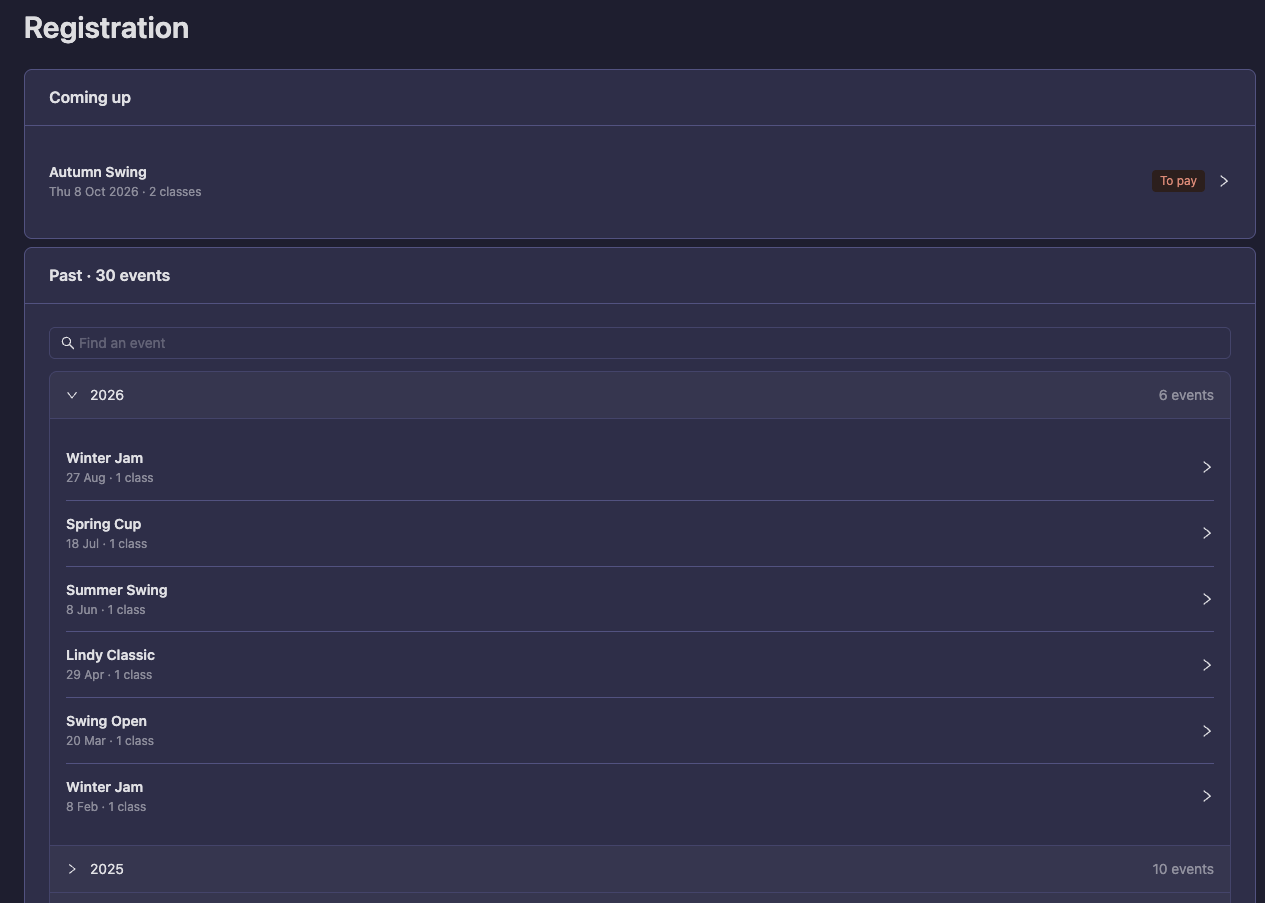
Your account lists every event you have registered for, under Registration:
- Coming up: events that have not ended yet. A tag says when something needs you: To pay, Awaiting approval or Payment in progress.
- Past: earlier events, by year. With many events, use Find an event to search by name.
Press an event to open its My registration. Paying and withdrawing happen there.
In the Dancer app
In the app, open Profile → Registrations and tap an event to open My event. It shows the same things to do, your Vote4Dance ID and your classes. Inside an event, the Mine part lists your classes and links to My event with My registration, ID and payment.
Paying, adding a class and withdrawing open this page on the website. You may need to sign in there.
Next step
Continue to Results, points and rankings to see how competing affects your rankings.