Competition setup
This page is your execution workflow after Event setup. You will configure classes, rounds, teams, judges, and publishing readiness in the order that prevents rework.
Before you start
Confirm these prerequisites:
- You can open Manager and access your event
- Event basics are complete (name, date, venue, visibility)
- Federation rules are known (license requirements, class structure)
- You have at least one backup admin in the event
If not, complete Event setup first.
Where to go
- Sign in to Vote4Dance
- Open Manager
- Select your event
Manager’s sidebar is grouped the way the work is:
| Group | Contains |
|---|---|
| Event overview | The event’s start page, and Problems (the automatic tests over your setup) while any test fails. See Problems. |
| Event | Competitions, Floor, Users, Stations, Café, Schedule |
| Competition | Registration, Classes, Participants, Judges, Check-in, Statistics |
| Audience | Notifications, Screens, Sponsors, Live results, Shop |
This page works in the Competition group. Rounds live inside a class.
Recommended build order
Use this order to avoid broken links between sections:
- Create classes
- Create round trees
- Add participants
- Assign start numbers and class entries
- Add judges and build panels
- Rehearse one full round
- Take rounds from Not started to In progress
Step 1: Create classes
Go to Competitions -> Classes.
Create every class participants can enter.
A class has these fields:
| Field | What it means |
|---|---|
| Division | The federation’s division the class belongs to. |
| Discipline | The dance discipline within that division. |
| Federation Class | The federation’s class this maps to — this is what carries the age and level rules, so you do not enter ages on the class yourself. |
| Class title | The name people read: on the public page, in registration and on printouts. |
| Class short letter | The short form used where space is tight, such as on screens and lists. |
| Class role | Only for leader/follower classes: Leader or Follower. Each such class needs exactly one partner class, and Problems checks that. |
Group classes and merged classes add their own fields (class group, merge target).
If the class’s short letter is one of the federation’s class codes, such as BJITT, the class is linked to that Federation Class by itself when you save it, and its division, discipline and category are filled in from the federation. This also works for older codes the federation still lists, and for each class when you split a merged class such as BJITT/BVITT. If two of the federation’s classes share the code, set the Discipline first so the right one is picked. A Federation Class you chose yourself is never changed.
Tips:
- Keep the class title human-readable for registrations and printouts
- Prefer federation naming if the competition is federation-governed
- Pick the Federation Class carefully; the rules follow from it
If your system has Round guide, use it after classes are finalized. For battle disciplines, the Round Guide generates the complete skeleton (placing round, bracket layers, B‑final) automatically — see Battle bracket setup for the seeding steps that follow.
To create a class’s rounds with the Round guide:
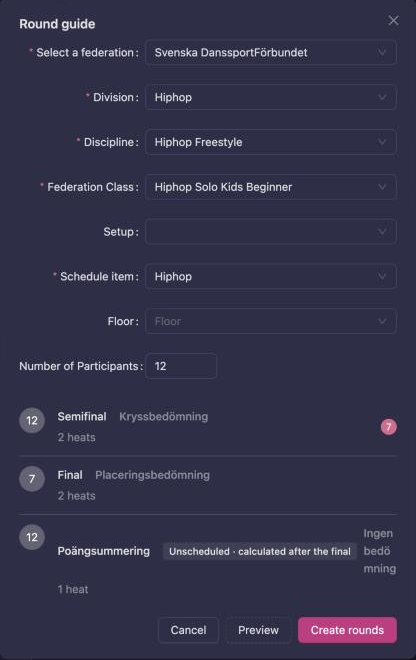
- Open the class under Classes and click Round guide.
- Check the Federation Class, pick the Schedule item, and enter the Number of Participants.
-
Click Preview to see the rounds you will get. A point summary from the federation’s rules is marked Unscheduled · calculated after the final.
-
Click Create rounds. The rounds are placed on the schedule item you picked; the point summary is placed last in the class, in the unscheduled block, so it takes no floor time.
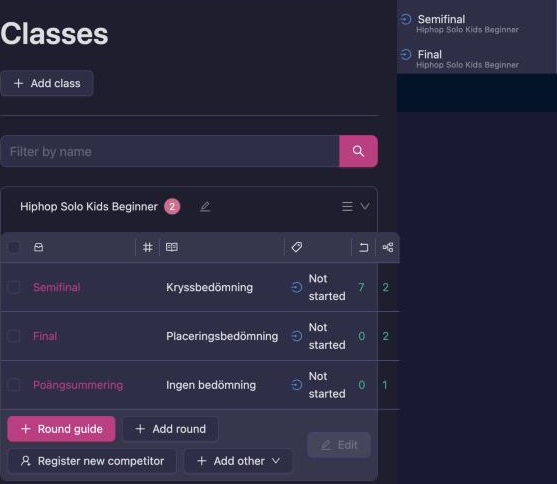
The Round guide also fills in each round’s Round for those that qualify and Round for non-qualified participants (the next round, a B-final or a second chance), so the class is ready to advance as soon as results are in. You can still change a link under Qualified participants when the round is closed. If the rounds are created but some links could not be set, the Round guide says so and you set those by hand.
Step 2: Build rounds from classes
Go to Competitions -> Rounds or open a class and click Create Round.
For each class, define:
| Setting group | Key settings | Example |
|---|---|---|
| Basic | Round label, method, through count | Quarterfinal, 24 through |
| Heat setup | Heat count and timing | 4 heats, 90 seconds each |
| Schedule | Day, floor, time block | Day 1, Floor A, 10:00 |
| Results | Qualifier and placement behavior | Top 12 to semifinal |
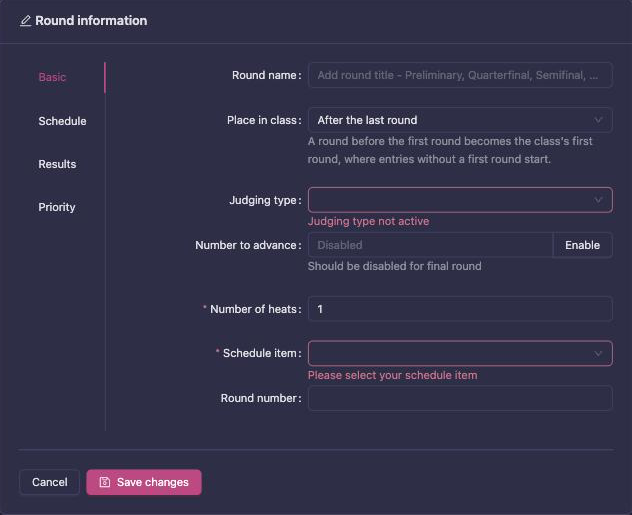
A new round goes after the class’s last round. To add an extra round in front instead, for example a preliminary when more entries came in than the first round can take:
- Open the class and click Add round.
- Under Place in class, choose Before the first round. The form then takes its values from the first round: Number to advance is twice what the first round sends on (at least 6), and the round goes in the first round’s schedule block, just before the first round.
- Check the values and click Save changes.
The new round becomes the class’s first round, where entries without a starting round begin. Its Round for those that qualify is the round it was placed in front of.
A round can’t be added in front of a first round that has started. If the first round already has participants, set it back to Not started and use Remove participants on it first, so nobody ends up in both rounds.
Typical round tree:
Class: Junior Solo - Contemporary
	Round 1: Quarterfinal (24 through)
	Round 2: Semifinal (12 through)
	Round 3: Final (0 through)
Step 3: Add participants
Go to Competition → Participants. (The page is called Participants in Manager; “teams” is the older internal word, and one participant row can be a single dancer, a couple or a group.)
Participants get there three ways:
- Imported from approved registrations — the normal route. See Registration and check-in.
- Added by hand, for entries that never went through registration.
- Generate random competitors — a practice-event-only action that fills a round with test entries, for rehearsals. See Test run and venue rehearsal.
CSV import lives on Competition → Registration → Data transfer, together with the reset and delete tools.
Do not bulk delete participants once judging is underway.
Step 4: Assign start numbers and class entries
Still in Participants:
- Assign start numbers (manually or automatically)
- Check every participant is entered in the right class
- Verify nobody is missing a class assignment
Then open Problems, which checks exactly this for you: start-number conflicts, invalid start numbers, the same person ID used with two different names, and participants without a placement who have a class set to start in. For DSF competitions it also checks conflicting license numbers.
Step 5: Add judges and build panels
Go to Competition → Judges. The full reference is Judges.
Process:
- Invite each judge by email, or link an existing account. Invite new judge checks for existing accounts first, so you do not create a duplicate person.
- Assign judge letters (A, B, C…)
- Enter each judge’s needs: times away, limits, and classes or dancers they must not judge
- On the Panels tab, create panels and seat judges, or let Suggest seat them for you
- On the Classes tab, assign a panel to each class — a round can have its own panel
Each judge’s row shows Not invited, Invited or Active, and lets you resend the invitation in any of the app’s languages, or Reset PIN if a judge has forgotten theirs. Judges set their own PIN on their own device; there is no event-wide code. A judge’s PIN is shared by all competitions in the event, so Reset PIN clears it event-wide. Reset PIN is disabled until the judge has set a PIN.
Fix anything listed above the tabs before the event. A panel locks once a round that uses it has scores, and a panel that a round uses cannot be deleted. A judge who already has marks cannot be removed.
Step 6: Run one rehearsal round
Before event day, execute one full dry run. This is the desk version; for the full rehearsal at the venue with projector and tablets, see Test run and venue rehearsal.
- Pick a test class
- Open the first round
- Press Start judging (the round goes to In progress)
- Simulate judging input
- Close, confirm, and publish test results
- Verify printouts (heat list, judging sheet, results)
If anything fails, fix before opening real rounds.
Round lifecycle you should enforce
Use this exact sequence:
- Not started: setup stage, round settings editable
- In progress: judges can mark (button: Start judging)
- Closed: judge input ended (button: Close round)
- Confirmed: results reviewed, approved for presentation (button: Confirm round)
- Published: results visible externally (button: Publish results online)
Previous status steps a round back.
Do not skip statuses unless your federation explicitly allows it.
Data transfer
Competition → Registration → Data transfer, only when needed.
Use cases:
- CSV import of participants
- Result downloads
- Reset and delete tools for test data
High risk actions:
- Reset and delete are destructive
- Never reset active competition data without a backup
Troubleshooting
“Start judging is refused”
Usually caused by missing judges, a missing schedule item, or unassigned participants. With no panel, Manager says “Assign a judging panel to this class or round before starting judging.”
Fix:
- Open round validation
- Resolve all blocking errors
- Retry status change
“Participants are not appearing in a class”
- Confirm the registration is Approved and was imported
- Confirm the class entry was saved
- Confirm eligibility (the Federation Class’s age and level rules, licenses)
“Judge assignment is locked”
This often happens after results started.
- Check round status
- If Closed/Confirmed, use approved correction workflow
- Log reason for any panel change
“CSV import created wrong mappings”
- Stop further imports
- Export current state for audit
- Correct mapping template
- Re-import only corrected rows
Competition setup done checklist
- All classes exist with a title, short letter and the right Federation Class
- All rounds exist with a schedule item, floor and advancement plan
- Participants are loaded, numbered and entered in classes
- Judges are
Active, and every active class has a panel - One full rehearsal round completed successfully
- Problems shows no failed tests
Next step
Continue to Test run and venue rehearsal to prove the setup with real devices, then to Live operations for the event-day runbook.