Following results in the app
The Vote4Dance app is for what happens at the venue: seeing when you dance, following the results as they come in, and showing your ID at the entrance. Registering and paying is done on the website.
The app has three tabs at the bottom: Competitions, Favorites and Profile.
To see when you dance, open the competition’s Schedule tab. Following the schedule explains what it shows.
Find results
- Open the Competitions tab and choose a competition.
- Open the Results tab.
- Pick With results to see only the classes whose results have been published. Pick All to see every class, including those that have not danced yet.
- Tap a class to see its results.
The Results tab opens on With results as soon as at least one class has results. Before the first results are published it shows All, so the list is never empty because of the filter.
The pink number next to a class is how many competitors are in it, not how many results there are.
Follow dancers and clubs with Premium
The Favorites tab collects the dancers and clubs you follow, grouped by competition. For each followed competitor you see the class, when they dance, and whether they got through. Clear removes everything you follow in that competition.
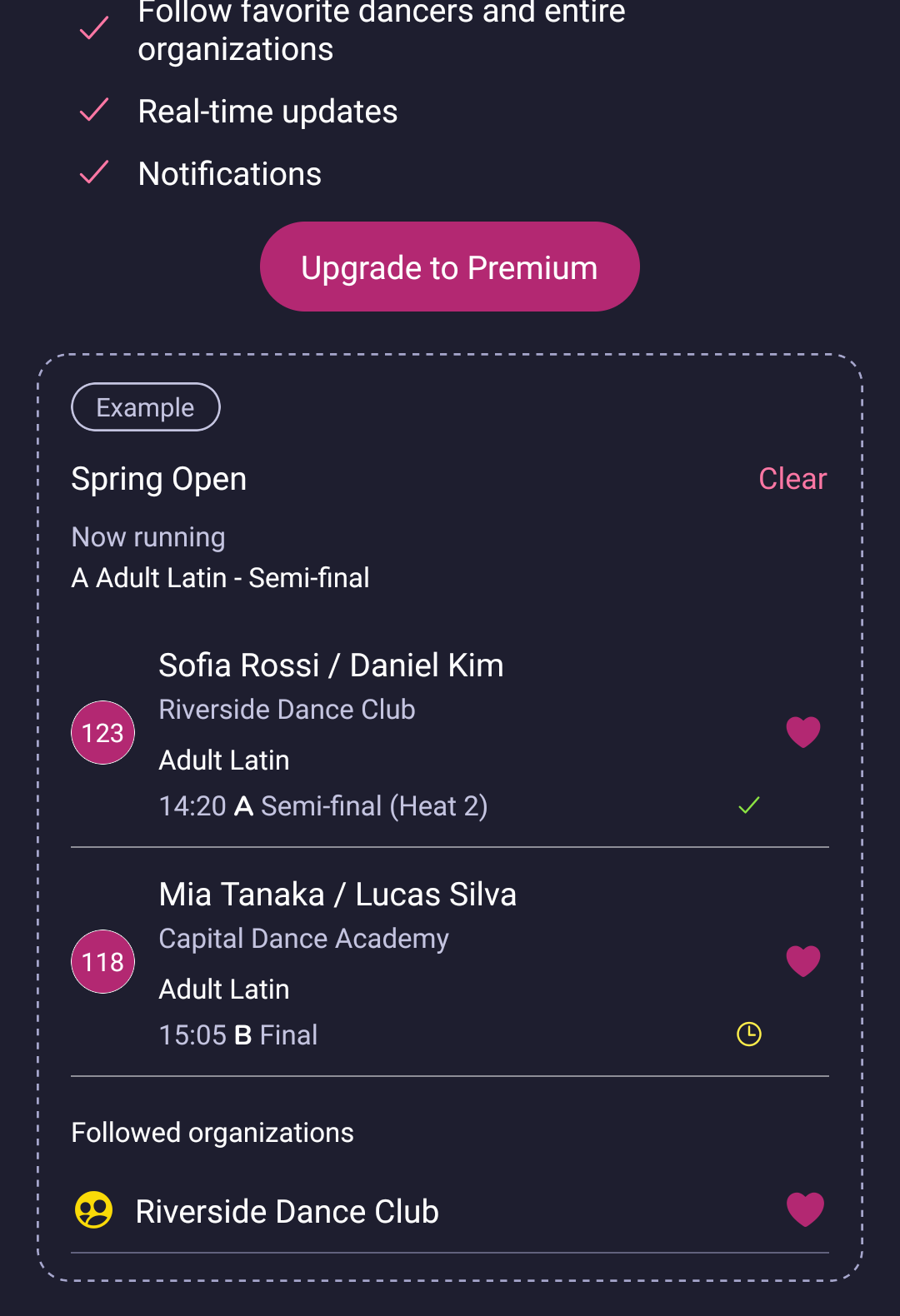
The example card shown on the Favorites tab before you have Premium. The names are made up.
Following dancers and clubs, real-time updates and notifications are part of Premium.
- Open the Favorites tab.
- Read what Premium gives you, and look at the example to see how followed dancers will appear.
- Tap Upgrade to Premium when you want it.
The Favorites tab no longer opens the Premium offer by itself. It only opens when you tap Upgrade to Premium.
Cancel Premium
- Open the Profile tab and tap Settings.
- Tap Cancel subscription.
What happens next depends on where you bought Premium:
- In the app: cancel it in the App Store or Play Store. Open Subscriptions there and remove Vote4Dance.
- On the Vote4Dance website: Cancel subscription opens your subscription in your browser, where you can change or cancel it. The App Store and Play Store do not list subscriptions bought on the website.
Vote for a competitor
When the organizer has switched on audience voting, you can give a competitor up to five hearts, until that round’s results are published.
- In the schedule, tap Vote next to the competitor. The voting card opens. If voting needs Premium for your account, Vote opens the Premium offer instead.
- Tap the big heart to fill the ring a little at a time, or hold it to fill the ring while your finger is down. Lift your finger and it stops where it is.
- Each time the ring is full you earn a heart. The hearts at the top show how many you have given.
- Tap Clear to start over, or Save to give your votes.