Judges
The Judges page is where you decide who judges a competition, which panel each judge sits on, and which panel judges each class and round. Open it from Manager → Competition → Judges. People with the Supervisor app get the same page as the Judges tab of the Supervisor app.
The page has four tabs:
| Tab | What you do there |
|---|---|
| Judges | Add and invite judges, give them letters, reset PINs, and see each judge’s needs. |
| Panels | Seat judges on panels in one grid, let Vote4Dance suggest seats, and handle a judge who can’t come. See Panels. |
| Classes | Choose the panel for each class, and give single rounds a panel of their own. See Classes. |
| Tablets | Shared judging tablets, when they are switched on for your event. |
Above the tabs, the page lists any problems with the judging panels.
In an event with several competitions, each competition has its own judges and panels. In Manager you are already in one competition; in the Supervisor app, pick it under Competition at the top of the page. See Events with several competitions.
Judges are not users in Manager → Event → Users, and they need no app tick there. Being on the judge list is what gives a person the Judging app for this event. See Users, apps and stations.
Who can change judges
You need the Manager or Supervisor app on the event. The page is read-only once the event is Closed or Archived.
Adding judges
There are two ways to add a judge. Both are at the bottom of the judge list. In Scrutineer (Beta) there is a third: pick the judges of your earlier events from a list.
An existing account
Type at least three letters of the judge’s name in the Search users box, or their whole email address. The search starts when you stop typing. Matching accounts appear with a shortened email address, such as j•••@g•••.com, and a count, such as 3x, that shows how many competitions they have judged before. Searching by email needs the whole address. Pick one and press Add. The judge is added at once; no email is sent. See Invitations.
Disabled accounts are not listed.
Invite by email
Use Invite new judge for someone who has no Vote4Dance account. The Invite a new judge dialog asks for:
| Field | Notes |
|---|---|
| Required. Becomes the judge’s username. | |
| First name, Last name | Required. |
| Nationality | Required. Pre-filled with a guess from your browser. |
| Language | The language of the new account and of the invitation. Starts on your own Manager language. |
While you type, the dialog searches for existing accounts by email and by name under Possible existing accounts. This is to stop you creating the same person twice:
- If one of them is the person, press Use this account. They are added as a judge on their existing account.
- If the email you typed already belongs to an account, the dialog says “A user with this email already exists — pick them from the list.” and will not create a new one.
- If there are matches but none of them is the person, tick “I have reviewed the list above — none of these is the person I want to invite.” to go on.
Create new judge account creates the account and adds the person as a judge. The dialog then opens the invitation for them. The invitation is not sent until you press Send invitation in that dialog.
Judges from earlier events
In Scrutineer (Beta), the new version of the Manager app, you can add the judges you usually work with without searching for them one by one. Press Add earlier judges at the bottom of the judge list.

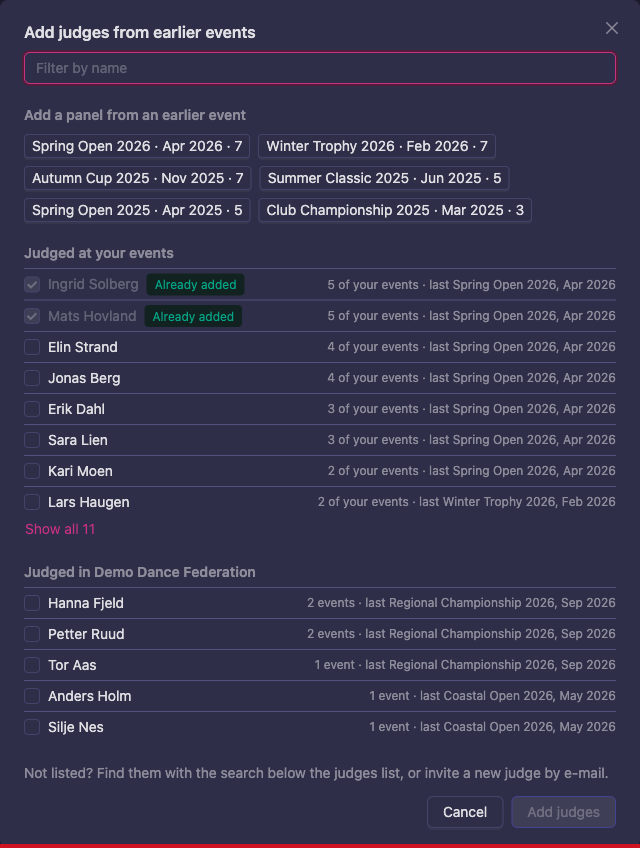
The Add judges from earlier events dialog lists people who have judged before:
| Group | Who is in it |
|---|---|
| Judged at your events | Judges of earlier events where you have the Manager or Supervisor app. Those who judged at the most of your events come first, with how many and the last one, such as “4 of your events · last Spring Open 2026, Apr 2026”. |
| Judged in your federation | Judges of the federation’s other events, such as Judged in Norges Danseforbund. Only for events that belong to a federation, and only once you have run an event in that federation before, as Manager or Supervisor, or if you work for the federation. |
The first time you organize an event in a federation, you see only Judged at your events, or nothing yet; find your judges with the search below the judge list instead. Only names are shown, never email addresses. People who already judge in this competition are ticked and marked Already added.
To add judges:
- Tick the people you want. A long group shows its first eight; press Show all to see everyone.
- To find someone, type part of their name in Filter by name. The lists are filtered while you type; this is not a search, so you can use it as much as you like.
- To use a whole panel again, press one of your recent events under Add a panel from an earlier event, such as “Winter Trophy 2026 · Feb 2026 · 7”. Everyone who judged that event and is not added yet is ticked. The six most recent of your events are offered.
- Check the names next to Selected:. Press the × on a name to leave that person out.
- Press Add 5 judges (the button counts the people you ticked). The button shows “Adding 2 of 5…” while it works. The dialog can’t be closed until it is done, and closes by itself when everyone is added.
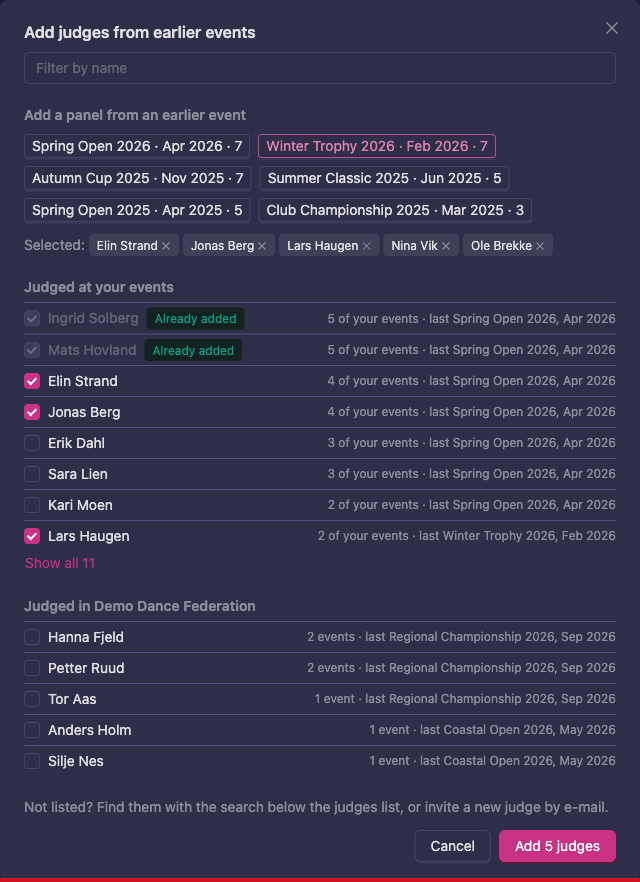
The judges get the next free letters, as when you add them one at a time, and no email is sent; see Invitations. If someone could not be added, the dialog stays open, names them with the reason, and keeps them ticked so you can try again.
Someone who is not in the lists, such as a judge new to your events, is found with the search below the judge list, or invited with Invite new judge.
Judge list
Each row has:
| Column | What it shows |
|---|---|
| Dot | Green when the judge has the Judging app open and connected; hover for battery level. |
| Name | The judge’s name. Hover over the info icon after it to see a shortened email address, such as j•••@g•••.com, so you can tell judges with the same name apart. The full address stays private to the judge; invitations still reach it. |
| Photo | A photo used for this competition only. Upload one to replace the judge’s profile picture; delete it to fall back to the profile picture. |
| Status | See Statuses. |
| Needs | None, or Set by supervisor when the judge has needs. Click it to open them. |
| Letter | The judge’s letter. Type it in; it saves when you leave the field or press Enter. |
| WDSF MIN | Only in WDSF competitions. The judge’s WDSF MIN, with a lookup button. |
| Delete | Removes the judge. See Removing a judge. |
| Reset PIN | See PIN. |
| Send invitation, Resend invitation or Notify | See Invitations. |
Letters
Every new judge starts with the letter A, so give each judge their own letter before the competition. The letter is shown before the name on the panels, for example B) Anna Berg.
Assign letters sets every judge’s letter in one go:
| Option | What it does |
|---|---|
| By firstname | Sorts judges by first name, then last name, and gives them A, B, C… After Z it goes on with AA, BB, CC… |
| By lastname | The same, sorted by last name first. |
| Use as firstname | Sets each judge’s letter to their first name. |
Statuses
| Status | Meaning |
|---|---|
| Not invited | The account has no password yet, and no invitation has been sent. |
| Invited | The account has no password yet, and an invitation has been sent. Hover to see the date. |
| Active | The account has a password, so the person can sign in. |
The status describes the person’s account, not this competition. A judge you add from an existing account is usually Active at once, even if you have never sent them anything.
Invitations
The button at the end of each row opens the invitation dialog. Its label depends on the status:
| Status | Button | Email the judge gets |
|---|---|---|
| Not invited | Send invitation | “You have been invited to judge”, with a Set your password button. The link expires after 7 days. |
| Invited | Resend invitation | The same email with a new link, valid for another 7 days. |
| Active | Notify | “You have been added as a judge”, with a Sign in button and a reminder about “Forgot password”. |
The button is greyed out if the judge has no email address.
In the dialog:
- Language chooses the language of the email. It starts on the judge’s own account language, or English. You can choose English, Svenska, Español, Suomi, Norsk, Nederlands, Deutsch or Français.
- Email preview shows the subject and text exactly as they will be sent, with the competition name and picture as the heading.
Every invitation also contains the demo link. The email comes from the same sender as other Vote4Dance emails; see Emails and the check-in QR code.
After sending, the row shows Invited (or stays Active). Send again as often as you need to; each send updates the date.
PIN
There is no event-wide judge code. Each judge sets their own four-digit PIN on their own device the first time they open the Judging app. The app asks for it again when they come back, and locks itself after 10 minutes without use or with the screen hidden.
A judge has one PIN for the whole event. If they judge in several competitions of the same event, the same PIN works in all of them.
If a judge forgets their PIN, press Reset PIN on their row and confirm. The PIN is cleared for every competition in the event, and the next time the judge opens the Judging app they set a new one. Reset PIN is greyed out until the judge has set a PIN.
Demo
The judge demo is at /judging3/event/<event id>/demo. It lets a judge practise before the competition:
- It shows one practice round for each judging system used in the competition’s rounds, filled with made-up couples. Reset starts a round again and Next moves to the next one. Nothing is saved.
- It needs a signed-in Vote4Dance account, but not a PIN.
- On the event page, a Manager who is not judging opens it with the Judges tile. It is also linked from every invitation email and from the Demo item in the Judging app’s menu.
Open it yourself to see what your judges will see for the systems you have set up. It shows nothing until the competition has rounds.
Judge types
The legend lists the roles a judge can have on a panel. Not judging is only in the legend; you cannot choose it on a panel.
| Type | What it means |
|---|---|
| Not judging | No judging duties assigned. |
| Judge | Marks the dancers; the marks count in the result. |
| Trainee judge | Practises by marking; the marks don’t count in the result. |
| Chief judge (in) | Marks like the other judges and counts in the result; also breaks ties. |
| Chief judge (out) | Doesn’t count in the result; their marks only break ties. |
| Audience | Scores come from public audience voting; counts toward final placements. Can be chosen on a panel, but is not shown in the legend. |
When you seat a judge on the Panels tab, the seat menu says what each type does, and hovering over a type in the legend under the grid shows the same. How it works in the menu and the legend opens this section.
The type is set per panel, so the same person can be a Judge on one panel and a Trainee judge on another.
Rounds placed by a majority of the judges need an odd number of judges. Problems lists the rounds whose panel has an even number, counting only the types that mark the result.
Separating tied positions
When a closed round has competitors sharing a position, the round’s toolbar offers ways to separate them. Each one adds a round under the main round, and the placements it decides come back to the main round with a letter showing how they were decided.
| Button | When it is shown | What happens | Letter |
|---|---|---|---|
| Redance | On a closed main round | The tied competitors dance again in a new round, judged by placement. | R |
| Side skating | On a closed round without sub-rounds, except partial-input rounds | Compares the judges’ marks for the competitors that share a position, without anyone dancing again. | S |
| Chief judge | On a closed round whose panel has a Chief judge (in) or Chief judge (out) | The chief judge’s marks from the round decide the order. Nobody dances or judges again. | CJ |
| Paper redance | On a closed partial-input round whose panel has no chief judge | All judges rank the tied competitors again on paper, without anyone dancing again. | PR |
Redance, Chief judge and Paper redance are greyed out while no position is shared, and Side skating while no position can be side-skated. The letter appears as a badge next to the placement in the round’s results; hover over it to see how the placement was decided, for example “Placement assigned through chief judge”.
Chief judge
- Open the closed round and click Chief judge.
- Choose the tied position under Select the position to separate: and click OK. To separate another tied position, click Chief judge again.
- A round named Chief judge appears under the round. It holds the tied competitors with the marks the chief judge already gave them in the round, and it is ranked straight away.
The competitor the chief judge marked higher gets the better placement:
| Round judged with | Ranked first |
|---|---|
| Callback marks (Yes / Alt 1 / Alt 2 / Alt 3) | Yes, then Alt 1, Alt 2 and Alt 3; a competitor without a mark comes last |
| Scores (sliders) | The higher score |
| One-to-five | 1 before 2, and so on to 5 |
| Placement | 1st before 2nd, and so on |
Competitors the chief judge marked the same stay tied. When the panel has more than one chief judge, their orders are combined by majority.
Which chief judge type to use depends on the rules:
- Chief judge (in) marks like the other judges and counts in the result. Use it when the head judge sits on the panel, as in DSF West Coast Swing, where the head judge breaks ties in prelims.
- Chief judge (out) does not count in the result; only their marks break ties. Use it when the chief judge sits outside the panel, as in WSDC Jack & Jill, where the chief judge gives every competitor a raw score in prelims. See Jack & Jill.
- Where the rules settle a tie by dancing again, as in Norwegian (ND) semifinals, use Redance instead.
To redo a chief judge decision, open the Chief judge round. If it is Closed, use Previous status until it is Not started. Click Remove participants, then Delete round, and click Chief judge on the main round again. A tie separated before the fix in the 2026-10-03 release keeps the order it got then, which could rank the chief judge’s lower mark first, so redo those.
Panels
A panel is a named group of judges. Classes and rounds are judged by a panel, not by individual judges. A round cannot be started until its class or the round has a panel. Start judging is refused with “Assign a judging panel to this class or round before starting judging.”
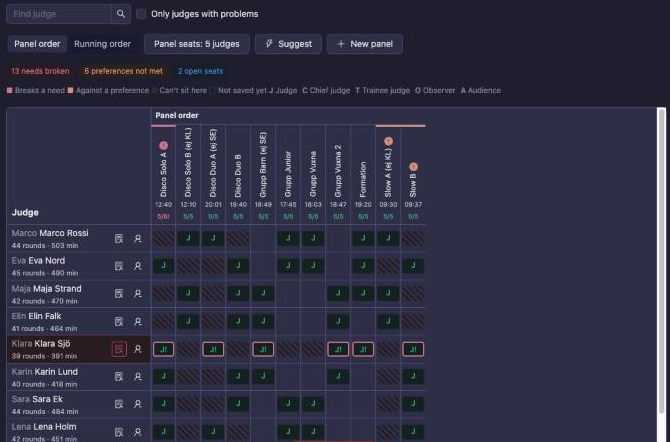
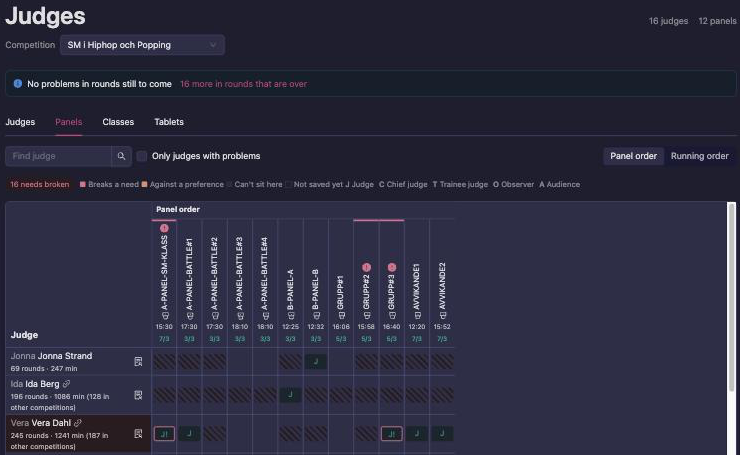
The Panels tab shows every judge as a row and every panel as a column. Each cell is that judge’s seat on that panel. The judges are listed by letter, then by name, as on the Judges tab. To group judges while you build the panels, for example by hall, you can give them a temporary letter per hall on the Judges tab and set their real letters afterwards.
You can seat judges on a panel before it judges any class. A panel that isn’t used yet has a grey column and says “Not used by any round”. Set up all your panels first if you like, then give each class its panel on the Classes tab.
At the top of each column, under the panel’s name, is how many judges the panel has out of how many it wants, for example “2/3”. It is green when the panel has exactly the judges it wants, and red when it has too few, or more Judge or Trainee judge seats than it wants. Hover over a red count to see what is wrong, for example “Still needed: 1 × Judge” or “More than wanted: 1 × Judge”. A new panel shows it straight away, such as “0/3”, so you can see what to fill before any round uses the panel.
Seating a judge
- Click the cell where the judge’s row meets the panel’s column.
- Choose the seat: Judge, Chief judge (out), Chief judge (in), Trainee judge or Audience. See Judge types.
- The seat is saved at once. A message at the top says, for example, “Seated Anna Berg on Panel A (Judge)”, with Undo to take it back.
To take a judge off a panel, click their seat and choose Remove from panel.
The cell shows the seat’s letter: J for judge, C for chief judge, T for trainee and A for audience. Under the grid, a legend explains the colours:
| Look | Meaning |
|---|---|
| Red outline and ! | Breaks a need: the seat goes against something the judge can’t do, such as judging while away, or judging a class their student dances in. |
| Orange outline | Against a preference: for example, the judge would rather sit as chief judge. |
| Striped cell | Can’t sit here: seating the judge would break a need. You can still seat them. |
| Dashed outline | Not saved yet: a suggested seat in a preview. |
Click or hover over a seat to see why it is marked. The reasons are also listed at the top of the seat’s menu, so they can be read on a tablet.
Under each judge’s name is how much they judge in this competition, for example “6 rounds · 45 min”. Rounds in the event’s other competitions are not counted here. The search box finds a judge by name or letter, and Only judges with problems hides everyone whose seats are fine.
Panel order and running order
Panel order shows the panels in the order you gave them. Running order sorts them by when their first round starts, grouped by day, so you see the day as it will run. A panel used on several days sits under its first day.
To change the panel order, for example to move a panel you added later next to the ones it belongs with:
- Choose Panel order.
- Drag the panel’s name at the top of its column to the left or right. On a tablet, hold your finger on the name for a moment before you drag.
- Let go where you want the panel. The column moves there with its judges, and the new order is saved at once.
A short click on the name still opens the panel’s pop-up. In Running order the panels follow the time of their first round, so they can’t be dragged.
A panel’s settings
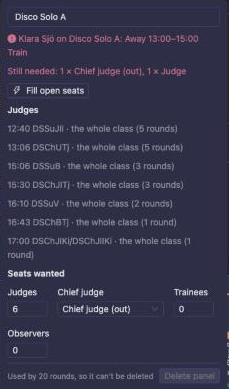
Click a panel’s name at the top of its column. The pop-up shows:
- the panel’s name, which you can change;
- the panel’s problems, if any, and what it still needs, for example “Still needed: 1 × Judge”, with Fill open seats;
- Judges: what the panel judges, either the whole class or single rounds, such as “Novice Jack&Jill – Leaders · Semi only”;
- Seats wanted: how many judges, which chief judge, and how many trainees the panel should have;
- Delete panel, which is only possible while no round uses the panel.
New panel adds a panel, named “Panel 2”, “Panel 3” and so on. Rename it in its pop-up. Each panel in an event needs a name of its own: if another panel already uses the name you type, the name field turns red and says so, and the name is not saved until you change it. Your typing stays in the field, so you only need to adjust it.
Panel seats at the top sets the seats a panel wants when it has no Seats wanted of its own. Vote4Dance starts from what most of your panels already have. A panel you add with New panel keeps the Panel seats shown at that moment as its own Seats wanted, so it does not change when you later seat other panels differently.
Letting Vote4Dance suggest seats
Suggest fills seats for you, following every judge’s needs and spreading the rounds evenly:
- Fill open seats keeps everyone where they are and fills only what panels still need.
- Re-plan all unlocked panels clears every panel that has no scores yet and fills them again from the start. It asks before it does anything.
Suggest never saves straight away. The suggested seats get a dashed outline and a bar above the grid says how many seats would change. Click any seat to change it. Then choose Apply suggestions to save them all, or Discard to forget them.
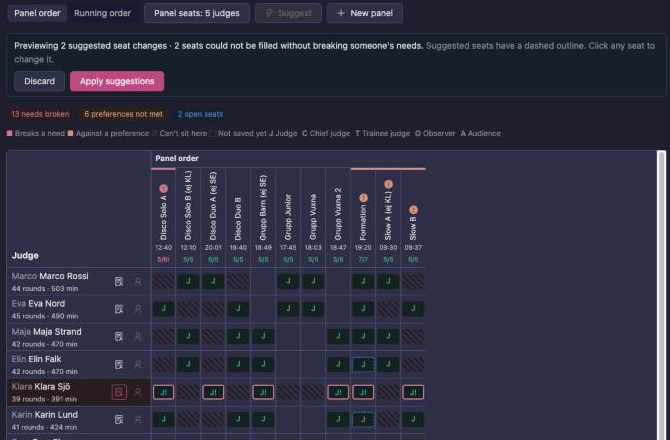
Trainee seats only go to judges whose Seat need asks for it. If a seat can’t be filled without breaking someone’s needs, the bar says so; fill it yourself or change a need.
Judge needs
Each judge can have needs that Vote4Dance checks every seat against. Open them with the needs button on the judge’s row on the Panels tab, or click Needs on the Judges tab.
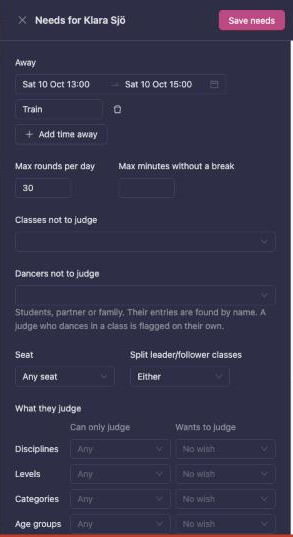
| Need | What it does |
|---|---|
| Away | Times the judge can’t judge. Add time away for each, with a Reason if you like. |
| Max rounds per day | More rounds than this on one day breaks the need. |
| Max minutes without a break | Judging longer than this without at least 10 minutes off breaks the need. |
| Classes not to judge | Classes this judge must never judge. |
| Dancers not to judge | Students, a partner or family. Their entries are found by name. A judge who dances in a class themselves is found without being listed here. |
| Seat | Which seat the judge wants: Any seat, Judge, Chief judge or Trainee. |
| Split leader/follower classes | Whether the judge prefers to judge Leaders, Followers or Either. |
| What they judge | Can only judge limits the judge to some divisions, disciplines, levels, categories or age groups; other classes show as Can’t sit here. Wants to judge is a wish that Suggest follows when it can. Only the kinds where your classes differ are shown. |
| Note | Anything else. |
| Supervisor note | Only supervisors see this, never the judge. |
Choose Save needs. Seats on the grid are checked again straight away.
A judge who can’t come
When a judge is ill, delayed or has to leave:
- On the Panels tab, click the Judge absent button on the judge’s row.
- Set Absent from. It starts at the current time, or at the first round if the event hasn’t started yet.
- Set Back at, or leave it empty for the rest of the event. Add a Reason if you like.
- The dialog lists each of the judge’s seats in rounds from then on and who would take it: the best free judge for the same seat. “nobody is free” means you’ll have to find someone yourself.
- Choose Save and preview replacements. The time away is saved to the judge’s needs, and the replacements are shown as a preview to apply or discard.
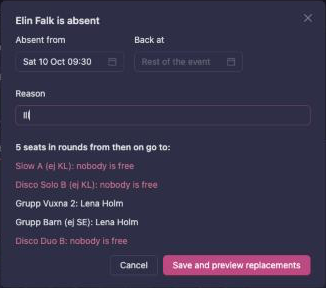
A panel that already has scores keeps the judge; the dialog lists those panels. It also lists panels whose rounds have no time yet, since Vote4Dance can’t tell whether they fall in the time away; check those yourself. To change who judges the rounds still to come, give those rounds a panel of their own on the Classes tab.
Problems with the panels
Above the tabs, the page lists what is wrong with the judging, in the order it needs your attention. Problems in rounds that are running now or start within the hour come first, marked Next hour. Then come the rest, by start time. Problems in rounds that are over are folded away under “… more in rounds that are over”.
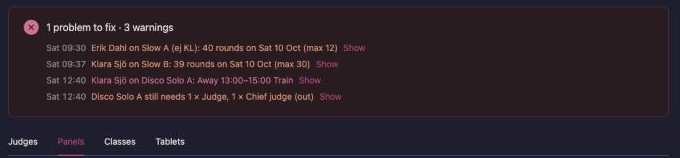
Red problems need fixing; orange ones are warnings. Show takes you to the problem: a panel opens on the Panels tab, a round without a panel is highlighted on the Classes tab, and a judge is found in the grid.
| Problem | What to do |
|---|---|
| A round “has no judging panel” | Give the class or the round a panel on the Classes tab. |
| “nobody on … counts toward the result” | Seat at least one Judge, Chief judge (in) or Audience on the panel. |
| A group class round “should have no panel” | Remove the panel; the judges belong on the classes in the group. |
| A panel “has an even number of judges” for a round decided by majority | Make one judge a Trainee judge, or add or remove a judge. |
| A judge “judges two floors at the same time” | Move the judge to another panel, or run the rounds one after the other. |
| A judge is “also on another panel at the same time”, but the rounds are on a whole floor and one of its sections | This is never reported: a whole floor and its own sections run one after the other. If their estimated times still overlap, the schedule is too full there; see Schedule conflicts. Two sections of the same floor can run side by side, so an overlap between them is still reported. |
| A panel “still needs” seats (warning) | Fill open seats, seat someone yourself, or lower Seats wanted. |
| A judge on a panel who is away, on two panels at once, or judging their own entry, a named dancer or a class to avoid | Move the judge, or change their needs. |
| A judge on too many rounds, too long without a break, or outside what they judge (warning) | Move some of their seats, or change their needs. |
Panels with a problem have a red or orange mark at the top of their column. The same checks, except judges’ needs, are on the Problems page.
Classes
The Classes tab says which panel judges each class and round.
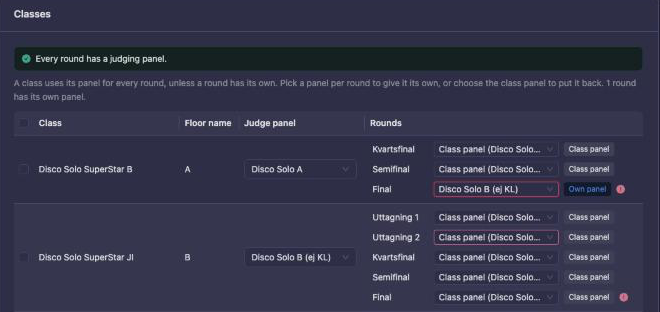
Choose a panel in the Judge panel column. The panel judges every round of that class, unless a round has its own. To give several classes the same panel, tick them first, then choose the panel on any of the ticked rows.
Round override
A single round can be judged by a different panel, for example a final with a larger panel. In the Rounds column, each round has its own choice:
- Class panel (…) uses the class’s panel. The round is tagged Class panel.
- Any other panel gives the round its own. It is tagged Own panel.
- A round whose class has no panel and that has none of its own is tagged No panel in red.
The change is saved at once. A problem with a round is marked next to it. You can also set a round’s panel in the round’s own Judge panel setting (“Replaces class judging panel for this round”) in Manager → Competition → Classes.
On a tablet or a smaller screen, each class shows its panel and its rounds stacked under its name.
When assignment locks
Panels lock when judging starts, so marks are not given by a panel that has changed since.
| What | Locked when | What you see |
|---|---|---|
| A panel’s seats | Any round that uses the panel, from its class or as its own panel, has scores | The panel’s cells can’t be changed and its name shows a lock. |
| A class’s panel | Any round of the class has been started | The class’s Judge panel and tick box are greyed out. |
| A round’s own panel | Judges who would leave the round have given marks in it | Saving is refused. |
The server also refuses these changes once marks exist, with “Cannot change panel with results”.
A panel cannot be deleted while any round uses it.
A panel used on several days locks as soon as its first round has scores. To change who judges its later rounds, give those rounds their own panel on the Classes tab.
Events with several competitions
In an event with several competitions, such as a championship week, each competition has its own judges and panels. In the Supervisor app, choose the competition under Competition at the top of the Judges page.
When the same person judges in more than one competition of the event (the same Vote4Dance account), Vote4Dance links them:
- A link icon after their name lists the other competitions they judge in.
- Their rounds in the other competitions count too: a seat at the same time is marked, rounds per day and breaks count every competition, and Suggest takes them into account.
- Their needs are shared. Saving them in one competition saves them in all of them, except Classes not to judge and What they judge, which name one competition’s classes, levels and categories and so are set in each competition. Judge absent saves the time away everywhere and tells you how many of their rounds in the other competitions fall in that time; replace those seats on that competition’s Judges page.
Removing a judge
The delete icon on a judge’s row removes them from the competition after you confirm. It also removes them from every panel.
A judge who has already given marks in this competition cannot be removed: “Cannot change judge with results”.
Removing a judge does not delete their account, and it does not send them an email.
What the judge sees
- The judge opens the event page and taps the Judges tile, or goes straight to
/judging3/event/<event id>. They must be signed in with the account you added. Anyone else gets an access-denied page. - The first time, they set a PIN and confirm it (“Keep this PIN private. Supervisors can reset it if needed.”). After that, they enter it.
- They see the rounds that are open for judging and that their panel judges. With nothing to judge, the screen says “Great job! Waiting for a round…”.
- The toolbar has Theme Light/Dark, Lock (asks for the PIN again) and Hide screen (blanks the screen between heats).
The judge’s app also has the schedule, the café and the results.
Troubleshooting
| Message | Cause | What to do |
|---|---|---|
| “A user with this email already exists — pick them from the list.” | You tried to create a new account with an email that already has one. | Press the name under the message, or pick them under Possible existing accounts. |
An error reading judges.exists | The person is already a judge in this competition. | Nothing; find them in the list. |
| “This judge has no email address on file.” | The judge’s account has no email. | Invitations cannot be sent; give the judge the link yourself. |
| “Cannot change judge with results” | The judge has given marks. | The judge must stay. |
| “Cannot change panel with results” | The panel or class already has marks. | Leave the panel as it is. |
| “Cannot delete panel with assigned classes” | A class still uses the panel. | Choose another panel for those classes, then delete. |
| “Every panel already has the seats it needs.” | Suggest found nothing to fill. | Raise Seats wanted on a panel, or use Re-plan all unlocked panels. |
| “… seats could not be filled without breaking someone’s needs.” | Every free judge has a need against those seats. | Seat someone yourself, or change a need. |
| “A panel already has scores, so its seats can’t change.” | The panel has marks. | Give the remaining rounds their own panel on the Classes tab. |
| “Assign a judging panel to this class or round before starting judging.” | The class has no panel and the round no override. | Choose a panel on the Classes tab. |
Not in this version
- No event-wide judge list: add judges to each competition separately. Their PIN is shared across the event, and a person judging in several competitions shares their needs.
- No reminder or confirmation from the judge: the status shows the account, not whether the judge has accepted.
- Judges can’t fill in their needs themselves yet; a supervisor enters them.
- Needs are only checked on the Judges page, not on the Problems page.
Related pages
- Competition setup: where judges and panels fit in the setup order
- Users, apps and stations: staff access, and why judges are separate
- Emails and the check-in QR code: the other emails Vote4Dance sends
- Test run and venue rehearsal: let every judge set their PIN before the day
- Live operations: starting rounds on the day