Round setups
A round setup decides which rounds a group of classes dances. You fill in a table — which rounds there are, from how many competitors each one starts, and what differs per round — and Vote4Dance builds the rounds from it. Organizers keep using the Round guide in Manager exactly as before; the rounds they get now come from your setup.
You don’t need to know how class rules work to use a setup. A setup replaces the class rules for its classes, and you can always switch back.
Round setups are switched on per federation by Vote4Dance. If you don’t see Setups on a discipline’s Class rules tab, ask Vote4Dance to switch them on.
Your first setup
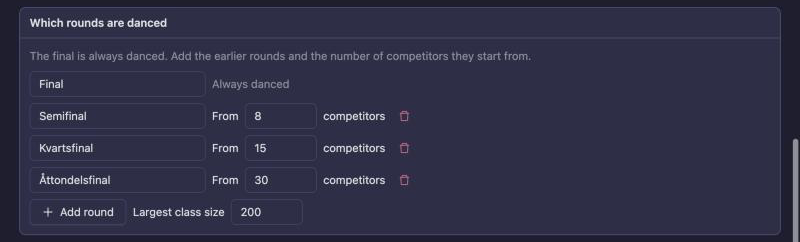
This example sets up Hiphop Solo Beginner: a final, a semifinal from 8 competitors, a quarterfinal (Kvartsfinal) from 15 and an eighth-final (Åttondelsfinal) from 30.
1. Open the Class rules tab. Go to Federation → Structure → (division) → Discipline and open Class Rules. Click New setup on the Setups card.
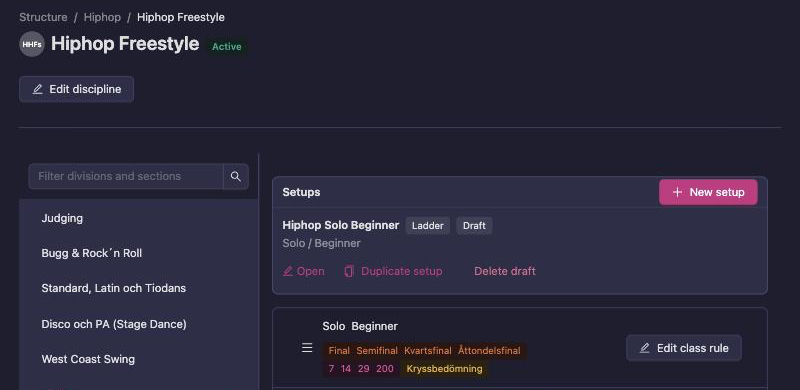
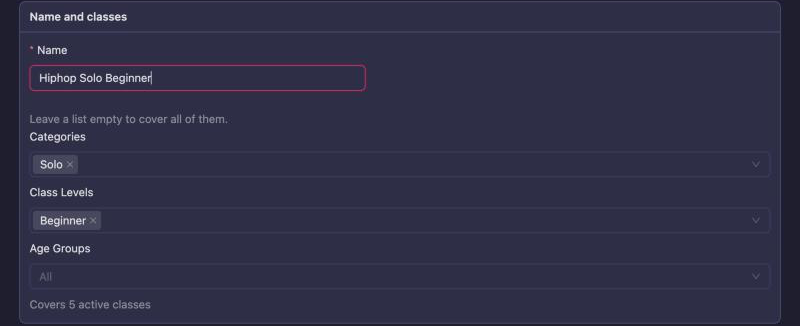
2. Name it and choose its classes. Pick the Categories, Class Levels and Age Groups it covers. Leave a list empty to cover all of them — here, every age group. Below the lists you see how many active classes the setup covers. If your choices match no class, a warning says so before you save.
3. Add the rounds. The final is always there. Click Add round for each earlier round and say from how many competitors it is danced.
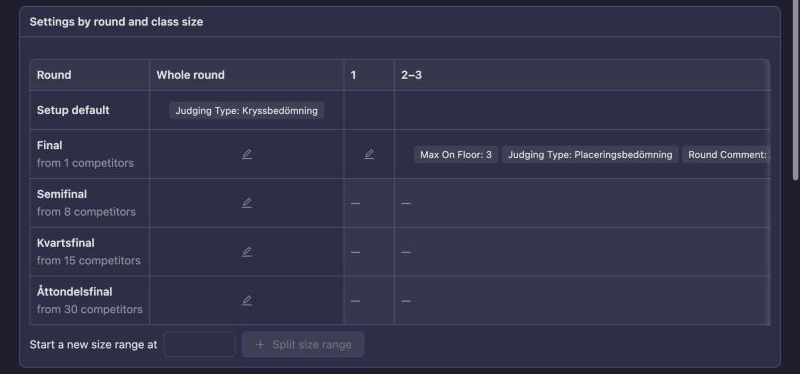
4. Fill in what differs. The table has a row per round and a column per class size. Click a cell to set, for example, the judging type for small finals. Put values that apply everywhere in Setup default.
5. Check the rounds. On the Preview tab, pick a class and a number of competitors to see the rounds it gets.
6. Compare and activate. On Compare and activate, click Compare with current rules, go through the differences, and click Activate setup. From then on, new classes get their rounds from the setup.
Save as you go with Save changes. If you leave the page with unsaved changes, Vote4Dance asks first.
Words used on this page
| Word | Meaning |
|---|---|
| Setup | The table that decides which rounds a group of classes dances. |
| Draft / Active | A draft changes nothing for organizers. An active setup is what the Round guide uses. |
| Size range | A column in the table, for classes of a certain size, for example 8–14 competitors. |
| Intended | Your mark that a difference from today’s rounds is on purpose. |
| Old rules | The class rules the setup replaced. They come back if you restore them. |
Filling in a setup
Which rounds are danced
Each round starts from a number of competitors: with a semifinal from 8, a class of 7 dances only the final and a class of 8 dances a semifinal and a final.
Largest class size is the biggest class the setup has to handle. It goes up by itself when a round starts above it.
Settings by round and class size
Values build on each other, and each level only holds what differs from the level above:
| Level | Applies to |
|---|---|
| Setup default | Every round of every class in the setup |
| Whole round | One round, at every class size |
| A size column, such as 8+ | One round, for classes of that size |
A dash means the round isn’t danced at that size. Click a cell to open its panel, add what differs with Add round setting, and click Apply.
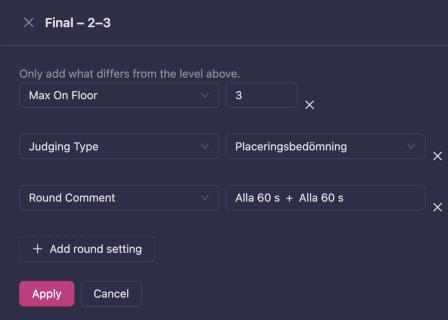
To treat some sizes differently inside a column, enter a number under Start a new size range at and click Split size range.
Round names and round sizes come from the rounds list, and the second chance’s dances from its own section, so they can’t be set in a cell.
Extrachans
Second chance inside the first round (DSF’s Extrachans) lets competitors who miss the first cut dance again; the best of them join the next round. Vote4Dance switches this on for the federations that use it.
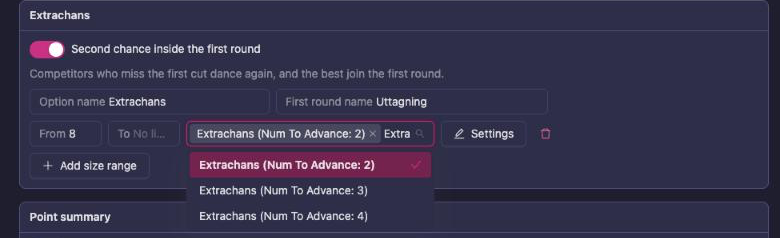
- Option name is what organizers tick in the Round guide.
- First round name renames the first round when the option is used, for example “Uttagning”.
- Add a size range for each class size it applies to, with its Dances and Settings. If a size range sets Music Length or Extra Time, set both. A size range’s Settings apply to the whole first round the extra chance sits in, not only to the extra-chance dance. When several dances have the same name, the list shows what tells them apart, for example “Extrachans (Num To Advance: 3)”.
The second chance needs a round before the final, so its size ranges start at or above the size where the round before the final begins (8 in the example).
Point summary
Add a point summary after the final gives every class from the setup a summary round that totals the placement points. Vote4Dance switches this on for the federations that use it.

The summary is placed last in the class, in the unscheduled block, so it takes no floor time. It counts every competitor in the class. Its points work like a summary added by hand; see Point summary.
Hide results
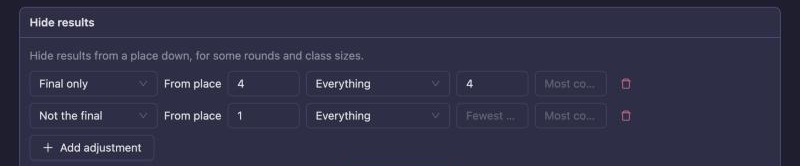
Click Add adjustment to hide results from a place down: choose the rounds, From place, and optionally Fewest competitors and Most competitors.
Preview
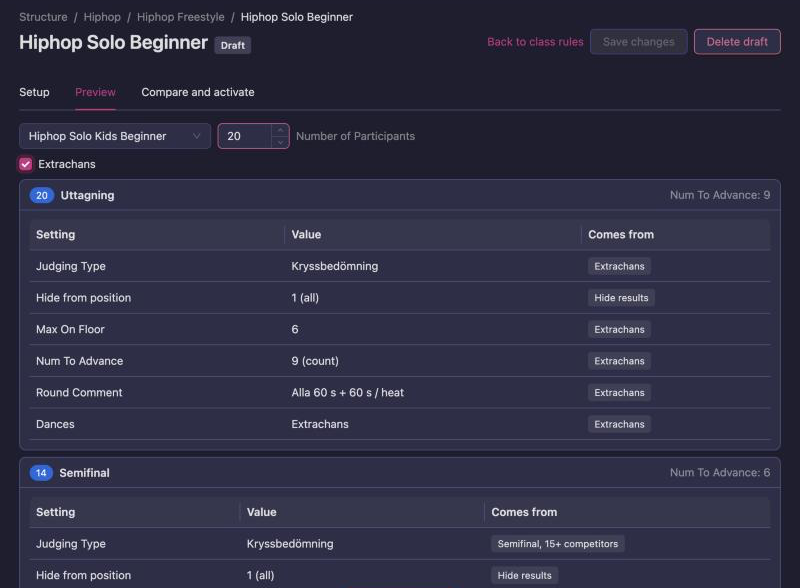
Pick a class, enter the number of competitors, and tick the options organizers can choose. Each round shows its values and where each one Comes from — Setup default, a whole round, a size column, Extrachans or Hide results. Other class rule means a class rule outside the setup.
Compare and activate
Before a setup takes over, compare the rounds it gives with the rounds organizers get today.
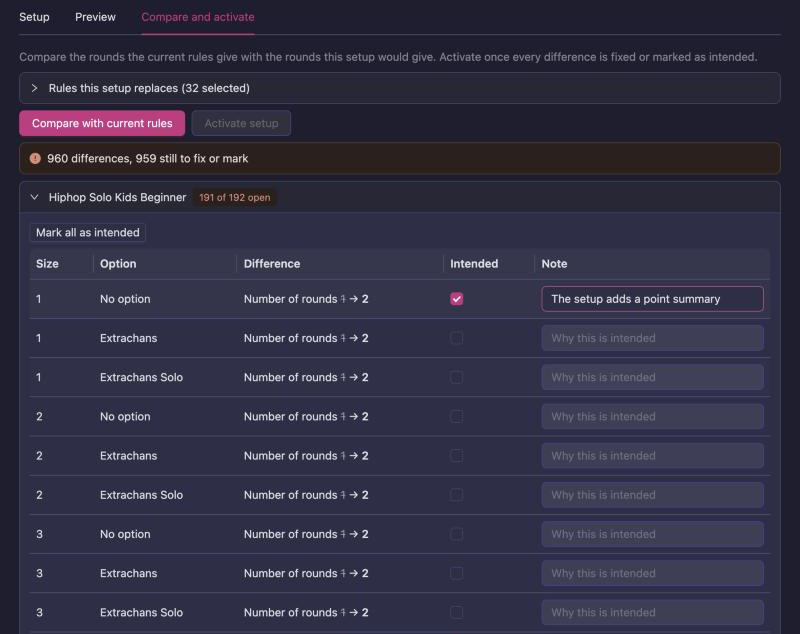
- Rules this setup replaces. Vote4Dance selects today’s rules that only apply to the setup’s classes. A rule that also applies to other classes is marked Outside this setup’s classes and stays as it is.
- Compare with current rules. Vote4Dance builds the rounds for every class in the setup at every size from 1 to 64, with and without each option, and lists what is different. In the picture, every class gets one more round because the setup adds a point summary.
- Fix or mark each difference. Change the setup until the difference goes away, or tick Intended and write a Note saying why. Mark all as intended marks a whole class. If a later change makes the same rounds differ in another way, the mark lapses and your old note is shown as a hint.
- Activate setup. You can activate once the setup is saved and nothing is left open. If you change the setup, the selected rules, the classes, dances or judging types after comparing, compare again.
Rounds that competitions already have are not changed.
After activation
-
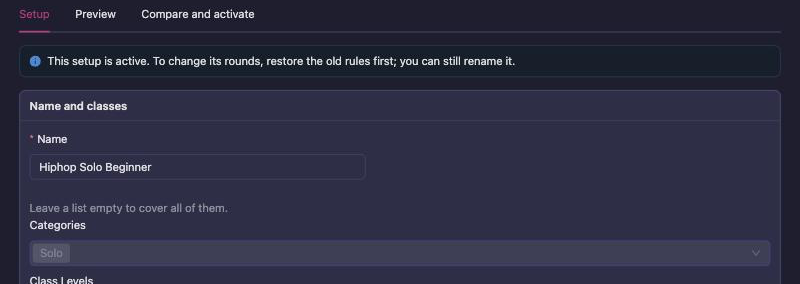
An active setup is read-only. To change its rounds, click Restore old rules on Compare and activate: the setup becomes a draft and the old rules come back. Make your changes, compare and activate again. You can still rename an active setup.

- The setup’s own rules are listed under it on the Class rules tab and can’t be edited there. The rules it replaced are listed too, switched off.
- New class rules can’t compete with it. While a setup is active, a class rule that would set round names or sizes for its classes is refused.
- Deleting. Delete a draft with Delete draft. An active setup has to be restored first.
- If Vote4Dance switches round setups off for your federation, the setups stay listed on the Class rules tab. You can still open, restore and delete them, but not change or activate them.
Messages you may see
| Message | What to do |
|---|---|
| Another active setup already covers some of these classes | Change the classes so the two setups don’t share any, or restore the other setup. |
| A rule that stays on sets round names or sizes for some of these classes | Select that rule under Rules this setup replaces, or narrow it to other classes. |
| Restore the old rules to change the rounds of an active setup | Click Restore old rules, then make your change. |
| Sending 100% or more through moves classes up a round | Use a number of competitors instead of a percentage of 100 or more. |
| The extra chance needs a round before the final … | Start the Extrachans size ranges where the round before the final begins. |
| An extra chance size range that sets Music Length or Extra Time must set both | Set both in the size range’s Settings, or neither. |
| This setup covers too many classes and settings at once | Split it into smaller setups. |
| A setting starts above the largest class size | Raise Largest class size until the setting’s column shows, then change or remove it. |
| These choices match no active class in this discipline | Check the Categories, Class Levels and Age Groups. A level may only exist for other categories — for example battle classes, which setups don’t cover yet. |
For class-rule experts
A setup is stored as its table and turned into class rules when you activate it. Those rules come first in the discipline’s rule list. A hand-written rule that still applies to the same classes runs after them, so it can change a value the setup sets — but not the rounds themselves: activation refuses rules that set round names or sizes for the setup’s classes. Battle classes are not covered by setups yet; see Battle class rules.