Sponsors
Use Sponsors at the event level to create sponsor products, sell them through Vote4Dance, and control where purchased sponsors are shown.
How sponsors work
- An organizer creates sponsor offers in Manager.
- Each offer defines a slot type, title, description, price, currency, visibility, capacity, and optional image.
- Sponsors buy through the public sponsor page for the event or through a direct public checkout link for a specific sponsor item.
- Purchased sponsors are then shown automatically in the placements connected to that slot.
- These placements are purchase-driven only. Manual or external sponsors are not supported for the built-in sponsor surfaces.
Before you start
- Stripe Connect must be connected before you can create paid sponsor offers.
- All sponsor prices exclude VAT.
- Each purchase includes a 5% Vote4Dance fee plus Stripe processing fees.
- Supported currencies in Manager are
SEK,EUR,USD, andNOK. - Minimum amount is
500 SEKor50in the other supported currencies.
Default creation flow
- Open
Event > Sponsorsin Manager. - Click
Create sponsor itemsto seed the standard event-wide offers. - Edit each offer to set the final title, commercial description, price, quantity, and image.
- Use
Add class sponsorwhen you need class-specific sponsorship. - For class sponsors, assign the relevant classes before saving.
- Let functionaries open the public sponsor page for the event and use
Sell sponsoron the specific offer they are selling. - Functionaries can copy the direct payment link, show the QR code, or open the prefilled email draft for that package.
- Follow incoming purchases in the
Purchasestab.
Selling sponsor items as a functionary
- Open the public sponsor page for the event while signed in as functionary.
- Find the sponsor offer you want to sell.
- Use the QR icon in the item title when you want to show a large QR code for that exact package.
- Use
Sell sponsorto open the sales actions for that package. - From that dialog, you can copy the public checkout link, let the sponsor scan the QR code, or open a prefilled email draft.
- The email draft includes the event name, the invited sponsor package, and the direct payment link for that exact item.
- The sponsor-item checkout page is public, so the sponsor can open it directly without auth, enter company details, and pay.
- After payment, the sponsor receives a claim link where they can upload their logo and finish their sponsor profile later.
What is created by default
The standard seed creates these event-wide offers:
Main SponsorFeatured SponsorCompetition SponsorBonus Sponsor
Class Sponsor is added separately on purpose, because each class sponsor item must be linked to one or more classes before it can be used correctly.
Default price starting points
If you create the default offers in SEK, the current starting amounts are:
Main Sponsor:8000 SEKFeatured Sponsor:4000 SEKClass Sponsor:2000 SEKCompetition Sponsor:1000 SEKBonus Sponsor:500 SEK
These are starting points only. Organizers are expected to adjust pricing to match their event size, audience, and sponsor package strategy.
Slot summary
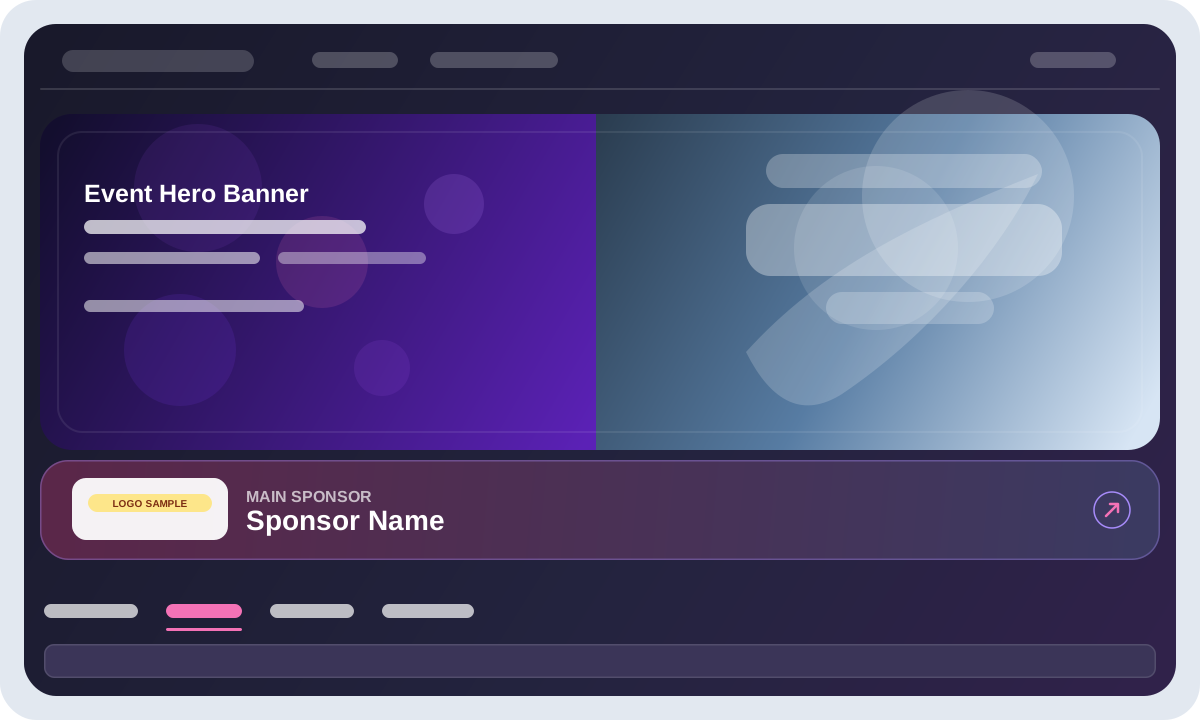
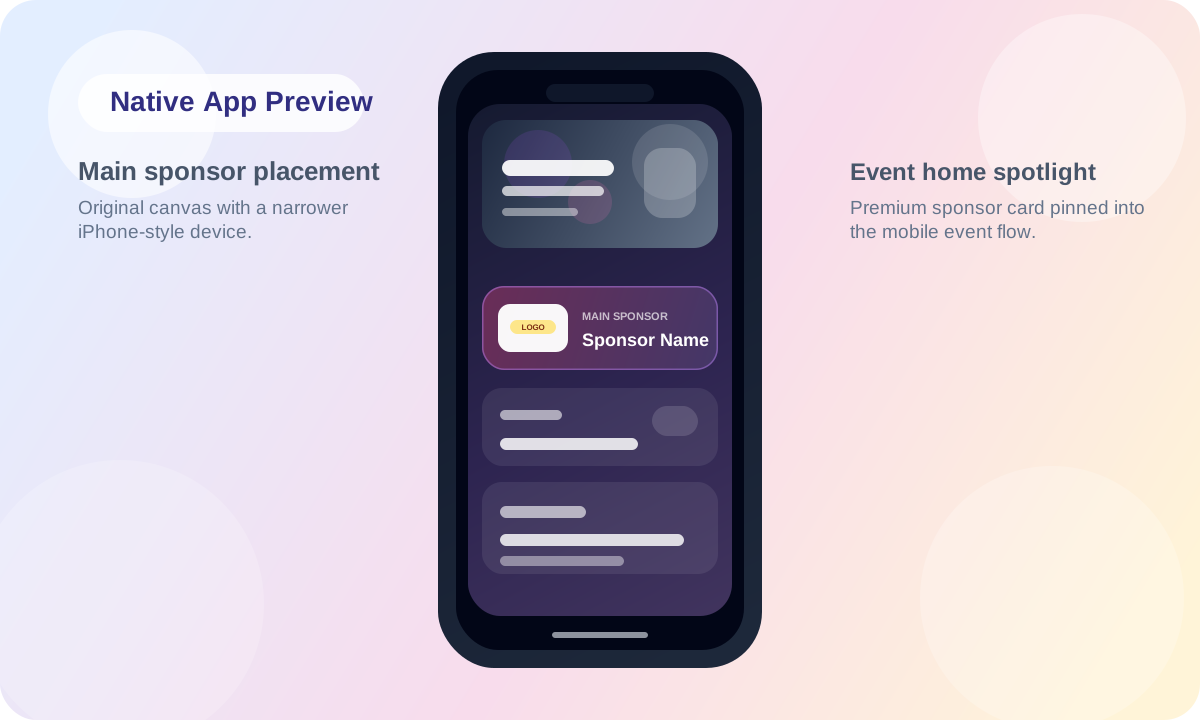
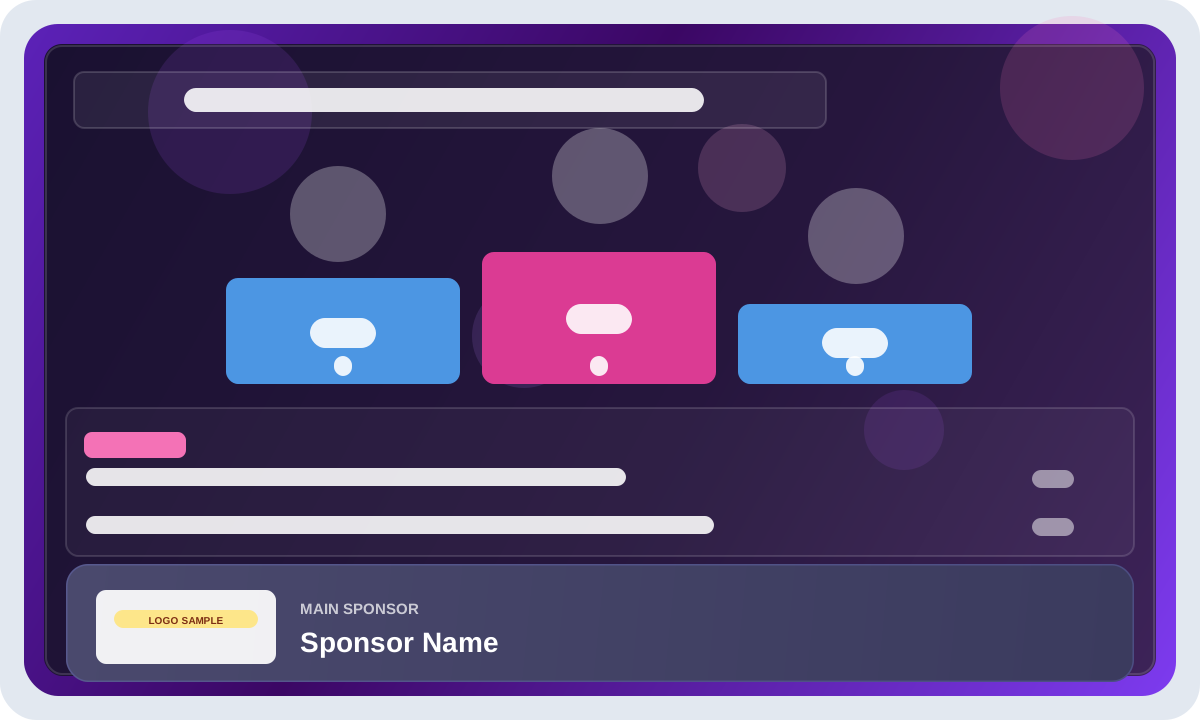
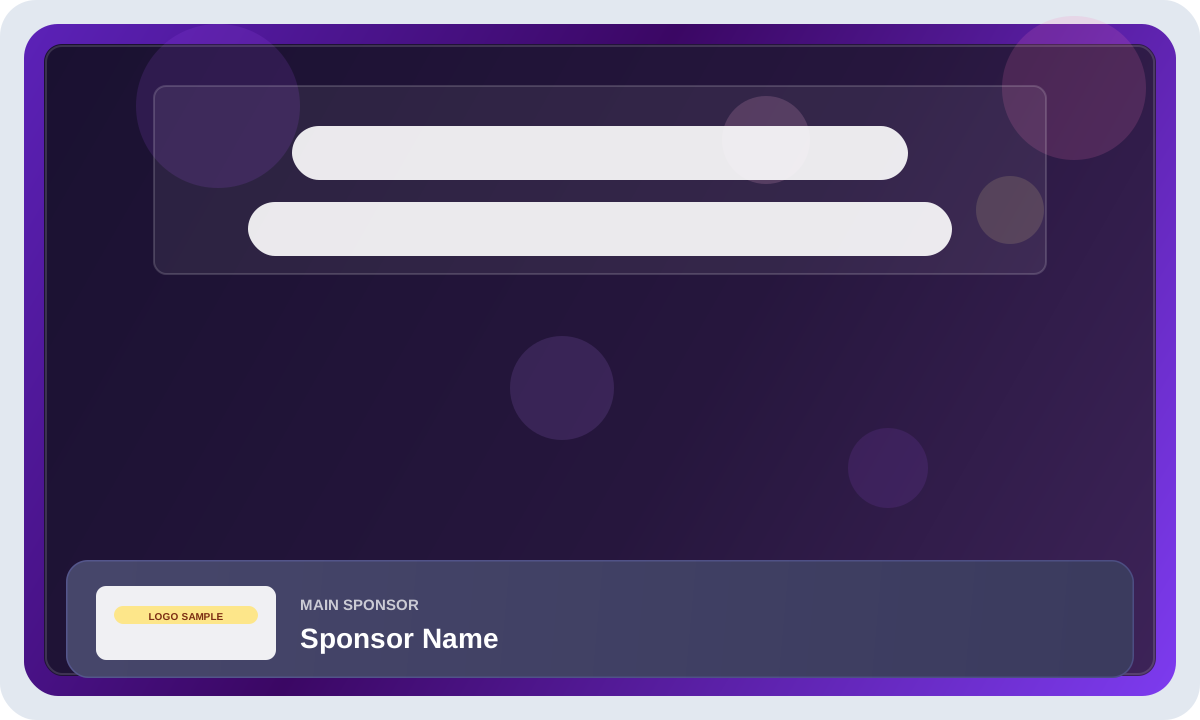
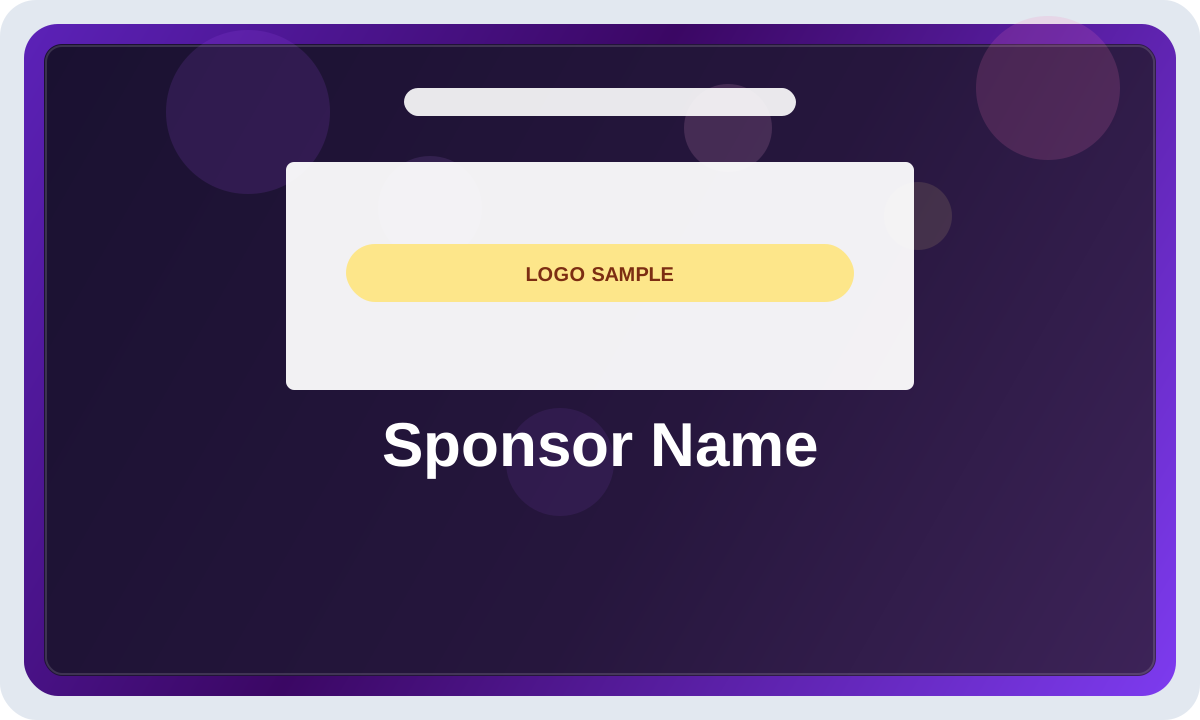
Main Sponsor
- Capacity: 1 total across the event
- Best for: headline sponsor package
- Typical commercial value: premium event-wide visibility across public pages and live venue screens
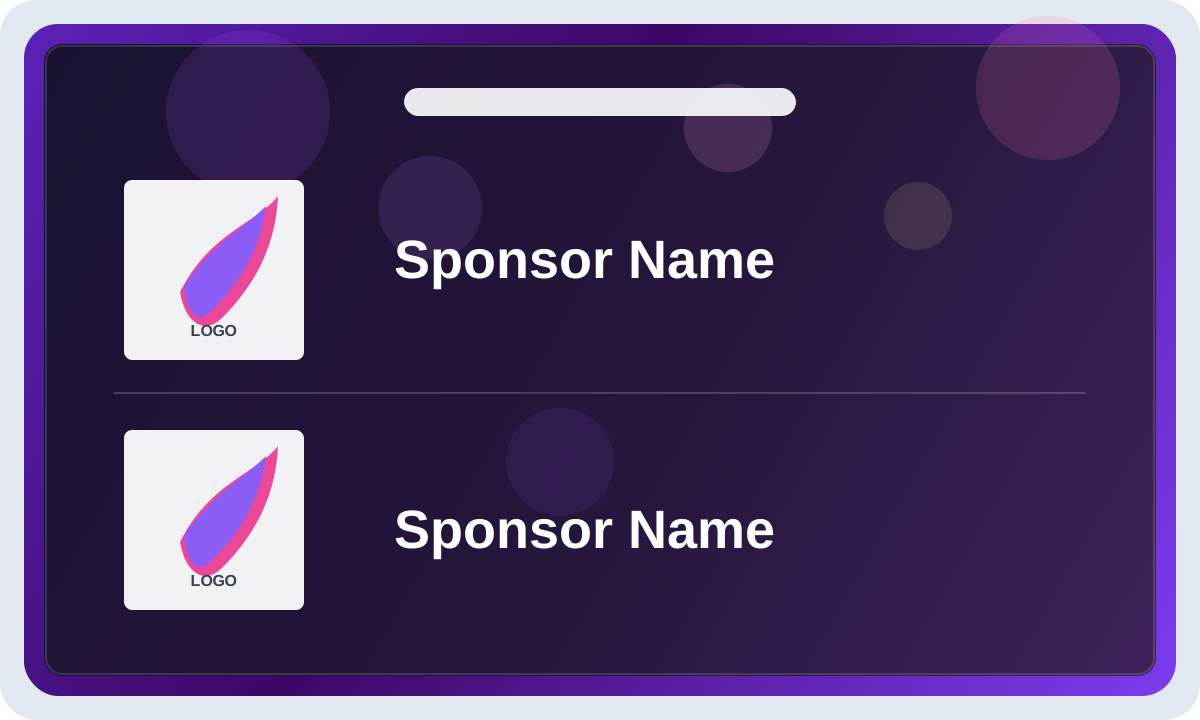
Current usage:
- Public event page hero sponsor placement
- Result screen sponsor placement
- Schedule/text screen sponsor placement
- Dedicated sponsor screen placement
Featured Sponsor
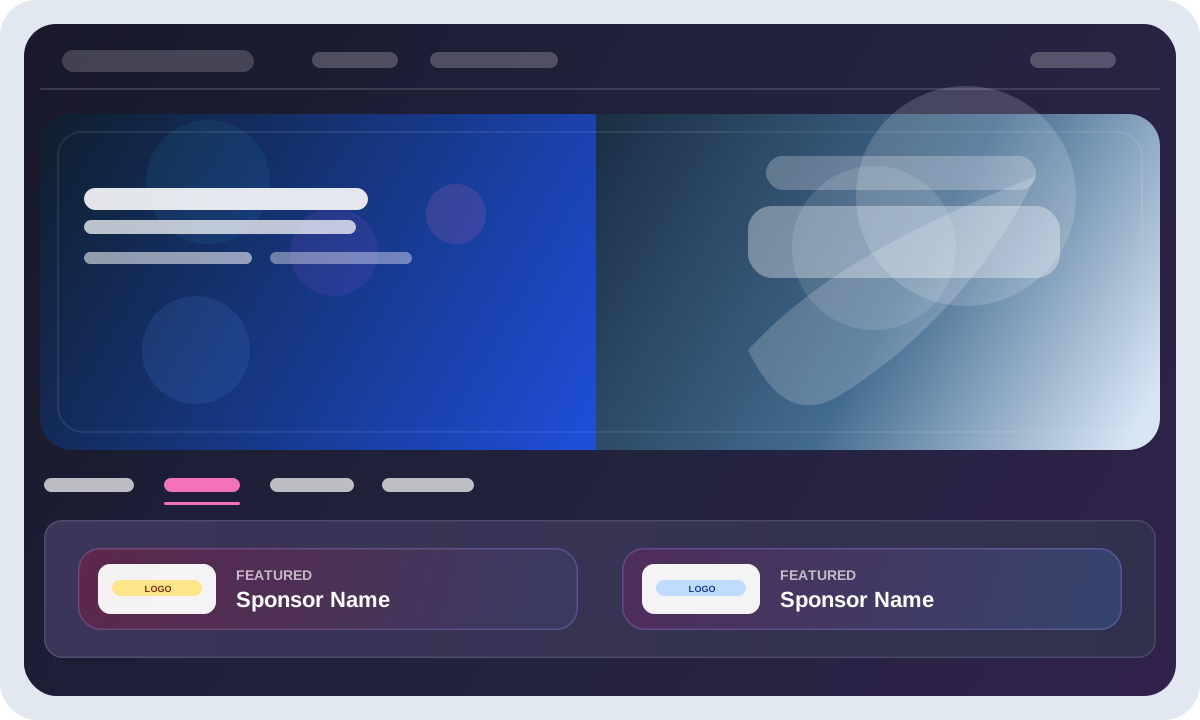
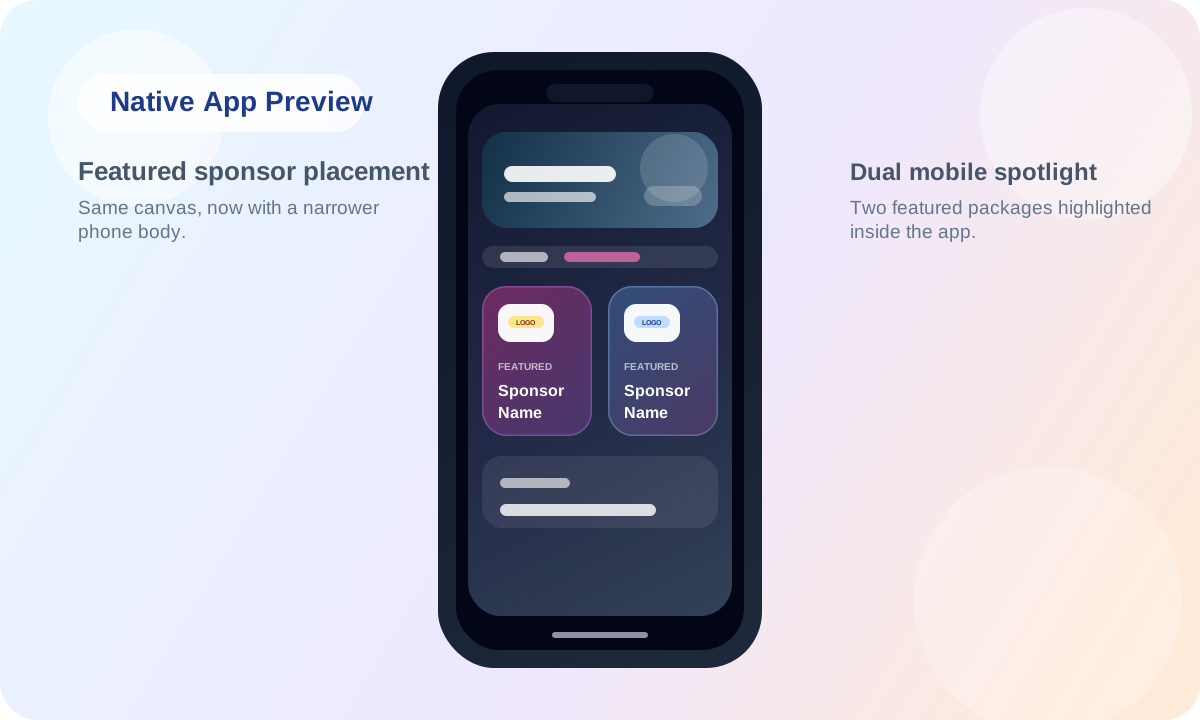
- Capacity: 2 total across the event
- Best for: strong secondary sponsor package
- Typical commercial value: highlighted placements without full exclusivity
Current usage:
- Highlighted featured placement on public event surfaces
- Live screen placement on heat-related screens
- Dedicated sponsor screen split between the featured sponsors
Class Sponsor
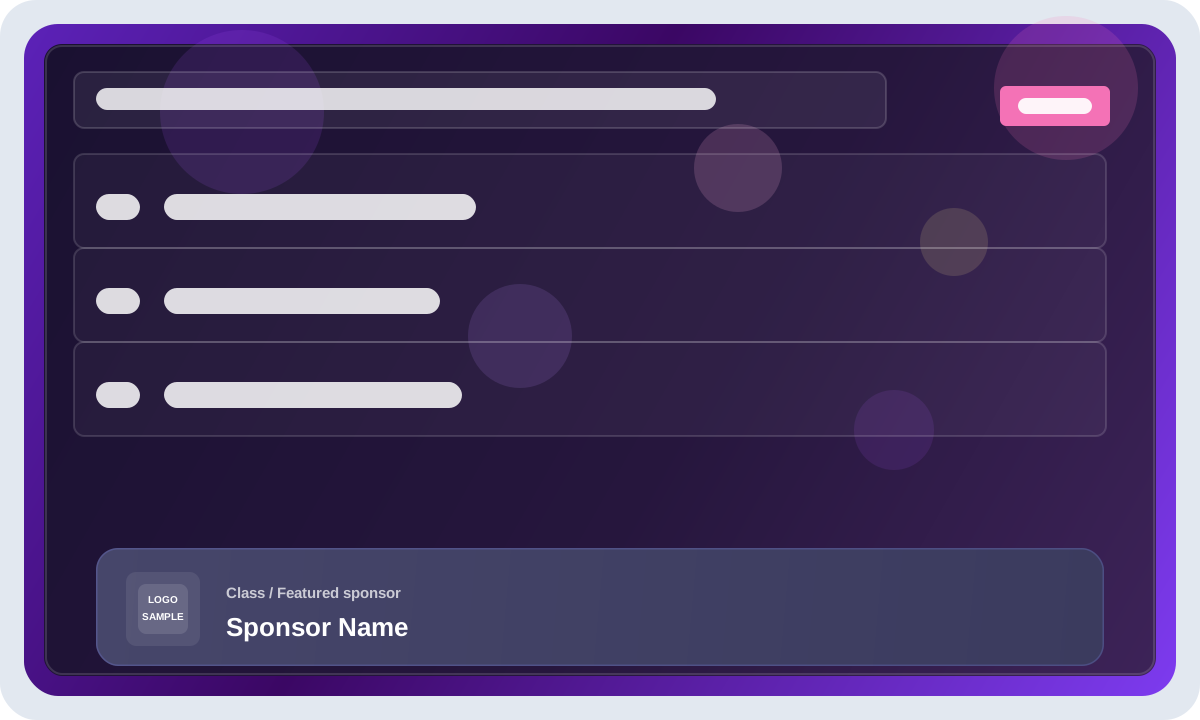
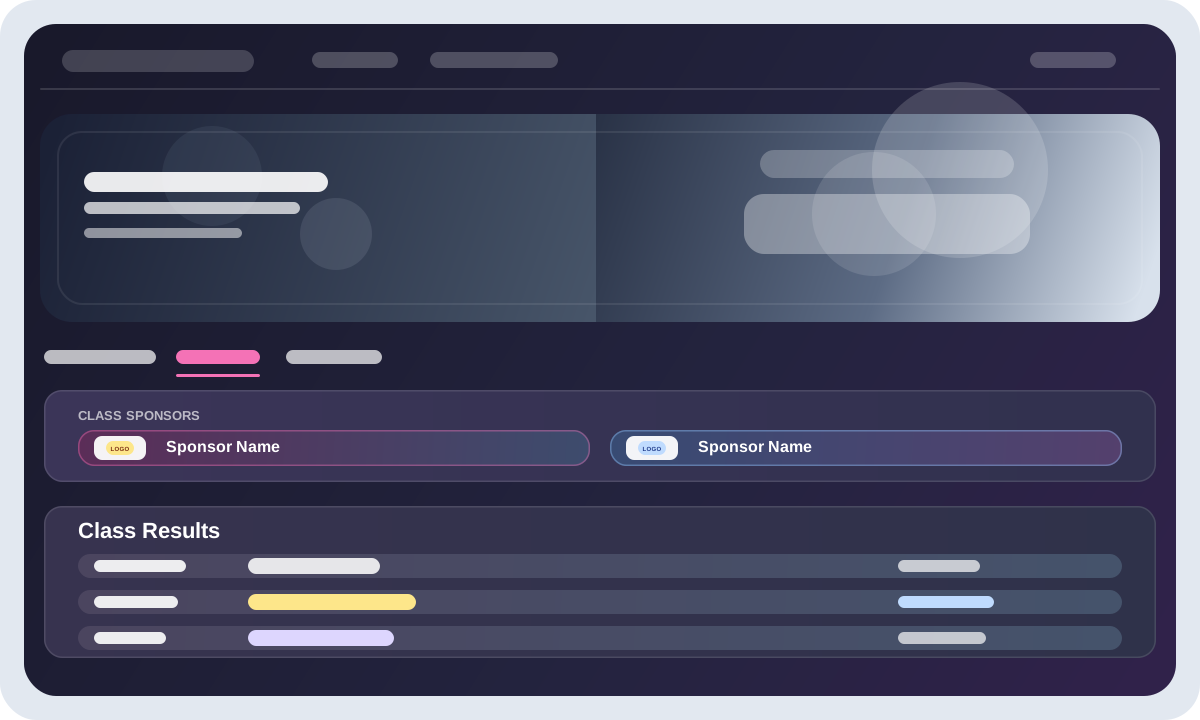
- Capacity: up to 2 sponsors per class
- Best for: targeted exposure tied to specific classes or age groups
- Important setup rule: each class sponsor item must be assigned to one or more classes before saving
Current usage:
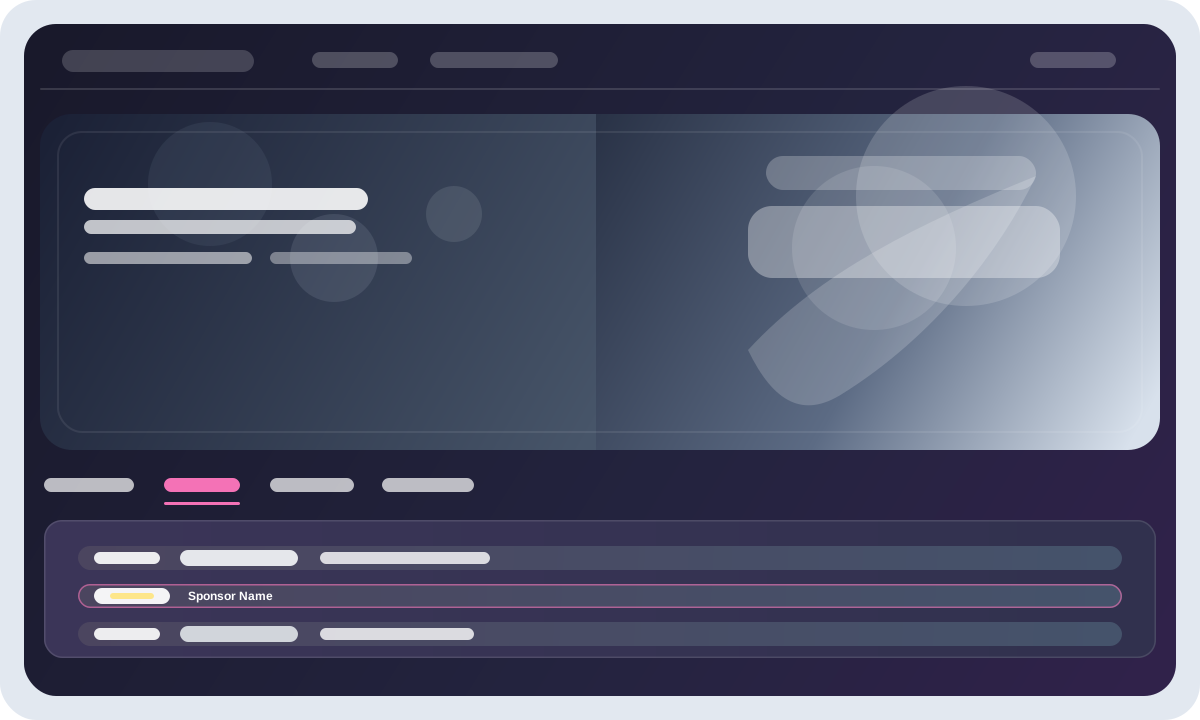
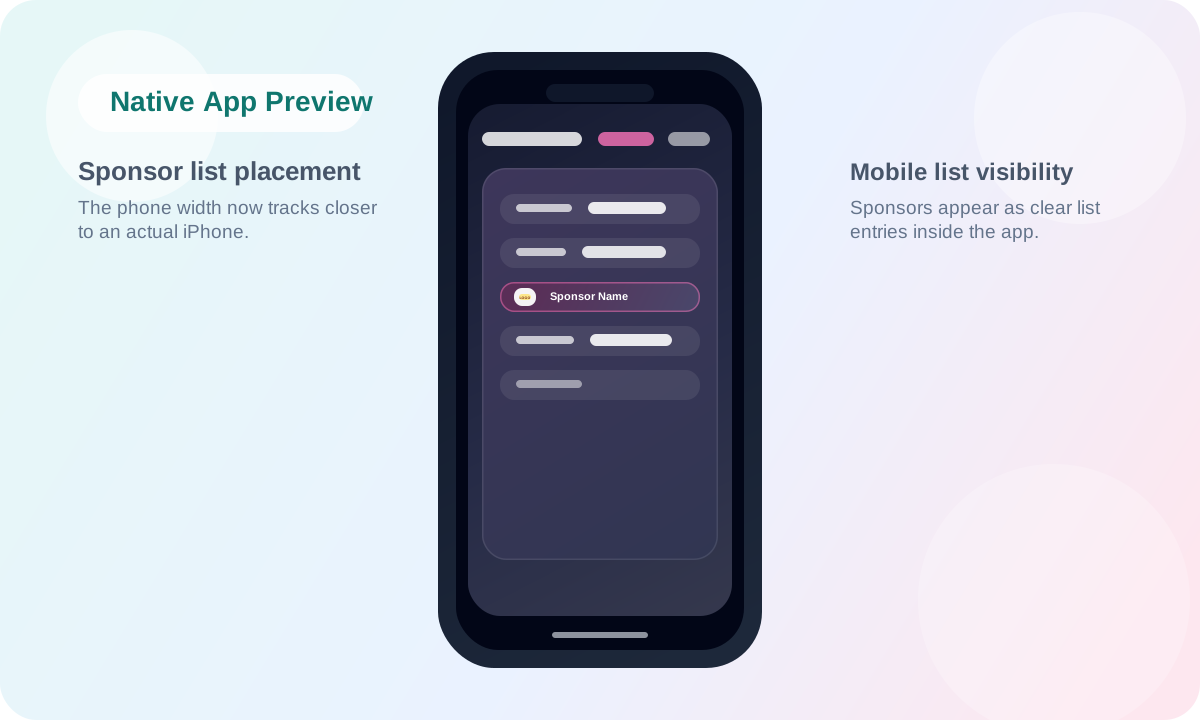
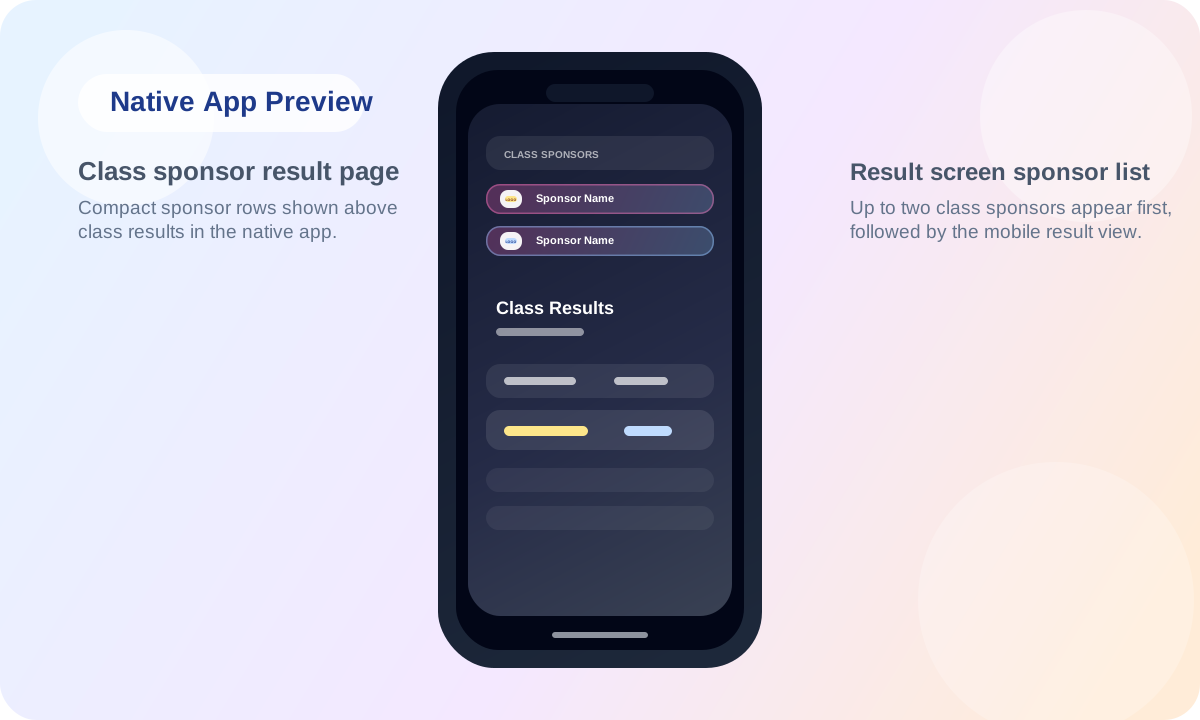
- Public sponsor list placement
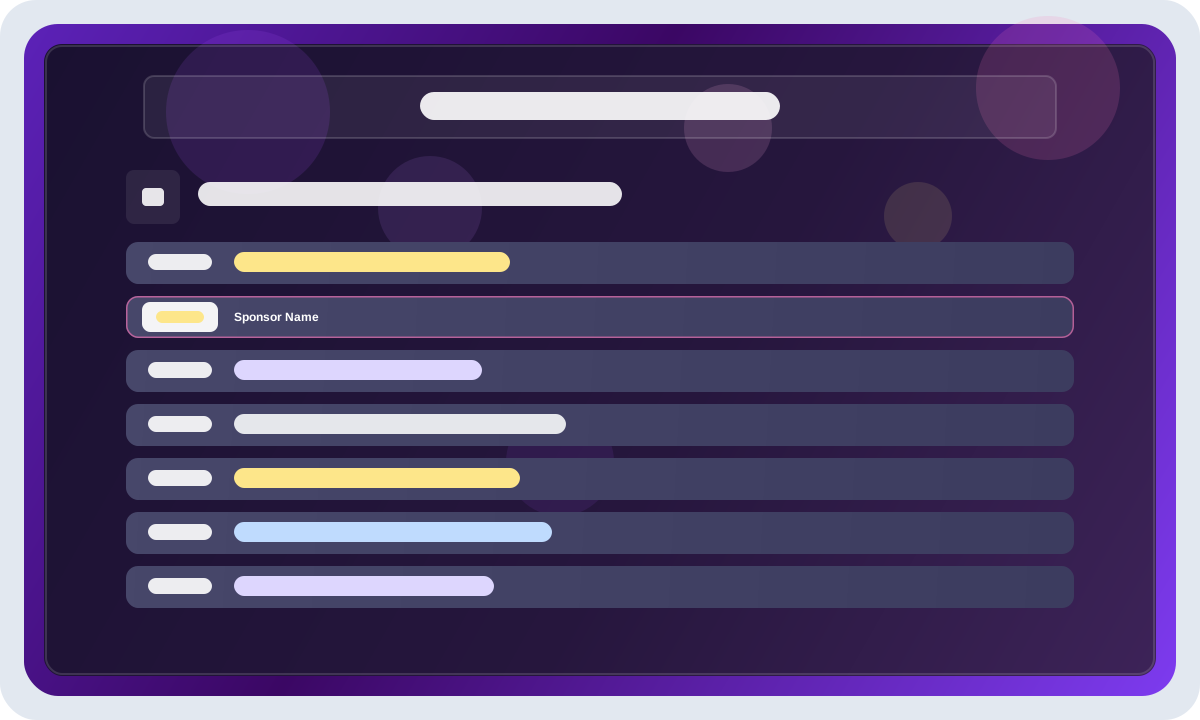
- Sponsor list / sponsor screen list placement
- Live class-related screen placement
Competition Sponsor
- Capacity: no global slot cap in the catalog
- Best for: broad event-wide visibility at a more accessible package level
- Important setup rule: set the total slots you want on the offer itself
Current usage:
- Public sponsor list placement
- Sponsor list / sponsor screen list placement
Bonus Sponsor
- Capacity: no global slot cap in the catalog
- Best for: add-on or lower-tier sponsor exposure
- Important setup rule: set the total slots you want on the offer itself
Current usage:
- Public sponsor list placement
Pricing guidance
Use the slot type to decide how premium the package should be:
Main Sponsor: highest price and strongest exclusivityFeatured Sponsor: premium, but below the main packageClass Sponsor: targeted package that can be sold per class groupCompetition Sponsor: broader support package with list-style exposureBonus Sponsor: entry or add-on package for extra sponsor volume
In practice, most organizers start with the default prices, then adjust:
- up for large events, strong attendance, or high screen coverage
- down for local events or sponsor bundles
- per slot if some placements are more valuable for the audience you are selling to
Purchases and operations
- The
Purchasestab shows purchased sponsors, contact details, and amount totals. - Sold-out state on the public sponsor page is based on the offer capacity fields returned by the API. Functionary sell actions and QR entry points follow the same sold-out rules.
- Purchased sponsors can update company details, link, and logo through the sponsor flow supported by the product.
- If a sponsor image is important for delivery, make sure the sponsor completes their company name, link, and logo after purchase.
Recommended organizer checklist
- Connect Stripe first.
- Create the default sponsor offers.
- Review titles, descriptions, and price points before sharing the page.
- Add class sponsors only for the classes you actually plan to sell.
- Upload good offer images where relevant.
- Test both the public sponsor page and the functionary
Sell sponsorflow before using it on site. - Monitor purchases and confirm sponsor company details before event day.