Schedule and conflicts
The schedule is the running order of the whole event: which rounds dance on which day, in what order, from what time, and on which floor. It lives on the event, so all competitions in the event share one schedule. Open it at Manager → Event → Schedule.
The same data drives the public event page, the Speaker app, the screens, the printed schedule, the dressing-room and schedule-load statistics, and the conflicts report that checks whether a dancer is due on two floors at once.
How the schedule is built
The schedule is one ordered list with three kinds of rows:
| Row | What it is | Shown as |
|---|---|---|
| Page | A day or an arena, optionally with a date. Every row after it, up to the next page, belongs to it. | A tab |
| Schedule item | A block in the day with a text and an optional start time: “Doors open”, “Block 1”, “Lunch”. | A row on the tab |
| Round | A round of a class, placed on a schedule item. | Inside the item, when you expand it |
Rounds are not created here. You create classes and rounds on the competition (see Competition setup), and each round names the schedule item it belongs to. The schedule page is where you order them, number them and see the resulting times.
A new event starts with one page per competition day, named after the weekday and dated, each with a Doors open comment and a Competition start headline. On the first day these get 08:00 and 09:00.
Pages
Each page is a tab. The page opens on today’s tab when a page is dated today, otherwise on the first page.
- Add a page with + at the end of the tab bar. The Schedule page dialog asks for a name (for example “Friday Arena B”) and a date. The new page is added last.
- Edit or delete a page with the pencil on its tab.
- Reorder pages: click Edit on the toolbar of any page, then drag the tabs. A page moves together with all its items and rounds. Click Done when finished.
Date the pages. The date is what tells the system which day a round is on: the statistics split by day, admission per day at the door, and the conflicts report all read it. A round belongs to the date of the nearest dated page above it.
Two tabs are made by the system and cannot be edited or moved:
| Tab | What it holds |
|---|---|
| Initial | Items that sit before the first page. Only shown when there are any. |
| Unscheduled | Rounds that are not on any schedule item. |
A page can only be deleted when it is empty, and the schedule must keep at least one page.
Schedule items
Add schedule item on a page opens Schedule information:
| Field | What it does |
|---|---|
| Text | The name of the block, for example “Opening” or “Block 1”. Left empty, it is saved as “(No title)”. |
| Time | The start time of the block. Rounds on the item get their times from it; see Times. |
| Type | Headline (large text) or Comment (small text). Only affects how the row is shown. |
| Visibility | Visible for everyone, or Visible for staff only. A staff-only item is never shown on the public event page; it is marked in the list. |
The new item is added at the end of the page. Edit an item with the pencil on its row, where you can also Delete it. An item that still has rounds cannot be deleted: move the rounds first.
To reorder items, click Edit (shown when a page has more than one item), drag the rows by their handle, and click Done.
Each item with rounds shows how many rounds it holds and a coloured dot for their progress:
| Dot | Meaning |
|---|---|
| Red | At least one round is In progress |
| Orange | Some, but not all, rounds are Confirmed |
| Green | All rounds are Confirmed |
| Grey | None started |
Items with rounds in progress or partly confirmed open expanded, so the live part of the day is always in view.
Rounds on the schedule
Placing a round
Each round has a Schedule item field in its settings. Pick the item there when you create or edit the round; new rounds from a class template default to the last item of the first competition day. A round without an item sits on Unscheduled.
Expand an item to see its rounds in a table. The columns are icons; hover them for the name:
| Column | Content |
|---|---|
| Round | Class and round, linked to the round |
| Number | The round number |
| Floor | The floor code or name (hidden when no round has a floor) |
| Start | Estimated start time (shown once times can be calculated) |
| Offset | How far that round ran over (red) or under (green) its plan |
| Judging | The judging system |
| Status | Round status |
| Participants | Number of competitors in the round |
| Advance | How many go through |
| Heats | Number of heats |
Below the table the item shows Planned end, and, once the day is running late or early, Estimated end and Total delay.
Moving and ordering rounds
- Drag a round by the handle at the end of its row to change its order within the item, or into another expanded item on the same page.
- Select rounds with the checkboxes (on a wide screen) to act on several at once:
- Move to other moves them to the end of another schedule item, on any page.
- Assign round numbers numbers them; see below.
- Edit opens the round settings for all selected rounds together.
Every change is saved immediately and the times are recalculated.
Round numbers
The round number is the short code the speaker announces and the screens show (for example 12, or 12A with a floor code). Rounds with the same number dance at the same time; that is how you plan parallel floors.
Select the rounds, click Assign round numbers, and enter a Starting round number. The selected rounds are numbered in schedule order from that number. Sub-rounds that belong together on one floor keep the same number, and matching groups on sibling floors start on the same number. Clear round numbers in the same dialog removes the numbers from the selected rounds.
You can also type a number directly in a round’s settings under Round number.
Times
Times are calculated, not typed per round. For each schedule item:
- The item’s time is the start. An item without a time gives its rounds no planned times.
- Each round takes Heat length × Number of heats, both set in the round settings. Heat length is the whole time for one heat, including transitions.
- Rounds follow each other in the order shown.
- Rounds with the same round number start together. The next round starts when the longest of them is expected to end.
- Consecutive rounds of a class on different sub-floors (floors with a parent floor) also start together.
During the event the plan is compared with reality: when a round is submitted, the difference from its planned end is its Offset, and the following rounds’ estimated starts move by the accumulated delay. That is what the Speaker, the screens and the public page show as the estimated time.
The event’s timezone (see Event setup) is the clock all of these times are in.
Publishing
A new schedule is hidden from the public. The top of the schedule page shows its state:
- Schedule visibility, “Schedule is hidden from the public”, with Publish schedule.
- “Schedule is published”, with a print button and a hide button (crossed-out eye) that takes it offline again.
What each audience sees:
| Who | Sees |
|---|---|
Staff of the event (anyone on Event → Users) and stations signed in to the event, such as Speaker and Screens | The whole schedule, published or not, including staff-only items |
| The public event page and anyone else | Nothing until published; after that, everything except staff-only items |
So the Speaker and the screens work while the schedule is still hidden. Publish when the running order is ready for dancers and audience.
Two related settings sit on Manager → Audience → Live results:
- Show detailed schedule times: set it to Disabled to hide the per-round estimated times on the public page. Item times are still shown.
- The screens pick up schedule items and estimated times without any extra step. To put one schedule item on a screen, use the show-on-screen button next to it in the Speaker app’s schedule, or use the Schedule (no heats) screen type. See Screens.
Only people who can edit the event can publish or change the schedule, and only while at least one competition in the event is still open. Once the event is closed or archived the schedule is read-only.
Printing
The print view is at /manager/print/<event id>/schedule. When the schedule is published, the print button on the schedule page opens it; before that, open the address directly.
| Option | Effect |
|---|---|
| Group by classes (on by default) | Rounds of the same division and discipline that follow each other are merged into one line, showing the time of the first round. |
| Include details | Adds the number of heats to each line. |
| Show round times (on by default) | Prints the time each round is planned to start in front of it. Turn it off for a printout with only the block start times. |
| Opens the browser’s print dialog. The settings bar is not printed. | |
| Download .csv file | Downloads the schedule as a CSV: start, round, number, floor and heats per round, with the page and item rows in between. |
Each page of the schedule starts on a new sheet, with its date when the event spans several days. The printout is made from your staff view, so it includes staff-only items; remove or rename them before printing a copy for the public.
Conflicts
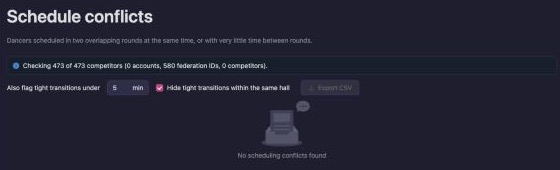
Open conflicts page at the top of the schedule page opens Schedule conflicts (/manager/event/<event id>/conflicts). It lists every dancer who is due in two rounds at the same time, or with very little time between them, across all competitions in the event.
Opening it needs the Supervisor app on Event → Users; see Users, apps and stations.
What counts as a conflict
The report takes every round that has an estimated time, works out when each dancer is on the floor, and compares the windows per dancer and per day.
| Severity | Meaning | Time column |
|---|---|---|
| Conflict | The two windows overlap. | Minutes of overlap |
| Tight | The second round starts only a few minutes after the first ends: 5 minutes or less by default. | Minutes of gap |
A pair is not reported when:
- both rounds are in the same class;
- both rounds are on the same floor, since one floor cannot run two rounds at once;
- the rounds are on different days. Rounds on items with no dated page above them are only compared within the same item;
- either round has no estimated time: it is on Unscheduled, or its item has no start time.
A dancer’s window is narrowed to their own heat. Once heats are drawn, the real heat is used; before that, the heat is predicted from the start numbers the same way the draw will place them. Dancers without a start number are counted for the whole round.
Also flag tight transitions under sets how short a gap must be to show as Tight, from 0 to 60 minutes, 5 by default. Raise it to see every dancer with less than, say, 15 minutes between rounds.
Hide tight transitions within the same hall is ticked when the page opens. It hides Tight rows where both rounds are in the same hall: on the same floor or its sections, such as a final on the whole floor followed by a first round on section A. Dancers only need a moment to move between those, so a short gap there is usually planned. Rows where the dancer has to go to another floor stay, and Conflict rows always stay, even in the same hall, because two sections running at the same time still need the dancer in both places. Untick it to see every tight transition. See Floors for how floors and sections are set up.
Each row shows Severity, Time, Dancer, Date, Round A and Round B. The round cells show round number and floor code, class, round, estimated time window and floor, and link to the round. Hard conflicts come first, largest overlap at the top. With very many conflicts only the largest are listed, and the page says “Showing the most overlapping conflicts only.”
Export CSV downloads the rows the table shows, so the Also flag tight transitions under value and Hide tight transitions within the same hall decide which tight rows are included. Each row has the severity, the minutes of overlap or gap, the dancer and how they were matched, the date, and for both rounds the round, estimated start and end, and floor. The file opens in Excel with å, ä and ö intact.
How dancers are recognised
A conflict can only be found when the system knows two entries are the same person. The Dancer column says which identity matched:
| Identity | Comes from |
|---|---|
| Account | The Vote4Dance accounts in the competitor’s registration |
| Federation ID | The person IDs on the competitor |
| Competitor identity | The competitor as a whole, used when neither of the above is set |
The banner above the table says how many competitors could be checked. When none has any identity, the page says “Dancer identity is not configured for this competition.” and cannot find anything: add federation IDs, link accounts, or register through the event so competitors have lineups.
Resolving a conflict
Click the round in Round A or Round B and change the plan so the windows no longer meet:
- Reorder the rounds within the item, or drag one to a later item.
- Move to other to put a round on another item or day.
- Change the round number so the two rounds no longer dance in parallel.
- Adjust Heat length or Number of heats if the planned length is wrong.
- Give the item a later time, if the gap before it is the problem.
The report follows the schedule as you change it. A Tight row is a warning, not an error: decide whether the dancer can make the change of floor in that time.
Problems, which appears in the sidebar when any setup check fails, runs the same check and fails when any dancer identified by account or federation ID has a hard conflict, so it is worth clearing both before the event.
Troubleshooting
| Message or symptom | Cause and fix |
|---|---|
| “You must remove all schedule items in the page before deleting.” | Delete or move the page’s items first. |
| “You must keep at least one schedule page break.” | The last page cannot be deleted. Rename it instead. |
| “You must remove all rounds in the schedule before deleting.” | The item still has rounds. Use Move to other or change the rounds’ Schedule item. |
| No Start column and no Planned end | The item has no time, or the rounds have no Heat length or Number of heats. |
| Buttons are greyed out | The event is closed or archived, or you do not have edit access. |
| The public page says there is no schedule | The schedule is not published, or all items are Visible for staff only. |
| The conflicts page stays empty with no message | You do not have the Supervisor app on the event. |
| A tight change between two sections of the same floor is missing | Hide tight transitions within the same hall is ticked. Untick it to list those rows too. |
| “No scheduling conflicts found”, but you know of one | Check that both rounds have estimated times, are on different floors, are on dated pages for the same day, and that the dancer has the same account or federation ID in both entries. |
Not in this version
- A schedule per competition: the schedule always belongs to the event.
- Typing a fixed start time per round. Round times always follow the item time, the order and the round lengths.
- Hiding a single round from the public schedule. Visibility is set per schedule item.
- A per-floor timeline or calendar view.
- Resolving conflicts automatically.
Related pages
- Competition setup: classes and rounds, including the round settings used here
- Event setup: dates, timezone and floors
- Screens: schedule screens and showing a schedule item on a screen
- Statistics: dressing rooms and schedule load per day
- At the door: admission by schedule day
- Live operations: running the day and handling schedule drift