Club admin screens
This page is a reference for the club’s admin screens: what each one lists, what you can do there, and which club role you need to do it. For the longer flows, follow the links to the task pages.
Open your club from your account, then open Administration in the club’s sidebar. It holds Permissions, Members, Competitors, Registration, Federation and Licenses. Administration is only there for a club’s coaches, managers and administrators. A plain member sees only Home.
Roles
A club has four roles, and each one includes everything the role below it can do. You set roles on Permissions.
| Role | In short |
|---|---|
| Member | Belongs to the club, with no admin access. Coaches can put a member on a competitor. |
| Coach | Day-to-day work: competitors, registrations and payment. |
| Manager | Everything a coach does, plus membership approval and the club’s licences. |
| Administrator | Everything a manager does, plus roles, federations and the club’s own details. |
Which screens each role sees in the sidebar:
| Screen | Member | Coach | Manager | Administrator |
|---|---|---|---|---|
| Permissions | No | No | Yes, read-only | Yes |
| Members | No | Yes | Yes | Yes |
| Competitors | No | Yes | Yes | Yes |
| Registration | No | Yes | Yes | Yes |
| Federation | No | No | Yes | Yes |
| Licenses | No | No | Yes | Yes |
A hidden screen can still be opened by typing its address, but the server refuses anything your role does not allow. Vote4Dance system administrators can do everything on every screen.
The club’s details and its website embeds are not under Administration. They are on the club’s Home page, and only administrators see them: Edit organization opens the Organization details form, and the Website embeds card sits below it. See Account creation and Embed widgets.
Permissions
Organization → Administration → Permissions
This screen lists the club’s approved members, each with name, email address and a role selector. Next to the list, the Guide to permissions panel describes each role. Some lines in the panel only appear when they apply, for example the licence approval line for managers, which only shows when the club’s federation asks clubs to approve licences.
| Action | How | Who |
|---|---|---|
| Change a role | Pick a new role in the person’s selector. It saves immediately. | Administrator |
| Remove a person | The delete button on the row, then confirm “Are you sure you want to delete name?” | Administrator |
You cannot add people to the club yourself. Dancers, coaches and other staff join by pressing Join organization on the club’s page; that is also where they agree that the club and its federation can see their details and manage their registrations. If Member approval is on, you approve them under Members. Give them a role here once they have joined.
Rules the screen follows:
- You cannot change your own role or remove yourself. To leave, use Leave organization on Home. The last administrator cannot leave (“You are the only administrator. Promote another member to administrator before leaving.”). Despite the wording, an administrator cannot make someone else Administrator: ask Vote4Dance support to add a second Administrator first.
- An administrator can change and remove anyone below Administrator, up to Manager. The Administrator role is not offered. Only Vote4Dance support can make someone an Administrator of an existing club, or change or remove another administrator.
- Making someone a Coach, Manager or Administrator also approves their membership.
- A manager sees this screen, but the selectors and delete buttons are disabled. Add is shown to managers too, but the server refuses it.
Members
Organization → Administration → Members
Coaches, managers and administrators see one row per approved member, with what that dancer has this season. Managers and administrators also see a Requires your action box above it when people are waiting to join. The number waiting shows as a badge on Members in the sidebar.
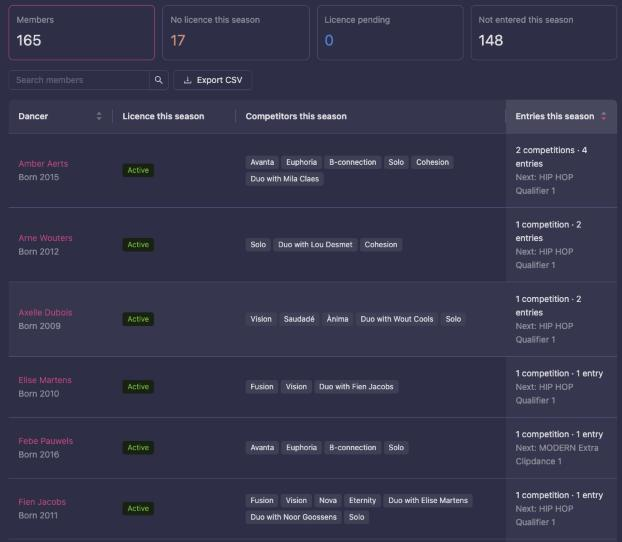
Four cards at the top count the club’s members. Click a card to show only those members:
| Card | Shows |
|---|---|
| Members | Everyone (click to clear the filter) |
| No licence this season | Members without an active or pending licence through your club for the current season |
| Licence pending | Members whose licence is applied for but not active yet |
| Not entered this season | Members with no entry in a competition this season |
Each row shows:
| Column | Shows |
|---|---|
| Dancer | The name, the birth year, and the role if it is not Member |
| Licence this season | Active, Pending or No licence with this club |
| Competitors this season | The dancer’s competitors this season, such as Solo, Duo with name or a group’s name |
| Entries this season | How many competitions and entries the dancer has this season, such as 5 competitions · 12 entries, the Next competition they are entered in, and how many entries are unpaid. Click the name to see every entry. |
Click a name to open the dancer on the right: their licence, all their competitors (marked Entered, This season or Earlier seasons) and each entry with its status and payment. When the dancer has no licence, Apply for a licence takes you to Licenses.
Use Search members to find someone, and Export CSV to download the list as it is filtered, for example to tick off dancers in a spreadsheet. The list shows 50 members per page.
The licence column only counts licences issued through your club. A dancer licensed through another club shows No licence with this club.
People only wait to join when Member approval is on in the club’s details. With it off, anyone who presses Join organization becomes a member straight away.
| Action | How | Who |
|---|---|---|
| See the members and what they have this season | Open the screen | Coach, Manager, Administrator |
| Approve one applicant | Approve on their row, then confirm | Manager, Administrator |
| Reject one applicant | Reject on their row, then confirm. The application is deleted, and the person can apply again. | Manager, Administrator |
| Approve everyone waiting | Approve all, then confirm | Manager, Administrator |
Coaches do not see the Requires your action box. To add someone directly or change a role, use Permissions. For the full joining flow, see Applying for a school/club.
Competitors
Organization → Administration → Competitors
This screen lists the club’s competitors:
- Club-owned competitors, tagged Organization team. These are groups and formations that belong to the club.
- Independent competitors (solos and couples) with at least one approved member of the club in them.
A competitor also appears here when a dancer claims their results from earlier competitions. Vote4Dance creates a competitor for each partnership in those results, so the list can hold duos from earlier seasons. They take part in nothing unless someone registers them.
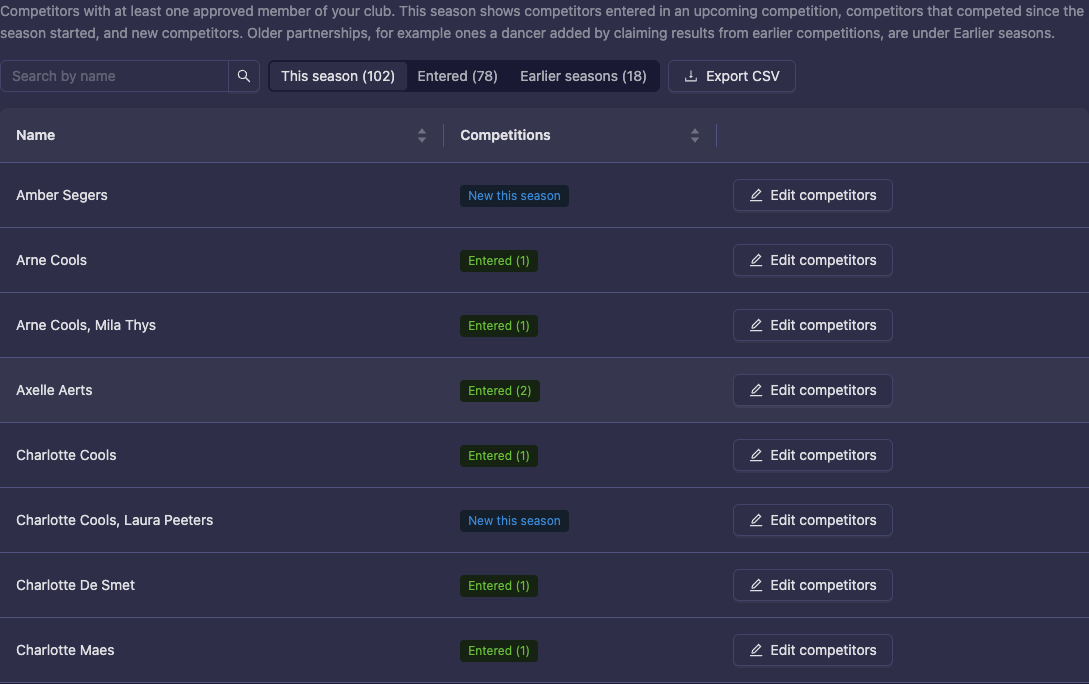
The list opens on This season. Switch with the buttons above it:
| Filter | Shows |
|---|---|
| This season | Competitors entered in a competition that has not ended yet, competitors that competed since the season started, and new competitors that have not competed yet |
| Entered | Competitors entered in a competition that has not ended yet |
| Earlier seasons | The rest: competitors that last competed before this season and are not entered. These are often old partnerships from claimed results. |
The season starts on the date your club’s federation sets. A club without a federation sees the last twelve months as this season.
Each row shows:
| Column | Shows |
|---|---|
| Name | The custom name in bold with the dancers below, or the dancers’ names. A club-owned competitor is tagged Organization team, with a count when it has more than three dancers. |
| Competitions | Entered with the number of entries, New this season, or Not entered, and the date the competitor Last competed |
The list is sorted by name. Click a column heading to sort by it. Use Search by name to find a competitor or a dancer, and Export CSV to download the list as it is filtered.
| Action | How | Who |
|---|---|---|
| Create a competitor | Create competitors below the list | Coach, Manager, Administrator |
| Edit a competitor | Edit competitors on the row | Coach, Manager, Administrator |
| Delete a competitor | Delete in the edit window. It is disabled once the competitor has registrations. | Coach, Manager, Administrator |
In the edit window:
| Field | Notes |
|---|---|
| Search by name or email | Finds the club’s members. If you type an email address that is not a member’s, a Create account for partner section appears. Fill in first name, last name, country, language and, optionally, birthdate to create an account for that dancer and add them. |
| Dance role | Leader, Follower or No role, per dancer. Shown when the competitor has two or three dancers. |
| Participant name | Use participant name (the dancers’ names) or Assign custom name. |
| Owned by organization | Only when creating, and only once there are more than two dancers or you choose a custom name. It is ticked by default and makes the club the owner. |
A new competitor made here needs at least two dancers before Save changes is enabled. Solo competitors cannot be created on this screen.
Only the owning club’s approved coaches, managers and administrators can change a club-owned competitor. Editing the dancers or the name of a competitor that is already registered creates a new version, and the window warns you: “Saving changes will create a new competitor version. Open competition registrations will stay pinned to their current version — review override lists if needed.”
Moving a competitor to another club is done by the federation. See Club transfers.
Registration
Organization → Administration → Registration
This screen shows your club’s event registrations for the season. It includes registrations for competitors the club owns, and for independent competitors whose dancers’ licences (or, without a licence, their club membership) point at your club.
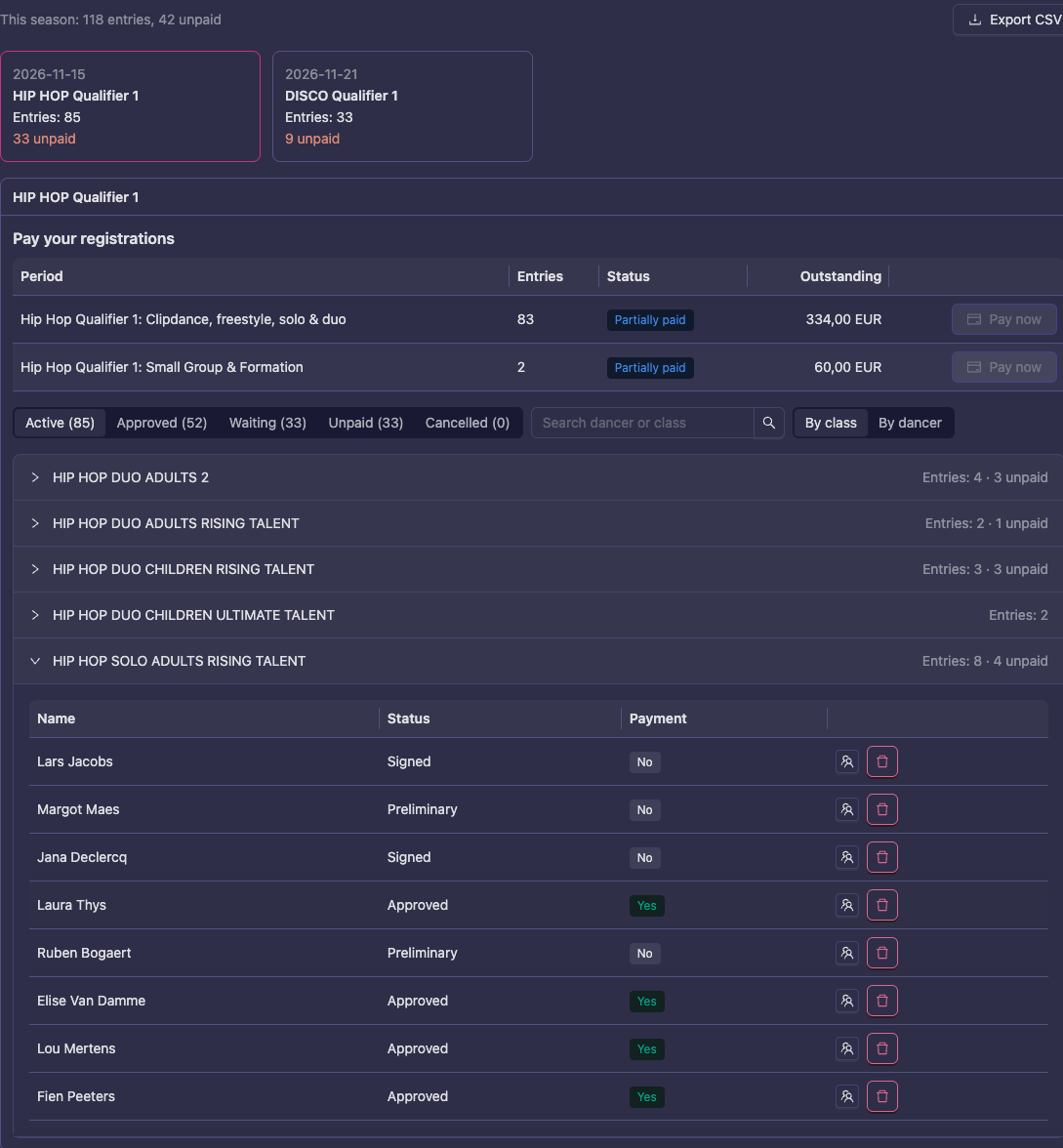
At the top, a line counts the season’s entries and how many are unpaid. Below it, each event this season has a card with its date, the number of entries and the number unpaid. The next event is selected. Click another card to switch. Show earlier seasons adds the events from before this season, and Export CSV downloads every entry of the events shown.
The selected event opens below the cards. Filter its entries with the buttons above the list:
| Filter | Shows |
|---|---|
| Active | Every entry that is not cancelled, rejected or deleted |
| Approved | Approved entries |
| Waiting | Entries that are Preliminary, Signed or Reserved |
| Unpaid | Active entries that are not paid |
| Cancelled | Cancelled, rejected and deleted entries |
Use Search dancer or class to narrow the list, and switch between three views:
- By class lists the classes, each with its number of entries and how many are unpaid. Click a class to see its entries. Each entry shows the competitor, Status and, when the event takes payment, Payment.
- By dancer lists one row per dancer with the classes they are entered in, the status of each, and how many entries are unpaid.
- By day lists your dancers for each day of the event. See Dancers per day.
Dancers per day
Some events charge a fee per dancer for each day they compete. If your club pays it for everyone and collects it from the dancers afterwards, By day shows who dances which day.
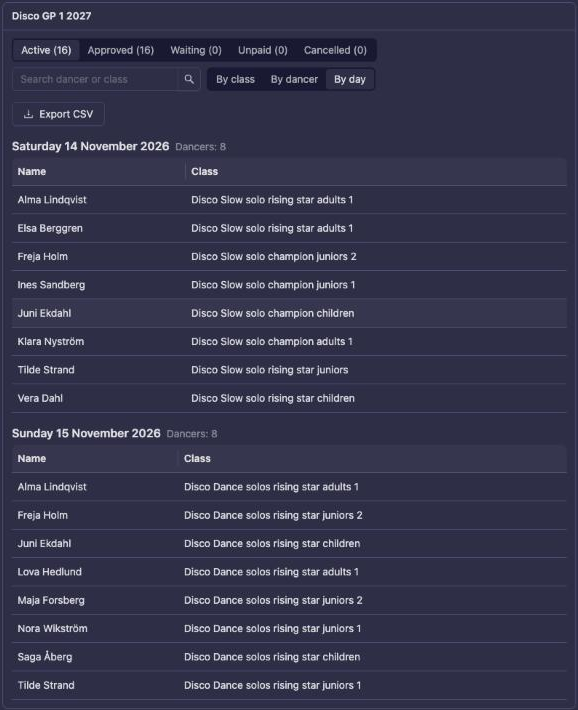
- Open Administration → Registration and click the event’s card.
- Click By day. Each day of the event has its own list, with the number of dancers next to the date. Each dancer appears once per day, with the classes they dance that day.
- Click Export CSV under the view buttons to download the list, one row per dancer and day, to open in a spreadsheet or print.
The days come from the event’s schedule, so the lists appear once the organizer has made the rounds and published the schedule. This is usually after registration has closed. Until then, By day says your dancers will be listed once the organizer has put your classes on the published schedule. The lists update by themselves when the organizer publishes the schedule or moves classes to another day. A class with no day on the public schedule yet, for example because its rounds are not placed or sit on a hidden part of the schedule, is listed under No day on the public schedule yet.
A dancer in a class that runs over two days, such as a first round on Saturday and a final on Sunday, is listed on both days, even if they might not reach the final. The filter buttons apply here too: with Active selected, cancelled entries are left out.
| Action | How | Who |
|---|---|---|
| Change the lineup | Edit lineup on the entry. You can use it while the entry’s registration period is open and the entry is Preliminary, Signed or Approved. The new lineup is checked against the class rules, and a replacement dancer takes over the replaced dancer’s dance role. | Coach, Manager, Administrator |
| Cancel an entry | The cancel button on the entry, then confirm, under the same conditions. For a club-owned competitor, only the club’s coaches, managers and administrators can cancel. | Coach, Manager, Administrator |
| See the price | Get cost, for approved entries not yet paid | Coach, Manager, Administrator |
| Pay online | Pay now with the amount, when the event takes online payment. With manual payment you see the amount and the organizer’s payment information instead. | Coach, Manager, Administrator |
| Pay the club’s invoice | Pay now on a row under Pay your registrations. It is enabled when the invoice’s status is Ready to send. | Coach, Manager, Administrator |
Cancelling does not refund a payment by itself. New registrations are made from the event’s own registration page. See Registration for event.
Federation
Organization → Administration → Federation
This screen lists the federation your club is linked to, tagged Approved or Pending. Click the row to open the federation’s page.
| Action | How | Who |
|---|---|---|
| Apply to a federation | Pick the federation in the selector below the list, then press Apply. The link starts as Pending until the federation approves it. | Administrator |
| Cancel an application, or detach | The delete button on the row, then confirm “Are you sure you want to cancel federation?” | Administrator |
A club belongs to one federation at a time. Applying while any link exists, approved or pending, fails with “The organization already belongs to a federation”. Managers see the screen and the Apply button, but the server refuses the application. The full flow is on Joining a federation.
Licenses
Organization → Administration → Licenses
This screen is headed License Applications. It shows the licences your club has applied for or holds, for the federation chosen in Select federation. Without a federation link it only says “Connect this organization to a federation first.” The Licenses item in the sidebar shows a badge with the number of applications that need you.
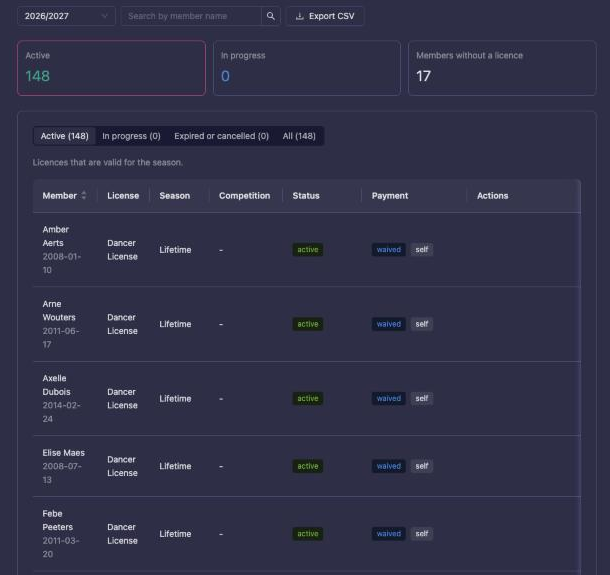
The page has these parts:
| Part | What it is for |
|---|---|
| The application form | Choose a Member, a License item, the Season year (or a Federation ID or Competition ID when the item needs one) and an optional Note, then press Apply for license. |
| Season, search and export | Pick the season to show, or All seasons. Search by member name narrows the list, and Export CSV downloads it as shown. |
| Summary cards | Needs your action, Active, In progress and Members without a licence. The Needs your action card and tab only show when your federation asks clubs to approve licences or something waits for your club. Click a card to open that tab. Members without a licence opens Members, where the No licence this season card lists them. |
| Status tabs | Needs your action, Active, In progress, Expired or cancelled and All, each with its count |
The list opens on Needs your action when something waits for your club, and on Active otherwise, so you see straight away who holds a licence. Needs your action shows applications waiting for your club to approve or pay, from every season, so nothing waiting on you is hidden by the season. The What’s needed column says Awaiting your approval or Payment due. The other tabs follow the season you picked. The list is sorted by member and shows 50 licences per page.
| Action | How | Who |
|---|---|---|
| Apply for a member | The form, then Apply for license | Manager, Administrator |
| Approve an application | Approve on the row. It only appears when your federation asks clubs to approve licences. | Manager, Administrator |
| Approve several | On Needs your action or In progress, tick the applications, then press Approve | Manager, Administrator |
| Decline an application | Decline, then confirm “Decline license application for name?” The licence becomes cancelled. | Manager, Administrator |
| Decline several | Tick the applications, press Decline and confirm | Manager, Administrator |
| Pay | Pay on an unpaid row. It stays disabled until the licence is approved, and when the federation has not connected Stripe. | Manager, Administrator |
| Remove an application | The delete button on a pending or draft row, then confirm “Remove application for name?” | Manager, Administrator |
Coaches do not see this screen. The full flow, including the federation’s checks, is on Getting a license.
Troubleshooting
“Add does nothing on Permissions”
Only an administrator can add people. The search needs at least three letters. The person must already have a Vote4Dance account, and adding someone who is already in the club (approved or waiting) fails.
“I cannot change someone’s role”
You cannot change your own role, and on this screen nobody can change or remove an administrator. Managers can only look.
“There is no Approve button on a licence”
Approve only appears when your federation asks clubs to approve licences. Without that, an application your club does not have to approve waits under In progress: on the federation, or on the dancer’s payment. See Getting a license.
“Competitors lists old duos”
They come from dancers claiming results from earlier competitions. They are not entered in anything. They sit under Earlier seasons once they have not competed this season, and This season leaves them out.
“A dancer shows No licence with this club”
Members only counts licences issued through your club. A dancer licensed through another club, or who has not applied yet, shows No licence with this club. Check Licenses, or ask the dancer.
“I cannot remove a licence application”
“Only pending license applications can be deleted.” Once a licence is active or cancelled, it stays.
“The competitor has too many dancers”
“Independent competitors can have at most 2 members — groups are created by an organization”. Keep Owned by organization ticked when you create a group.
Not in this version
- The Guide to permissions mentions moving a club-owned competitor to another club. There is no button for this on the club’s screens. The federation does it, see Club transfers.
- There is no bulk licence application. Apply for one member at a time. You can approve or decline several applications at once.
- Several licences cannot be paid in one checkout. Pay them one at a time.
- Members cannot be retired or suspended in the club. They can only be removed.