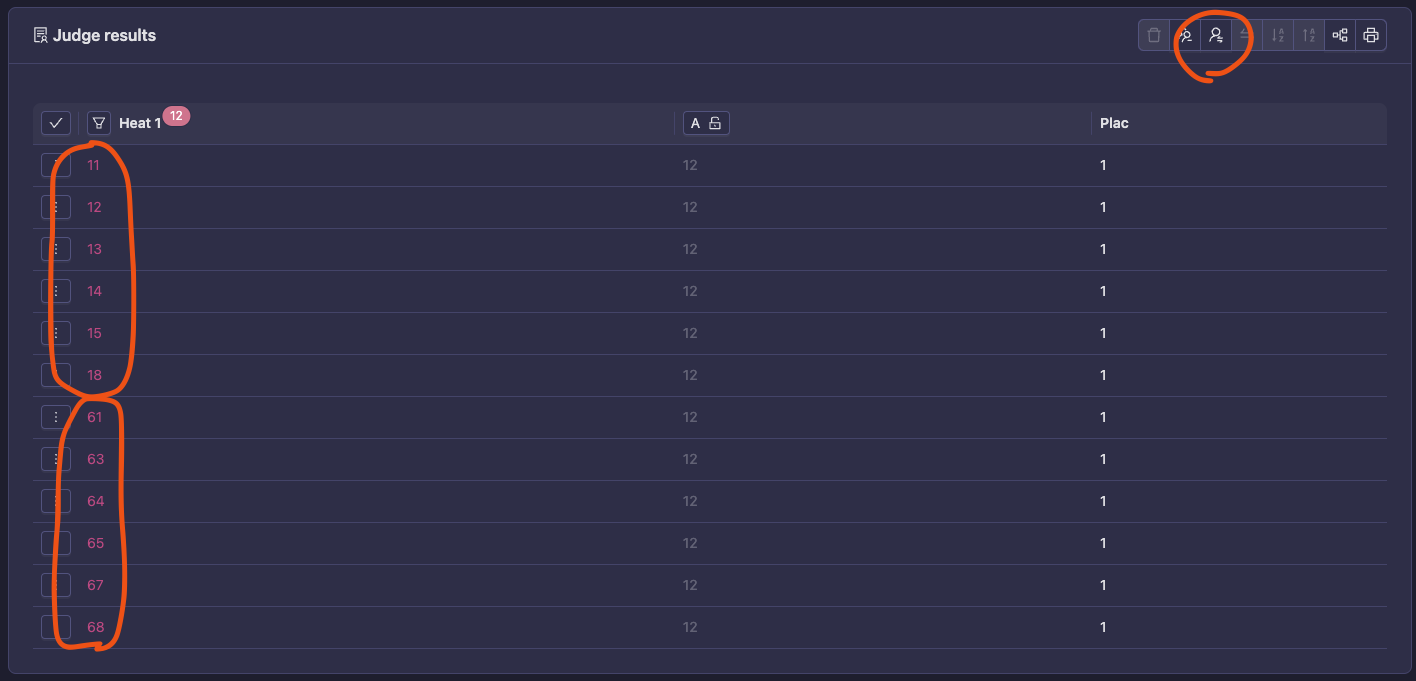
Jack’n’Jill setup
Use this guide for formats where prelims are judged by role and finals are judged as couples.
Prerequisites
- Event and competition already created
- Floors configured
- Classes page accessible
- You understand standard round lifecycle
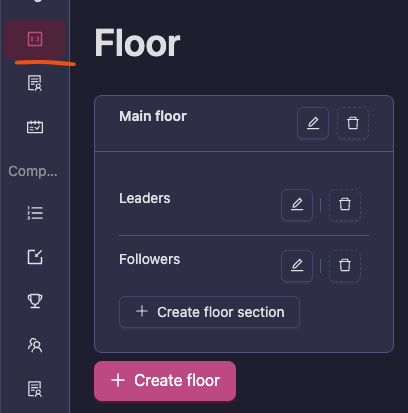
1. Create floor structure
Create floor(s) first so leader/follower rounds can share schedule logic.
2. Create class triplet per category
Create Jack’n’Jill classes as:
- Leader class
- Follower class
- Final couple class
Even final-only workflows should keep this structure.
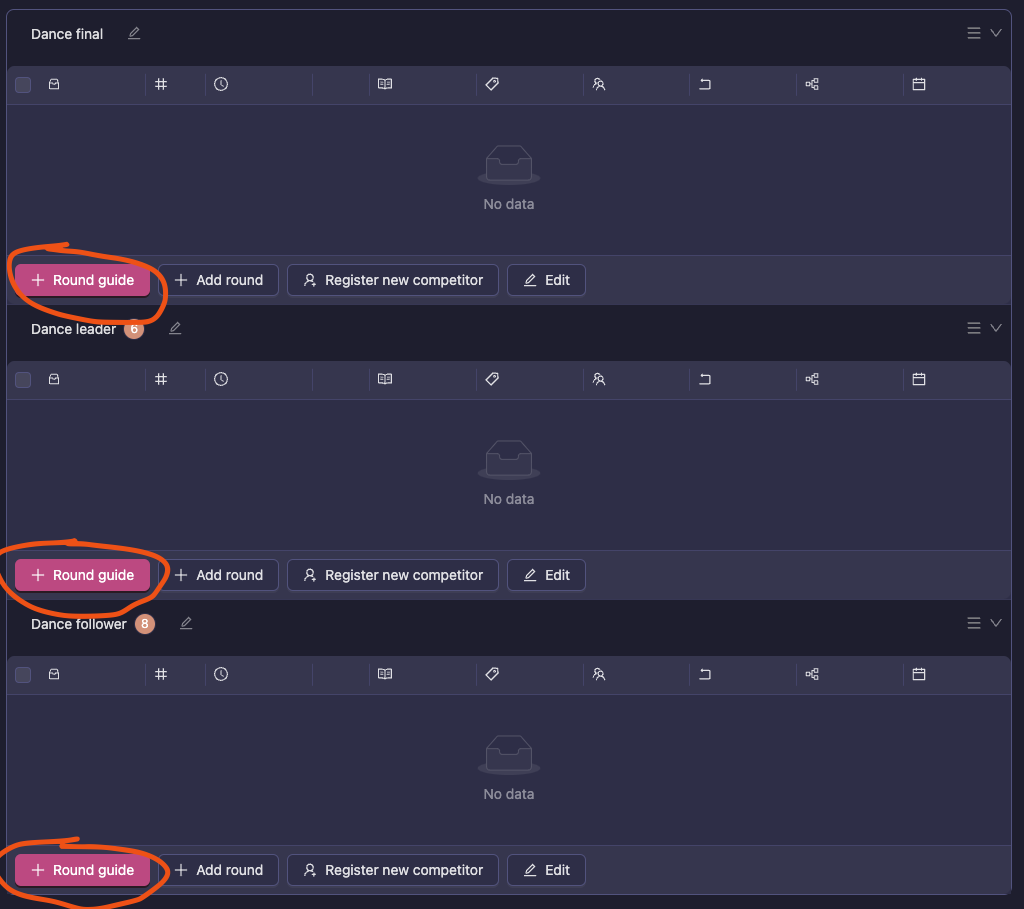
3. Run Round guide
For each class:
- Set federation class correctly
- Set floor mapping for leader/follower
- Confirm prelims do not include final rounds
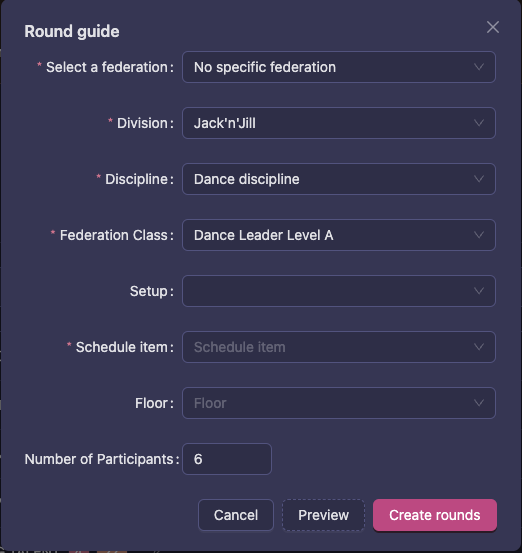
Example setup:
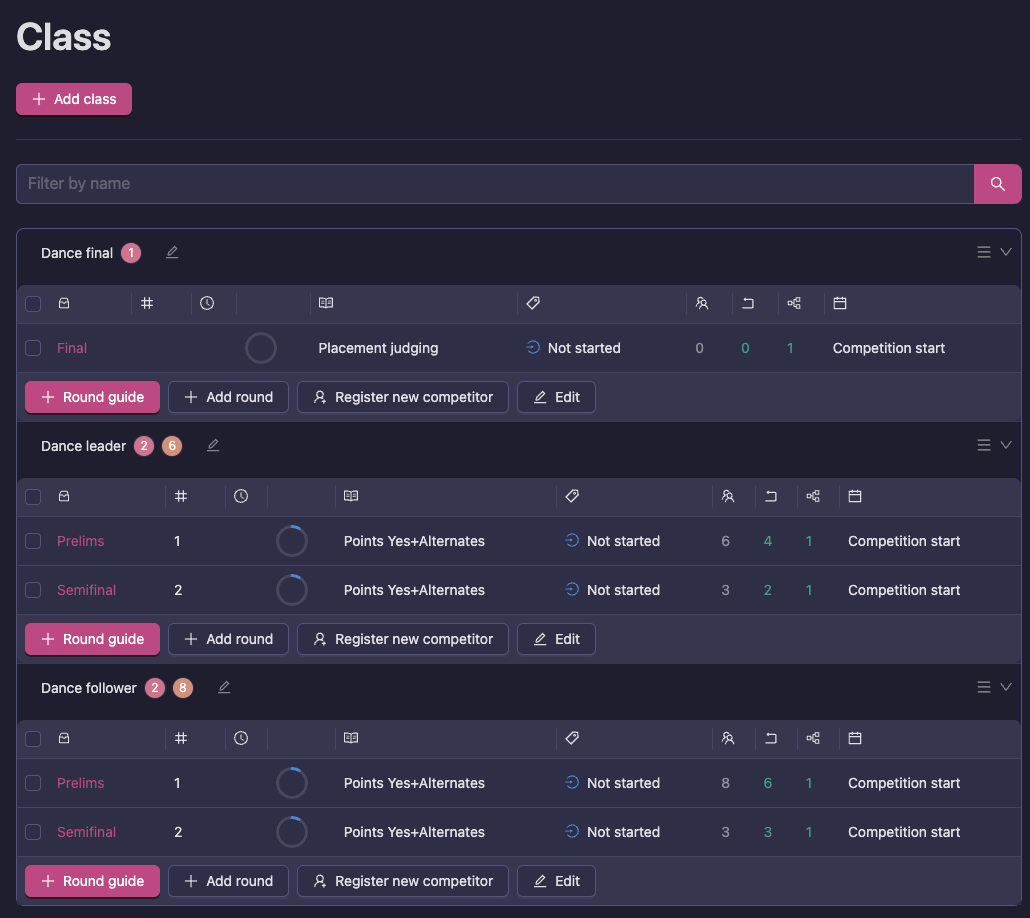
Recommended prelim settings:
- Priority:
Alternates - Judging type:
Yes + Alternates
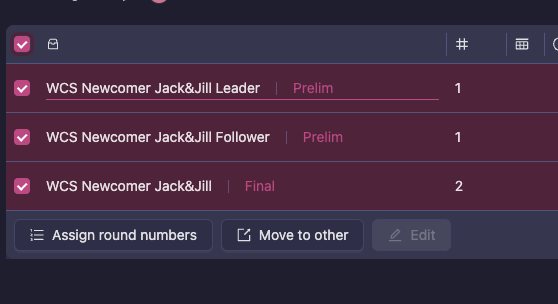
4. Build schedule and assign round numbers
After schedule placement, use Assign round numbers so leader and follower tracks align.
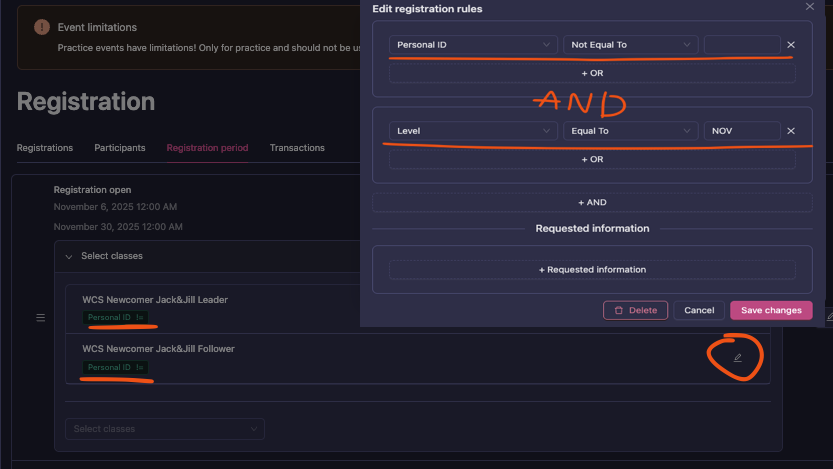
5. Configure registration
Add both leader and follower classes in registration periods.
For WSDC-style workflows, configure external ID support.
6. Judges and run-time execution
- Use one coherent judge panel across leader, follower, and final classes
- If chief judge is not ranking in prelims, use
Chief-Out - After prelims, merge/rotate to couples in Speaker